Description:
We have a Logical/Physical model with a table containing 50 columns. Is there a way to just change just the logical attribute order, and then have the physical column order automatically reflect that change?
Solution:
For this we will also need to understand the reason for even having the three different orders - Attribute, Column and Physical. If you start from logical side, all three orders are same. However, once you change any of them it will not impact as this feature allows users to have this flexibility. In case there is a need to reset. them you can you can reset the orders as follows:
This is how you can Reset the order. Determine what needs to be changed – Attribute/Logical, Column or Physical order e.g.
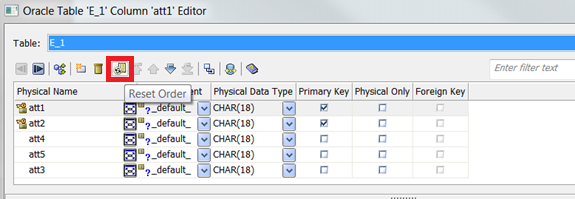
3. Click on Reset and you will see the two options as follows:
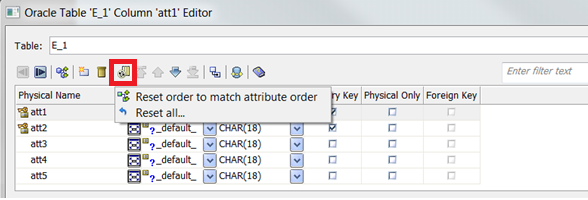
4. Select ‘Reset order to match attribute order’ to reset the order for just that one selected Table (E_1) in this case.
5. Select ‘Reset all..’ to reset all Columns for either just one Table or all Tables in the model:
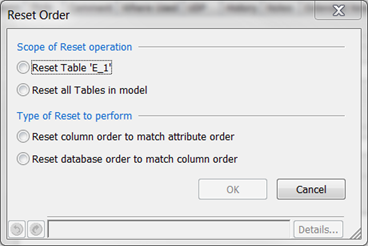
6. Note that Column order can also change the Physical/Database order as seen above. So, you can select either of the choices.
7. To change the Attribute order to match Column order, simply switch to the Logical side, go to Attribute Editor and try the same steps. Here you will get only one option as follows:
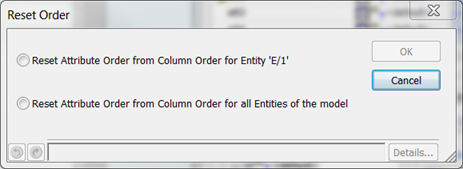
Reset changes the Attribute/Column/Physical order to match as used but the change is only till the time of setting. Later, if you add more Attribute/Columns in the middle or rearrange order, the Reset process will need to be repeated as required.

