Applies to
ApexSQL Doc
Summary
This article explains how to set up the SSAS database documentation process using ApexSQL Doc, a tool which documents SQL databases, SSIS packages, SSAS cubes, SSRS reports and Tableau server sites.
In order to set up the SSAS database documentation process, a connection to SQL Server must me established. There are two ways to connect to an SQL Server:
Clicking the Add SSAS database button in the Home tab or selecting the Analysis services tab and click the Add button:
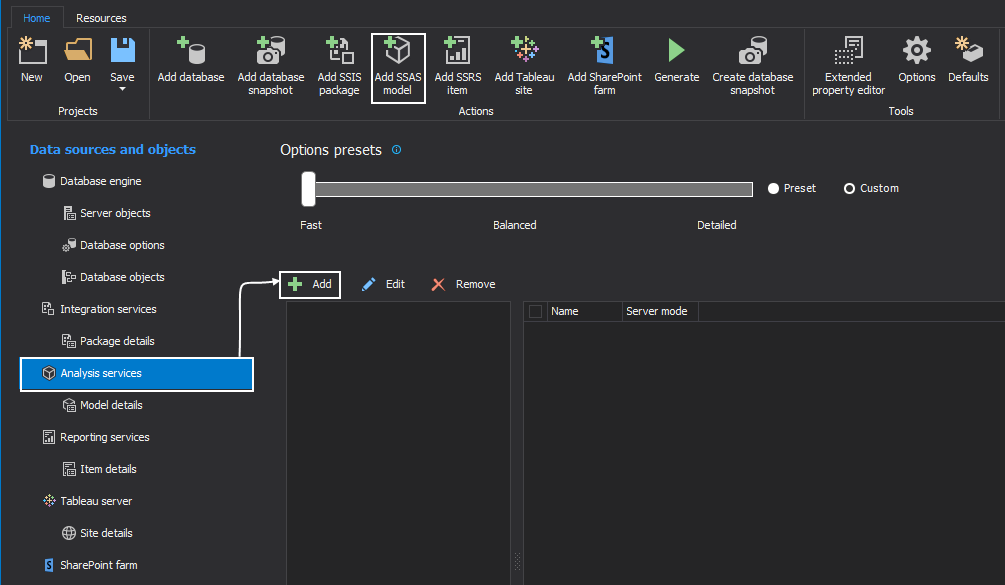
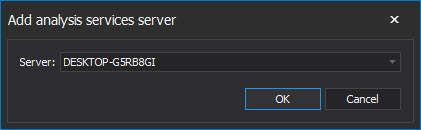
Selecting any of the option displayed above, the Add analysis services server dialog appears where the valid SQL Server name needs to be entered:
When the connection to Analysis services server is established, a list of SSAS servers will be displayed in the SSAS server section, and the whole list of SSAS databases of the selected SSAS server will be displayed in the Database section on the right side:
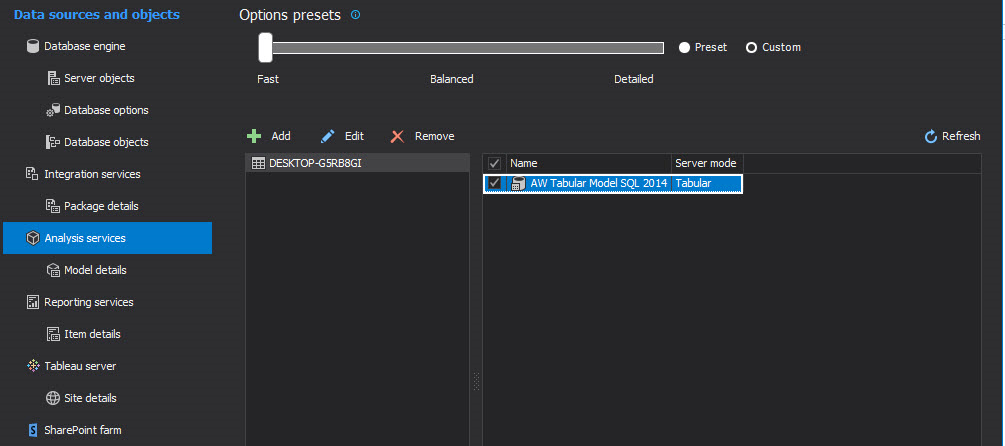
To proceed to the next step of setting up the documentation, select at least one database. In this article AdventureWorks2012 database will be used for documenting. The following documentation will be documented in the CHM format, by default settings, but it can be easily changed into Word, PDF or HTML by selecting a different output format.
The next step is to set up which options need to be turned on before documenting. That depends on what needs to be included in the documentation. First of all, the Database details tab needs to be opened. In that tab, the details are divided into two sections. Multidimensional and Tabular SSAS database details:
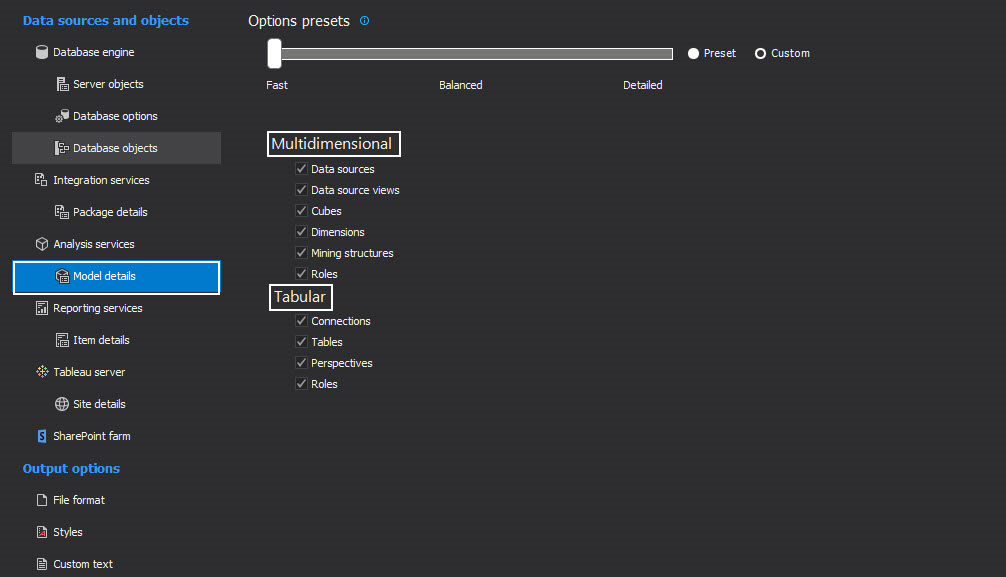
ApexSQL Doc allows users specifying exact SSAS database details for documenting. The following Multidimensional database details can be included in the documentation:
The following Tabular database details can be included in the documentation:
|
Quick tip: It is also possible to automate the process of documenting SSAS databases. For more information about automatization, follow this link |
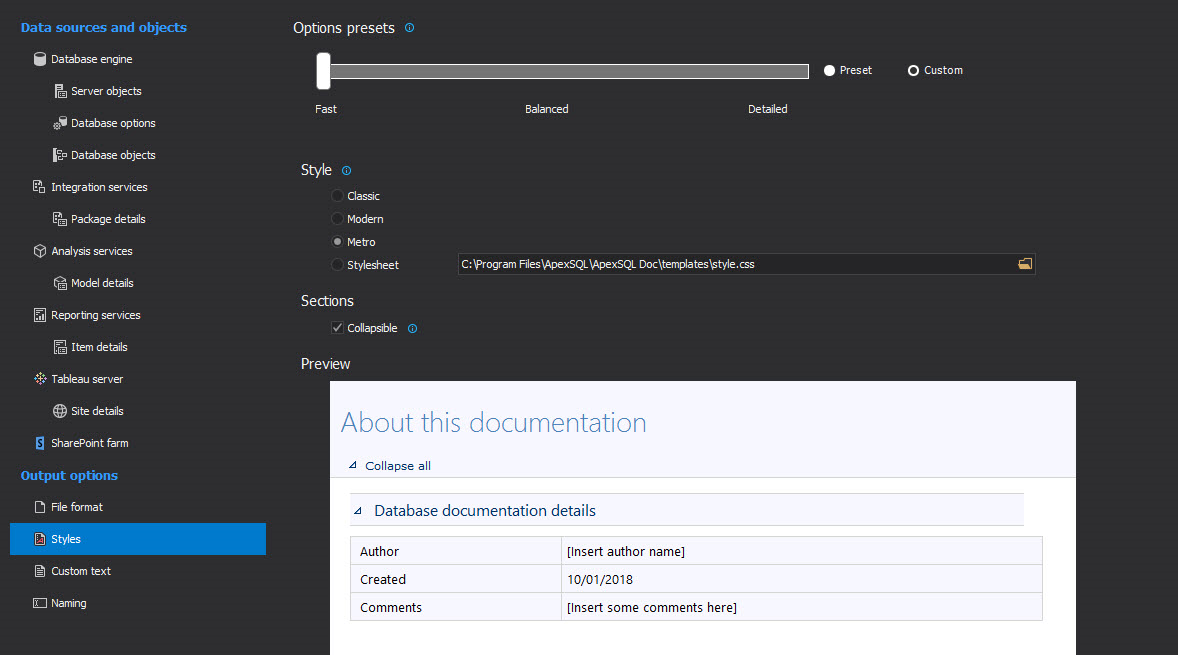
The customization of the documentation can be done using three predefined stylesheets besides the default stylesheet. The three predefined styles in ApexSQL Doc are: Classic, Modern and Metro.
However, there is also the Stylesheet option, which users can use to create their own personal SQL documentation layout. These options can be found in the Styles tab under Output options:
After the initial setup the documentation is ready to be generated. Click the Generate button to compile the documentation.
|
Quick tip: Documentation process of larger databases can time out eventually. In order to prevent that, set the compile time out value to a higher number in the option menu. |
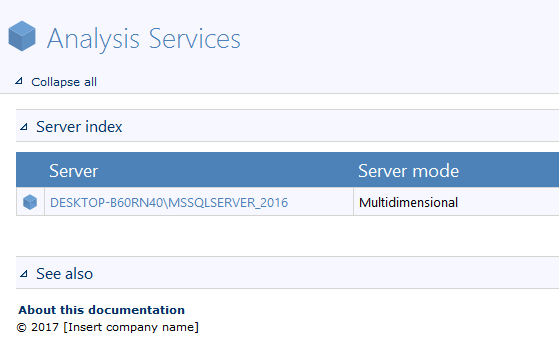
In the pictures bellow, the documentation of both Multidimensional and Tabular databases are presented in CHM format:


Q: Can I document Multidimensional and Tabular databases and have separate documentation for both in one document?
A: Yes, for that you must select multiple databases from different servers before generating the documentation.
Q: How do I make SSAS documentation using the command line application?
A: For more information about on how to automate SSAS cube database documentation follow this link.
Q: What are the required permissions needed to document SSAS databases?
A: When connecting to an SSAS server, ApexSQL Doc uses Windows authentication, and there are no special permissions required for documenting.
Q: What other output formats can SSAS documentation be generated in?
A: ApexSQL Doc can create documentation in 5 different output formats:


