Applies to
ApexSQL Doc
Summary
This article explains how to customize SQL database documentation using ApexSQL Doc predefined settings, or editing a css file.
Description
To be able to customize SQL database documentation using ApexSQL Doc, a connection to at least one SQL server must be established. After the connection is established, you may choose the documentation style clicking the Styles option, from the Output options, like shown in the image below:

| Important note: The Active scripting option for the current Security zone must be enabled, in order to generate a full preview for the output documentation style |
If the Active scripting option is disabled, the Preview section will not generate the full preview of the output documentation style, and the warning message will be shown, as in the image below:

| Quick tip: The Active scripting option is enabled by default in Windows. You need to enable it only if the security settings are not set to default, and if this option is disabled. |
To enable the Active scripting option, go to Control Panel, and choose Internet Options. Under the Security tab, choose the Internet zone which is used and click the Custom level button as shown in the image below:

In the Custom level security settings, scroll down to the Scripting settings, and set the Active scripting to Enable. Click the OK button and confirm the changed settings for the current zone, as shown in the image below:

To customize database documentation, a choice between one of the predefined output documentation styles (VS 2005, VS 2010 or Metro style) can be made, or choose the style sheet file to edit. The selected output style will be presented in the Preview section as shown in the image below:

| Quick tip: The predefined output documentation styles can also be edited, as there are separate css file for each one of them. |
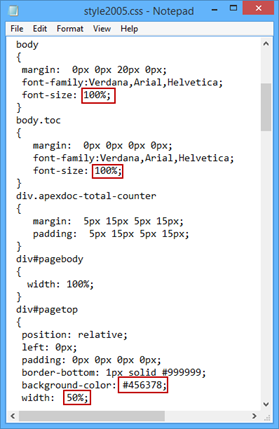
To change the defined output style settings, modify the css file in any text editor.
All css files are located in ApexSQL Doc installation directory, in the Templates folder (by default: C:\Program Files\ApexSQL\ApexSQLDoc2016\Templates)
As the css files are under the system protected folders, the best way to modify them is to make a copy of the file that needs to be modified, on another location (Desktop for example). Once the modification is finished, the saved file can be pasted into the Templates directory under ApexSQL Doc installation directory. Administrator privileges are needed for this task. Any changes made in the css file will be shown in the Preview section after deselect it and select it again.
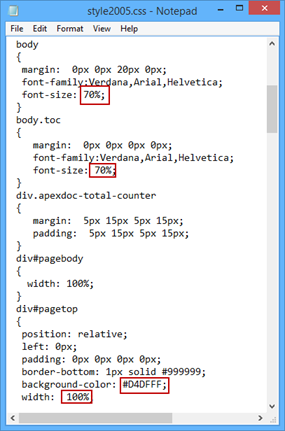
The Preview section before changes in the css file above:

After the changes are made, and saved file pasted in the Templates folder, the output documentation style will be generated as shown in the image below:



