SELECT
       MIN(TableName) AS TableName,
       ID,
       Name,
       lastname,
       Address,
       City
  FROM(
    SELECT
           'Table A' AS TableName,
           Customers.id,
           Customers.Name,
           Customers.lastname,
           Customers.Address,
           Customers.City
      FROM Customers
    UNION ALL
    SELECT
           'Table B' AS TableName,
           CustomersOld.id,
           CustomersOld.Name,
           CustomersOld.lastname,
           CustomersOld.Address,
           CustomersOld.City
      FROM CustomersOld)tmp
GROUP BY
         ID,
         Name,
         lastname,
         Address,
         City
HAVING COUNT(*) = 1
ORDER BY
         id;
For the Customers table:
 And the CustomersOld table:
 The script returns the following results:
 When the Name for ID=1 in the CustomersOld table is changed to John, so that the records become equal, SQL returns the following:
 When comparing data in a table, this method provides enough information to start with. However, it doesn’t provide any help with data synchronization – it has to be manual, record by record. Another disadvantage of this method is that SQL for each table needs to be modified, according to its structure. It also cannot be used on text, ntext, and image data types. To summarize – if several tables needs to be compared and synchronized – this method requires a lot of time and, due to the manual synchronization it requires, is very prone to errors.
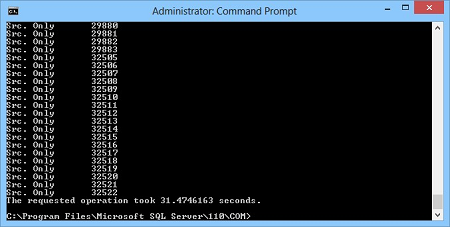
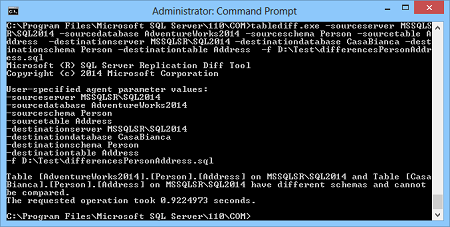
tablediff.exe -sourceserver SQLSERVER2016 -sourcedatabase AdventureWorks2014 -sourceschema Person -sourcetable Address -destinationserver SQLSERVER2016 -destinationdatabase AdventureWorks2016 -destinationschema Person -destinationtable Address -f e:\differencesPersonAddress.sql
ApexSQL Data Diff is a SQL Server data comparison and synchronization tool which detects data differences and resolves them without errors. It can compare and synchronize live databases and native or natively compressed database backups and generate comprehensive reports on the detected differences. In case the table or column names that need to be compared have different names, those can be easily mapped. For tables without primary keys and unique indexes, any column can be set to be the custom key used for the comparison.
To set up the process, please follow these steps:
Start ApexSQL Data Diff
Click the New button in the Project management window:

On the Source side:
On the Destination side:

Click the Compare button in the bottom-right corner of the New project window
After the comparison process is finished, results will be shown in the Main grid and by default, all objects and their corresponding rows are checked:

Check/uncheck the desired objects/rows that should be included/excluded in the synchronization
In the Home tab, click the Save button to save the project file that will contain information about selected objects and options:

The saved project file will be used later for the automation of this process.
In the Home tab, click the Synchronize button to start the Synchronization wizard

Under the Output options step, choose the Synchronize now action, in order to perform direct synchronization to the destination database:

In the last step of the Synchronization wizard, potential warnings and execution actions will be shown:
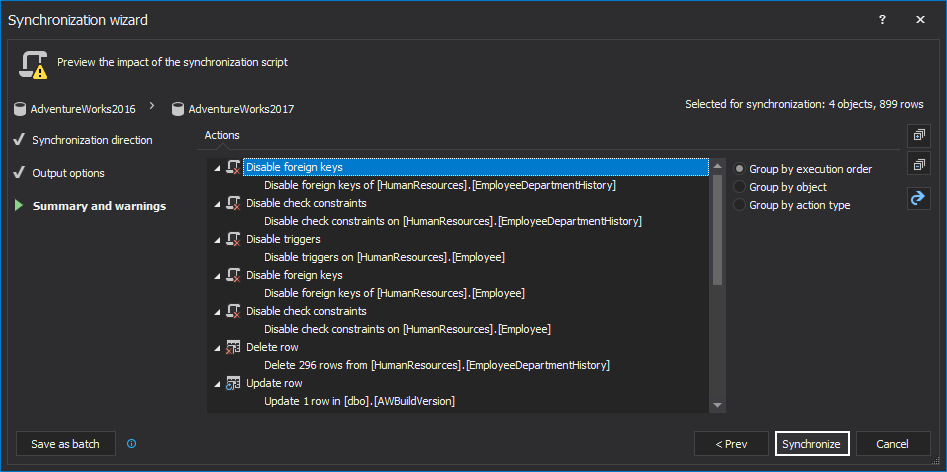
Click the Synchronize button in the bottom-right corner
Once the synchronization process is over, information about the successfulness of the synchronization process will be shown in the Results window:
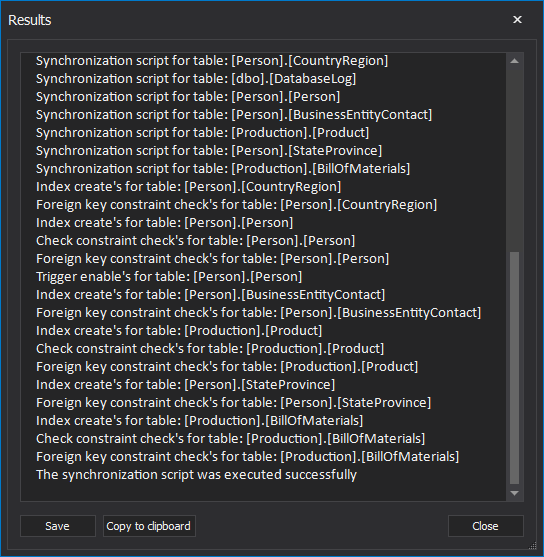
After the initial synchronization was executed successfully, let's move on with automating the process by using the created project file in the PowerShell script.
SQL Server authentication was used in this example, but its login password is encrypted with the saved project file. Find out more about ways of handling login credentials.
In the first part of the PowerShell script, ApexSQL Data Diff location and its parameters will be set:
#ApexSQL Data Diff location and its parameters
$datadiffLoc   = "ApexSQLDataDiff"
$datadiffParams = "/pr:""MyProject.axdd"" /sync /v /f"
The next part will call ApexSQL Data Diff and process out its parameters:
#initiate the data compare and sync process
(Invoke-Expression ("& `"" + $datadiffLoc +"`" " +$datadiffParams))
As an addition to this PowerShell script, the utilize “no differences detected” return code can be set, so that on each data comparison it will check if there are any data changes to synchronize and if not, the further process is aborted.
After the PowerShell script is created and everything is automated as needed, the process can be scheduled in one of the several ways. Find out more about ways of scheduling ApexSQL tools.
There’s no need to manually compare and synchronize data anymore. Use SQL data comparison tool ApexSQL Data Diff to set all synchronization options, map the tables and columns with different names, create custom keys for comparison in the GUI. Schedule it to run unattended and all that needs to be done afterwards is to check SQL Server job history in the morning.

