The applications used by travelling sales representatives, or other field workers – delivery drivers, visiting nurses, etc., are designed to collect data from remote locations and then send it to a data center. Also, the data from the data center, occasionally need to be sent back to these remote locations, to keep them up to date.
For example, whenever nurses pay a visit to a patient, they enter the information about the visit into the database on mobile devices. At the end of the day, all these entries created during the day are sent to the central database in a hospital. After that, the nurses can synchronize mobile devices with the database in the hospital data center, so they get the new information about their patients, and also, the information about any new visits they need to make the next day.
In the scenario such as this, there’s constantly a need to synchronize the information from a mobile device to a central database.
In the following example, two databases are used:
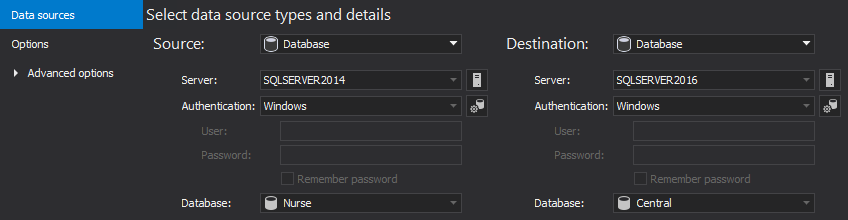
In the Data sources tab, select the server where the Central database is located as source and select the server where the Nurse database is located as the destination:
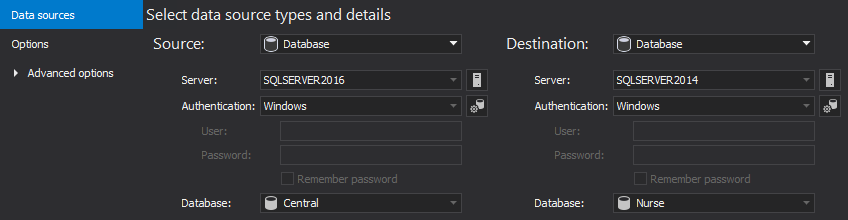
Click the Compare button
Once the comparison is done, the Visits tables, along with its corresponding data, will be shown:
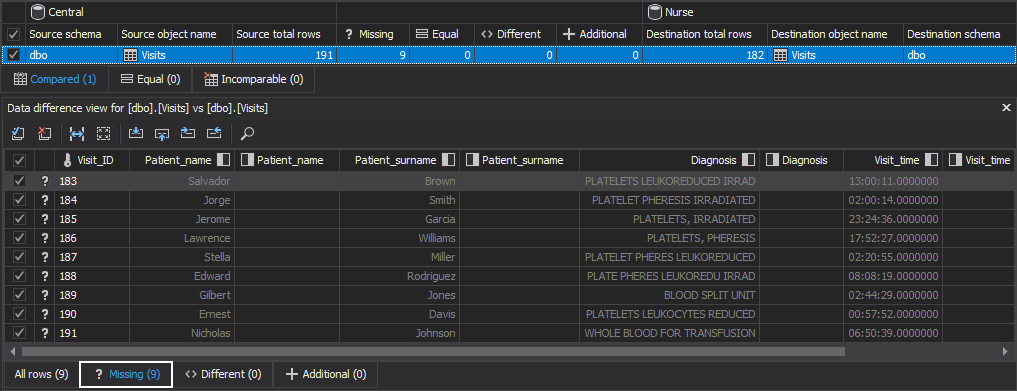
The records inserted into the Visits table, from the Central database, are shown in the Missing tab.
Click Save button from the Home tab, to save the current settings into a project and perform comparison and synchronization quickly and easily next time:

Click the Synchronize from the Home tab to initiate the Synchronization wizard:

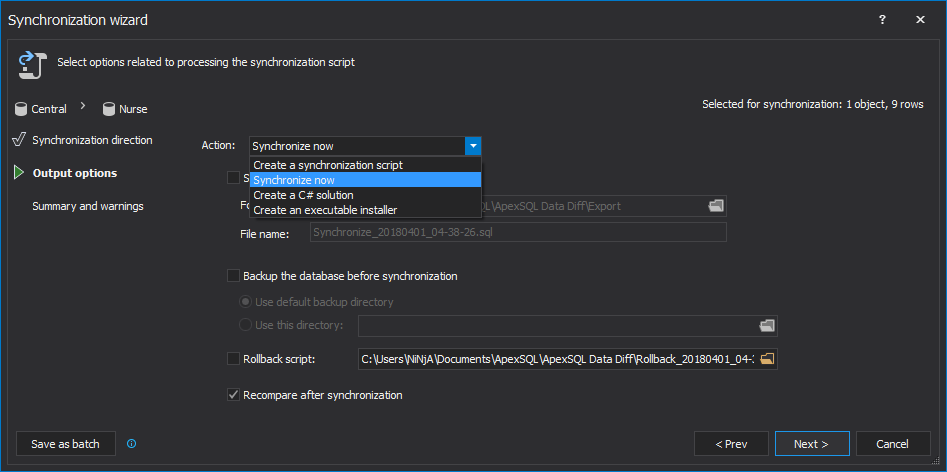
In the Output options step of the Synchronization wizard, select the Synchronize now as an action:
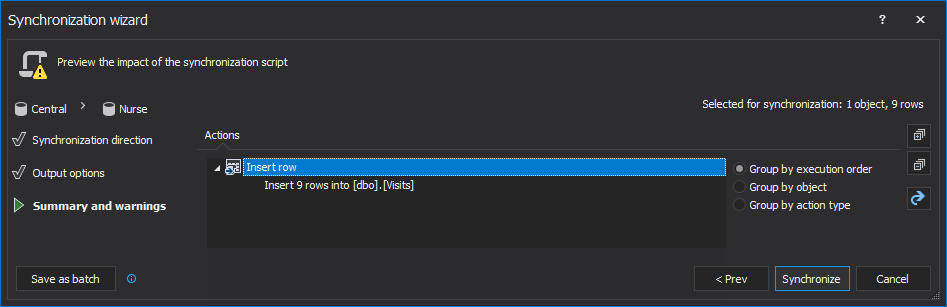
Check out the summary of actions in the Actions tab that will be performed:
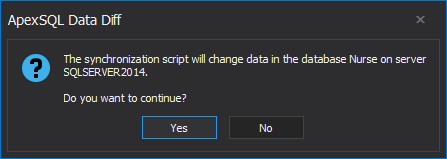
The prompt message will be shown to provide information that synchronization script will be executed on the Nurse database. Click the Yes button to perform synchronization:
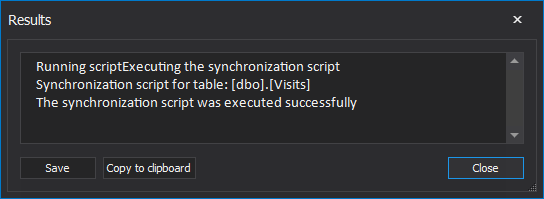
When the destination database synchronization is complete, the Results window will be shown with the following messages:
If in the evening, the records that the nurses added during the day to their databases need to be synchronized back, in the central database, the steps are similar:
In the Data sources tab, set the Nurse database as the source and Central database to be the destination:
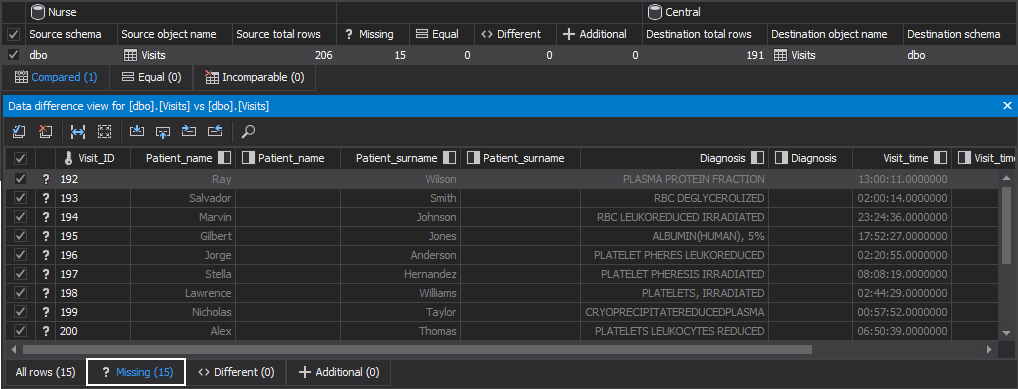
Select the table into which the records have been added during the day. The records are shown in the Missing tab:
Click the Save button from the Home tab, to save the current settings into a project and perform comparison and synchronization quickly and easily next time:
Click Synchronize button from the Home tab:
Now that both projects are saved, the synchronization processes can be automated by creating two PowerShell scripts:
The first PowerShell script will automate synchronization of records from the Central database to the Nurse database, before the morning shift starts:
#provide tool’s location, define date stamp variable, and tool’s parameters
$appLocation   = "ApexSQLDataDiff"
$dateStamp = (Get-Date -Format "MMddyyyy_HHMMss")
$appParameters = "/pr:""CentralToNurse.axdd"" /sync /v /f /rece"
#initiate the comparison of data sources
(Invoke-Expression ("& `"" + $appLocation +"`" " +$appParameters))
$dateStamp = $LASTEXITCODE
The second PowerShell script will automate synchronization of records from the Nurse database back to the Central database, after the shift is over:
#provide tool’s location, define date stamp variable, and tool’s parameters
$appLocation   = "ApexSQLDataDiff"
$dateStamp = (Get-Date -Format "MMddyyyy_HHMMss")
$appParameters = "/pr:""NurseToCentral"" /sync /v /f /rece"
#initiate the comparison of data sources
(Invoke-Expression ("& `"" + $appLocation +"`" " +$appParameters))
$dateStamp = $LASTEXITCODE
After both PowerShell scripts are created and the whole process is automated, it can be scheduled in different ways. Find out more about different ways of scheduling ApexSQL tools.
Comparing and synchronizing SQL Server databases on remote locations with a SQL Server database in the data center using ApexSQL Data Diff, can be done regardless of the versions of SQL Servers used on the remote and central locations, with no programming knowledge and under complete control, down to the row level.

