In previous article, it was explained how to automatically compare and synchronize a shared SQL script folder with SQL Server database data, while in this article the solution for the reverse process will be explained, in case when data changes needs to be pulled from a shared SQL script folder to SQL Server database. Since a “poor man’s source control repository” is already set up and a SQL script folder already contains data changes commits from other developers, it’s time to set the reverse process in order to pull data changes from SQL script folder to a developer’s local database.
As described in the above-mentioned article, a created system uploaded all data changes that developers made on their local databases are uploaded to a shared SQL script folder.
Now, let’s say that one or more developers were out of office for some time (vacation for example) and during that time the system was working for them, so they’ll be “welcomed” with brand new data changes. Also, all created reports and outputs will be date/time stamped, so they can be reviewed on demand if there is a need to check what others have done in the meantime and to catch up with the team.
So, now a new challenge is to keep all developer databases updated with latest data changes, which are located in the shared SQL script folder:
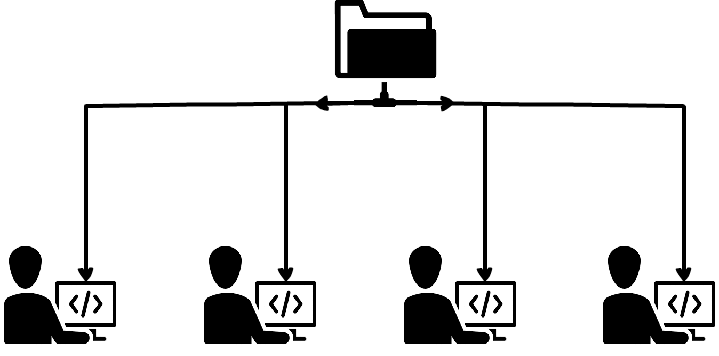
Going forward, the system should be also capable to filter data before the comparison process, so that only relevant data changes are included in the comparison and synchronization process. In this way, time saving will be achieved, as it won’t be needed to compare entire databases, rather than only desired data changes made in specific time period. At the end, the complete process should be able to be run unattended, automated, scheduled, or to run it on a click.
As in previous article, a third-party tool – ApexSQL Data Diff, will be used in this example as well, as it’s a tool that can achieve the above-mentioned reverse process of pulling data from a SQL script folder, compare and synchronize it with developer database. ApexSQL Data Diff can compare and synchronize data between source control projects and backups and it can create comparison reports. The whole process can be automated via the CLI and it can be scheduled and run unattended at desired time.
The following part of the article will describe how to set up scheduled comparison that will be run on each 20 minutes and if a tool detects any data differences between shared SQL script folder and developer database, it will perform data synchronization on all developer databases, along with creating data comparison reports with date/time stamp. Also, the output file for each process will be created for later review.
Automation script will be created for automating the complete system, along with a text file that will be iterated, it will be created in the automation part as well, containing the complete list of all developer servers and databases.
As in the above-mentioned article, installation topography is the same one as for ApexSQL Diff and how it was explained in the article on how to automatically compare and synchronize SQL Server database objects with a shared script folder.
Before going forward with system setup, let’s check if the following requirements are met:
After all system prerequisites are fulfilled, let’s move on with setting up the complete system in the ApexSQL Data Diff’s GUI:
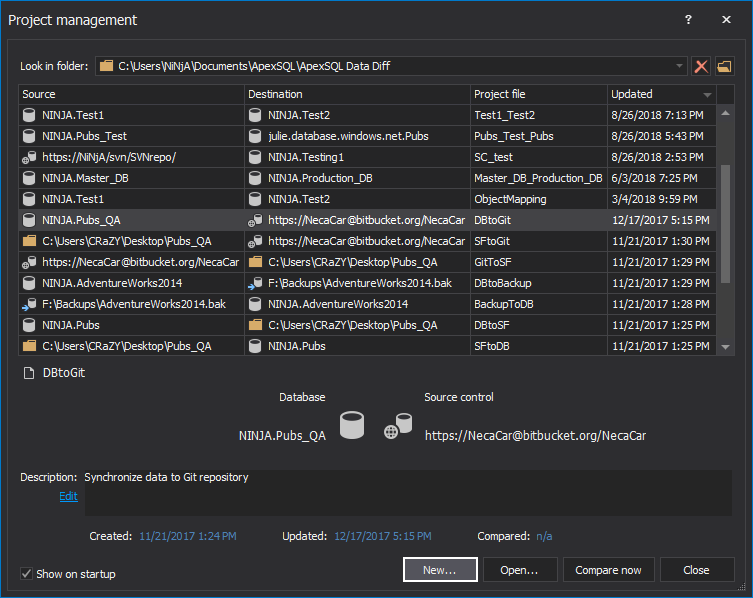
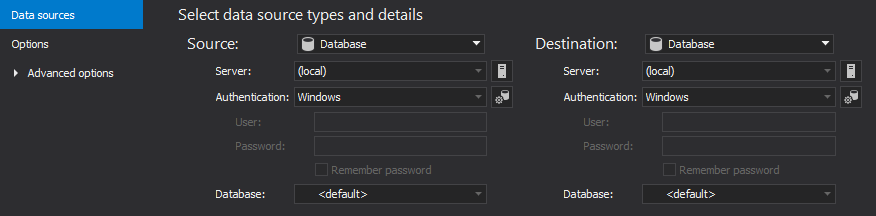
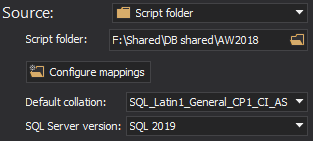
Default collation and SQL Server version will be automatically loaded, based on the previously set ones.
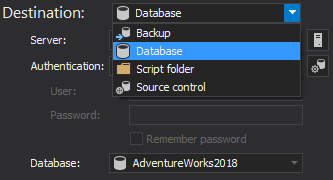
As for the Authentication options, Windows authentication is used in this example, but SQL Server authentication can be also set, along with three new Azure Active Directory authentication options.
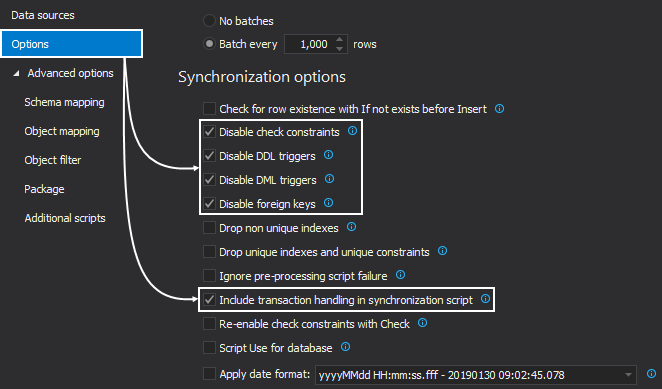
If there is a need, check any other desired comparison or synchronization options.
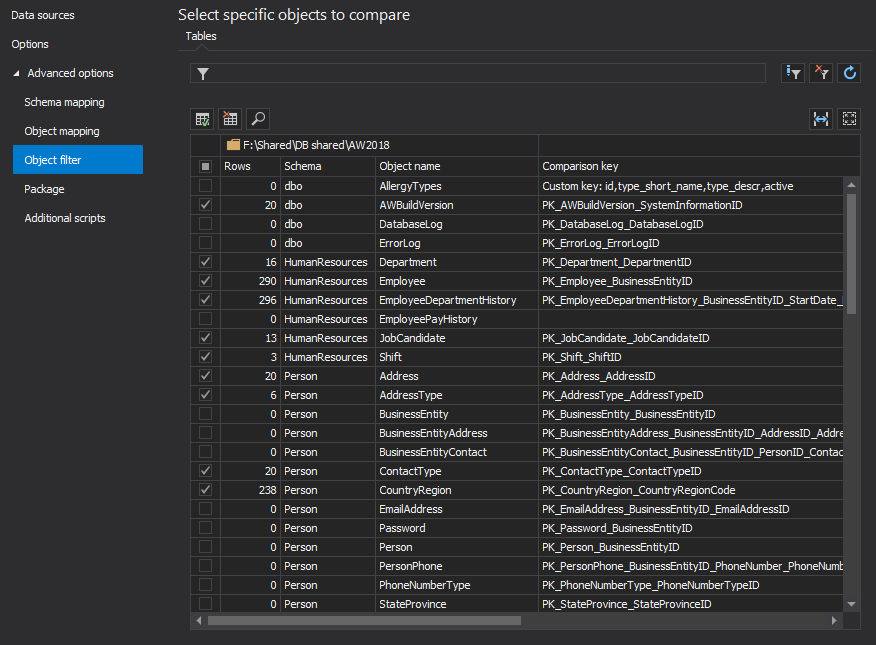
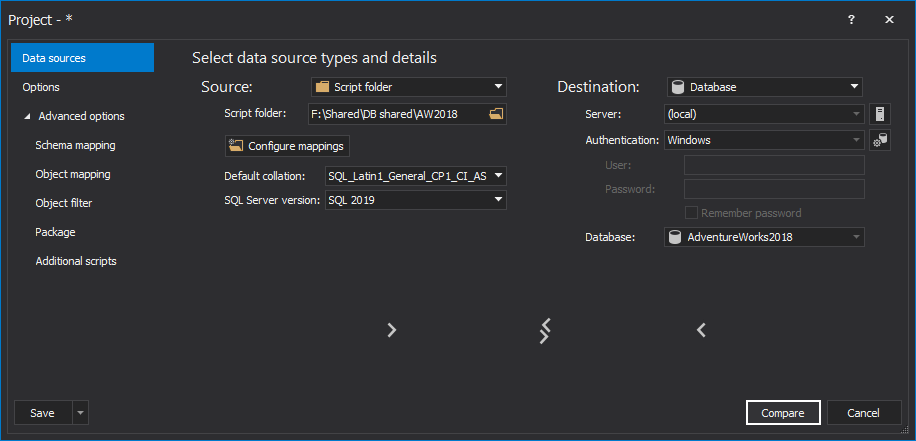
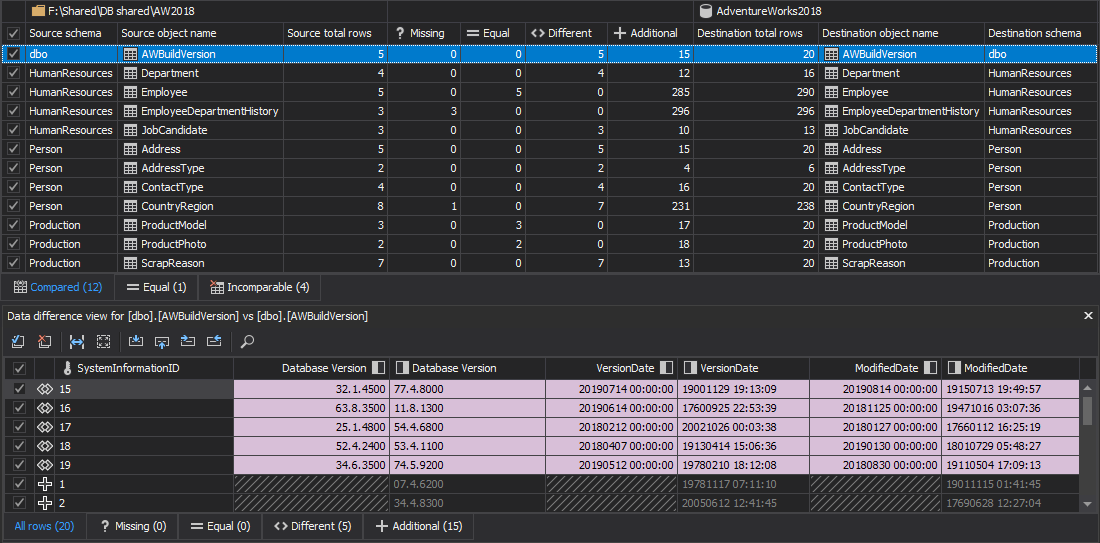
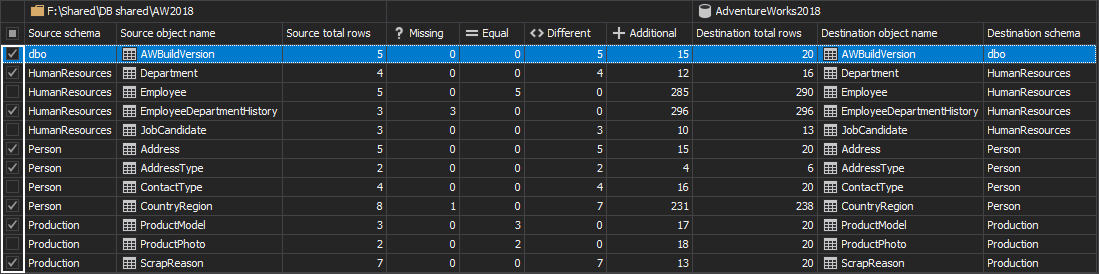
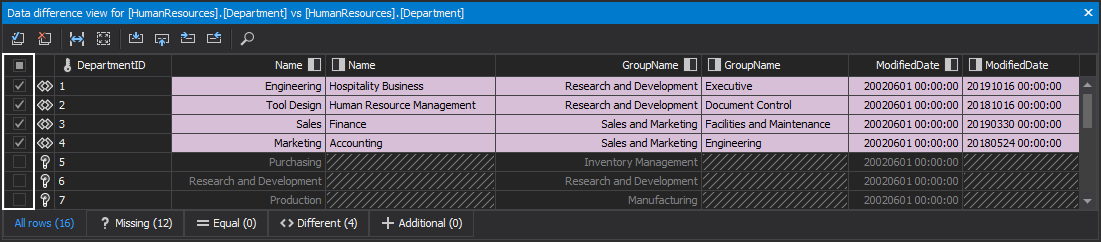
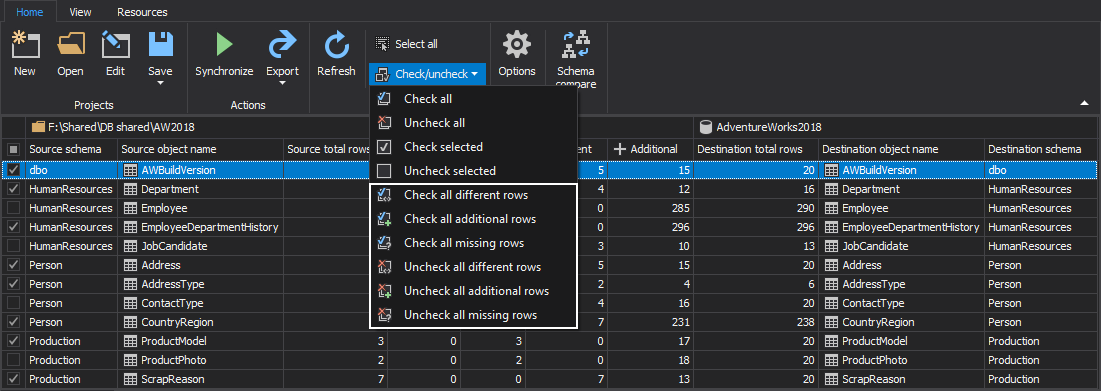

The saved options in this project file can be used in the automation script for all developer databases, since there will be a text file with complete list of all developer servers and databases that will be used to override the destination data source (developer database) that was set in this saved project file.

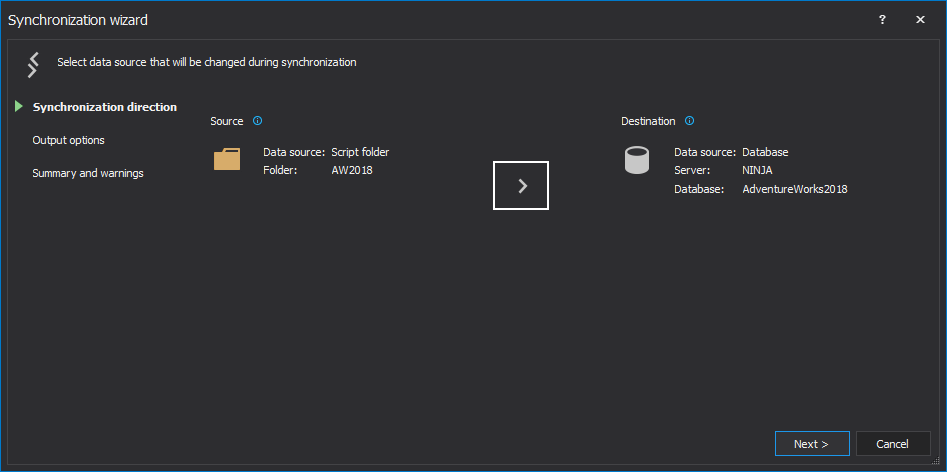
If needed, direction can be changed with a click on the arrow button and then it will be from right to left.
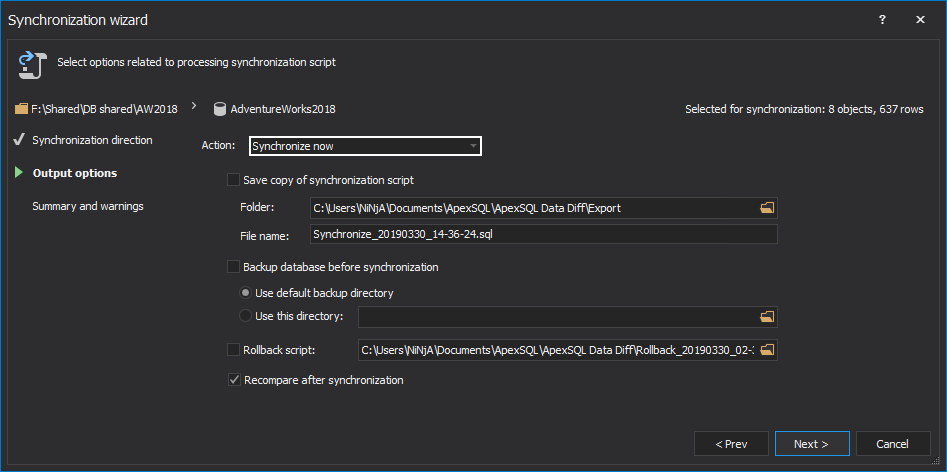
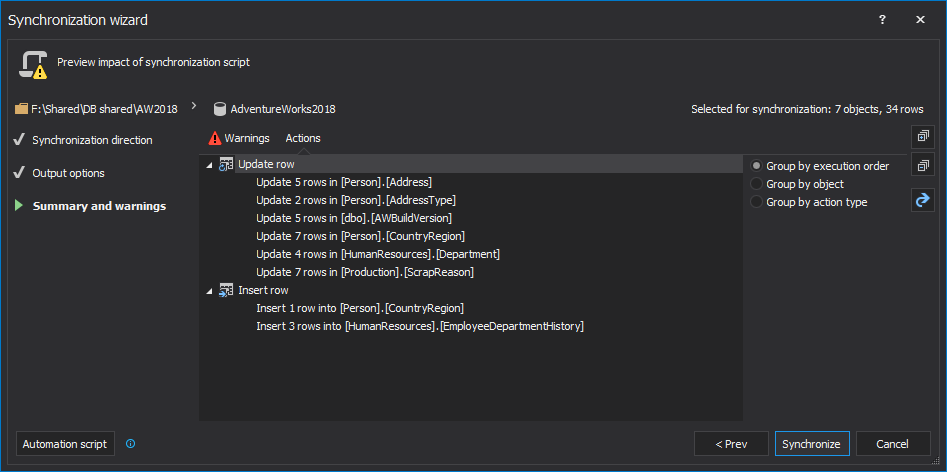
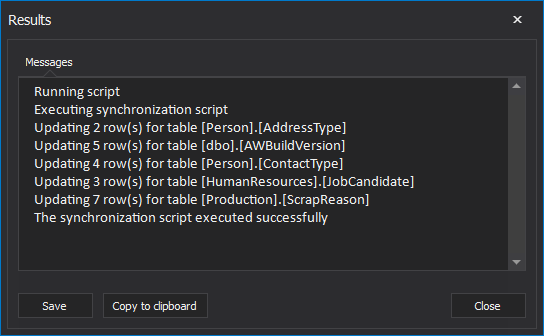
The next part in this article, after all prerequisites are set including the saved project file and initial synchronization of a developer database data changes, is to create a text file that contains all servers and databases from all developers.
In each line, this text file should contain server and database name for each developer. The automation script will go through each line and system will initiate the comparison and synchronization for each one to synchronize them with a shared SQL script folder:
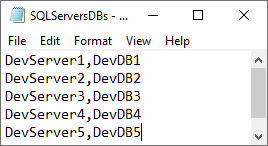
As it was mentioned above, Windows authentication was used in this example, so there was no need to provide login credentials, but if there is a need to handle this differently, check out the article about ways of handling database/login credentials.
Now is the time to create the PowerShell script, which will be used in this system to iterate thru the above saved text file with all servers and databases from all developers, perform synchronization where differences are detected and create date/time stamped comparison reports and execution outputs.
Let’s move on with reviewing and explaining the PowerShell script parts that are the most important and that need to be edited, in order to make the system work.
From the link below at the end of this article, the full PowerShell script can be downloaded and set up based on user’s needs. Furthermore, check out the explanation in the Appendix A for the root folder set up, creating folders automatically, saving outputs and setting up locations.
The first step in the PowerShell script is to provide ApexSQL Data Diff’s installation path and location of the server and database text file:
#installation path of ApexSQL Data Diff and server and database
 file locations
$dataDiffLoc  = "ApexSQLDataDiff"
$serverDbsLoc = " SQLServersDBs.txt"
Now, date/time stamped variable needs to be defined with desired format, along with the ApexSQL Data Diff’s CLI switches, and return code variable:
#date/time stamp variable, ApexSQL Data Diff's switches, and return
code variable
$dateTimeStamp  = (Get-Date -Format "MMddyyyy_HHMMss")
$dataDiffSwitches = "/s1:""$server"" /d1:""$database""
 /pr:""DevDBSync.axdd"" /rts:m d /ot:html /dhtmo:d co ro dr /on:
""$dataRepLoc\DataRep_$dateTimeStamp.html"" /out:""
$dataOutLoc\DataOut_$dateTimeStamp.txt"" /sync /v /f"
$returnCode = $LastExitCode
The next part is to create a function that will go thru the text file that contains servers and databases of all developers and to run ApexSQL Data Diff’s CLI switches for each line in the file:
#function to go through each server and database, and execute
ApexSQL Data Diff's CLI switches
foreach($line in [System.IO.File]::ReadAllLines($serverDbsLoc))
{

    $server   = ($line -split ",")[0]
    $database = ($line -split ",")[1]

#call ApexSQL Data Diff to run the data comparison and synchronization
process
    (Invoke-Expression ("& `"" + $ dataDiffLoc +"`" " +$dataDiffSwitches))

}
If there is a need, there is a different way to handle any possible outcome. Check out the article on utilizing the “no differences detected” return code to find out how to handle different outcomes.
To add a bit more on improving this whole system and get notified when any change in system occurs, whether if it’s a successful synchronization or an error occurred, an e-mail system of notification can be set. By adding e-mail system of notification, an e-mail will be sent to all developers from the list, along with the notification of success or fail, with attached comparison report and execution output that can be used for reviewing changes or errors further on. Check out the article on how to setup an e-mail alert system for ApexSQL tools, to learn more about it.
If this e-mail system of notification is set, two kind of e-mails can be got with their corresponding subjects and here is a short explanation:
For example, let’s say that an e-mail was received with the second subject, which indicates that error occurred. If the attached execution output file is opened the following can be spotted:
An error occurred during the application execution at: 03302019_132635.
Return code: 6
Error description: Switch /backup is missing its dependent switch /synchronize
Return codes for each tool can be found in their own CLI help, but they can be also found in the article about General usage and the common Command Line Interface (CLI) switches for ApexSQL tools, where the complete list of return codes is explained, along with other useful information.
By further examining the PowerShell script, it can be noticed that the /synchronize switch is missing and it’s needed to perform direct synchronization on a developer database. In this case, if the article about ApexSQL Data Diff Command Line Interface (CLI) switches is reviewed, it can be noticed that when the /backup switch is used to backup developer database, before the synchronization, the /synchronize switch must be provided as its dependent CLI switch.
After the PowerShell script for automating system is completed and all desired additional setups are made, one more thing can be added to improve this system furthermore – ability to run the system unattended, by scheduling the complete process of synchronization developer databases with a shared SQL script folder. Check out the article about ways of scheduling ApexSQL tools to learn more about it.
Since the complete system was set and time passed by, there were several system executions and therefore system outputs were created in process of synchronizing developer databases. To locate system outputs, check out their locations in Appendix A. Once located, any developer can access them and if there is a need to check a specific comparison report, the DataReps folder should be opened:
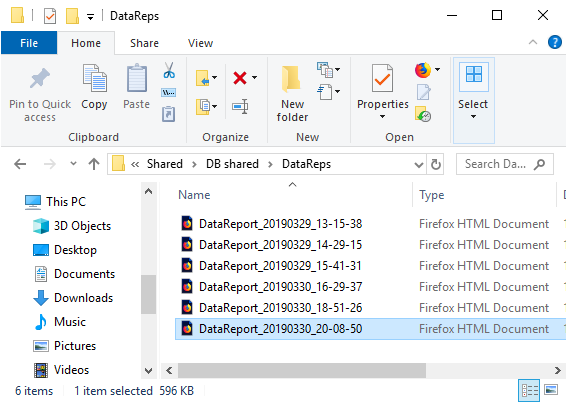
Here, a developer can locate desired comparison report by its date/time stamp and open it. When a Tables section is expanded and a table name is clicked, the Data section will be expanded automatically where a developer can review desired database data changes:

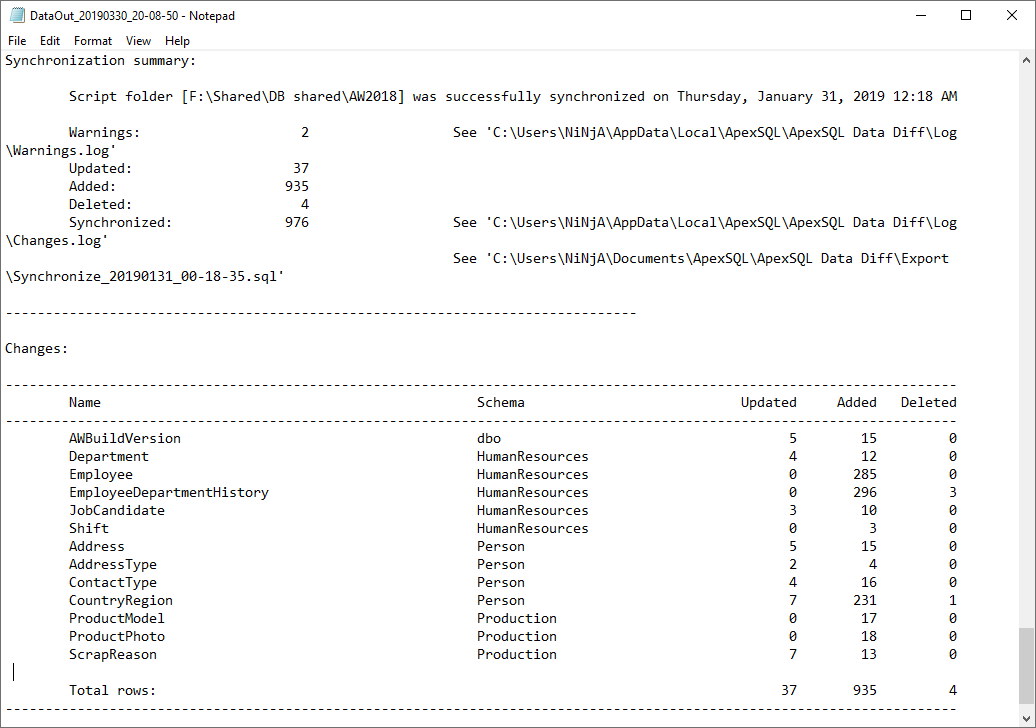
Furthermore, a developer can review execution output that contains complete information of comparison and synchronization, or if error occurred during the execution. To check out execution outputs, open the DataOuts folder:
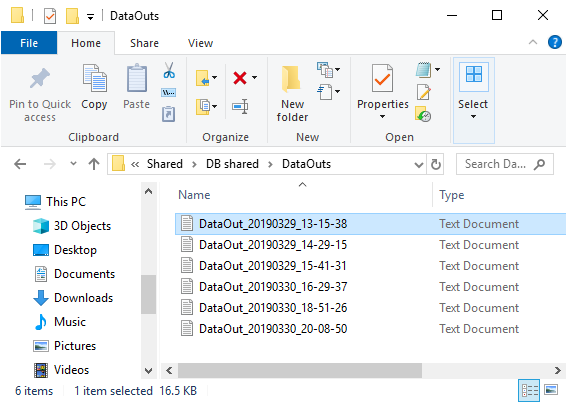
As for the comparison reports, the execution outputs are also date/time stamped, and a developer can open a desired one in which the complete execution process can be reviewed:
Please download the script(s) associated with this article on our GitHub repository.
Please contact us for any problems or questions with the scripts.
First thing is to define a root folder of this automation system, along with location of the comparison reports and execution outputs:
#root folder
$folderRoot = \\host\Shared SQL script folder\AutoSF
|
|

