Resolution 1: For Hybrid Environments
To resolve this issue the target archive needs to be disabled, purged and recreated. The process to do this is as follows
- Remove litigation hold from the mailbox (Wait 60 mins after doing this before proceeding)
- Disable the Archive Mailbox, can be done within the M365 Admin or using Powershell
- Disable-Mailbox -Identity <username> -Archive
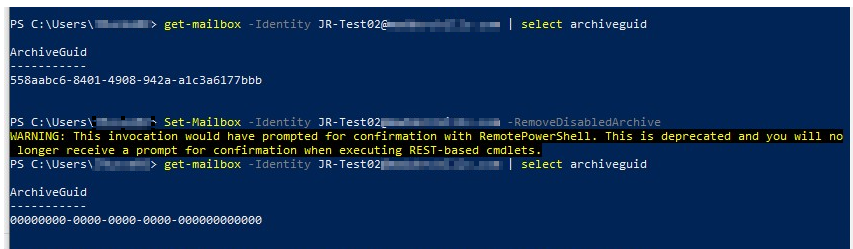
- Purge the Archive - Set-Mailbox -Identity <username> -RemoveDisabledArchive
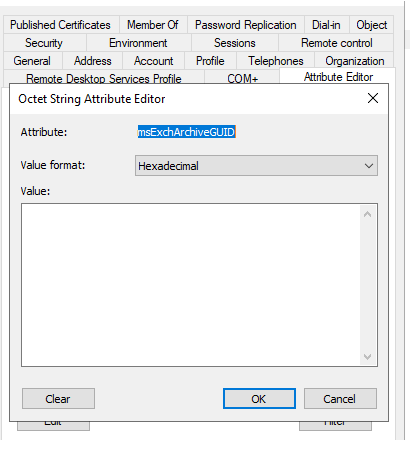
- Clear the msExchArchiveGUID from the target account in the target AD Domain
- Sync those changes to Azure by running a delta sync in AADConnect
- Enable the Archive of the account in O365 - Enable-Mailbox -Identity <username> -Archive
- Confirm the archive is created with a new guid - get-mailbox -Identity <username> | select archiveguid
- Go to ODM, Accounts, select affected account for that mailbox, Discovery, Refresh Selected
- You can now run the Archive migration task and the task will run successfully.
Resolution 2: Cloud Only Environments
The archiveguid should never be the same in this scenario. If the archive was created after the ODM accounts discovery task there is a possibility this error could be seen in the ODM Events. To resolve the issue, perform the following steps within ODM.
- Access the Accounts module
- Select the impacted account(s)
- Click Discovery and choose Refresh Selected Accounts
- Create and run a new Mailbox Migration