First, set up the Mart Server:
Enable SSL for Tomcat
SSL enables you to access the Mart through a secured connection. You can enable SSL for Tomcat--the default web server, when you are installing the Mart for the first time.
Follow these steps:
SSL is enabled for Tomcat and a security certificate is created. You must install this security certificate on all the computers from where you want to access the Mart.
The Erwin Mart Configuration dialog appears.
The Erwin Mart Administrator home page appears and displays HTTPS in the address bar.
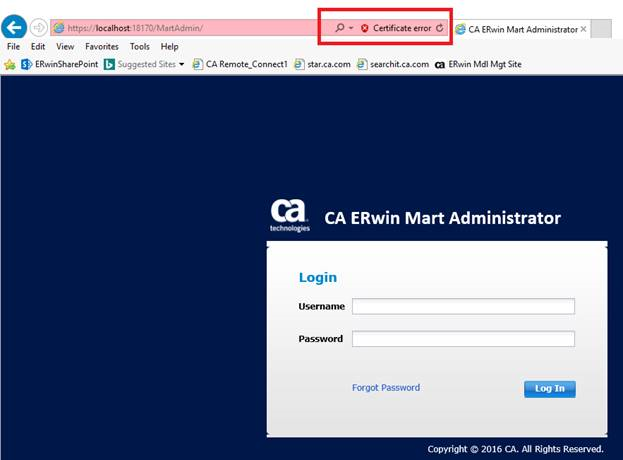
Figure 1. Please ignore the Certificate Error in the Mart Administrator, that is expected. The SSL certificate we include in the Mart is not from a vendor who provides authenticated certificates, that certificate is created by erwin, Inc. and it is not a universal “trusted certificate” that the browser checks.
Second, set up the erwin clients:
Connecting to the mart using erwin scenario (client side).
The SSL certificate must be installed. That is a one-time process.
Go to File | Mart | Connect and check on Use SSL.
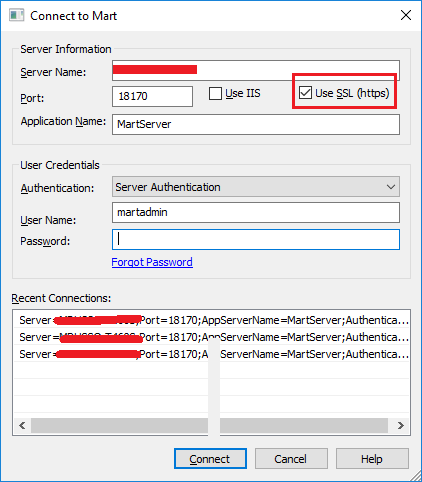
Figure 2.
Press Connect and a pop up message appears requesting to install the security certificate.
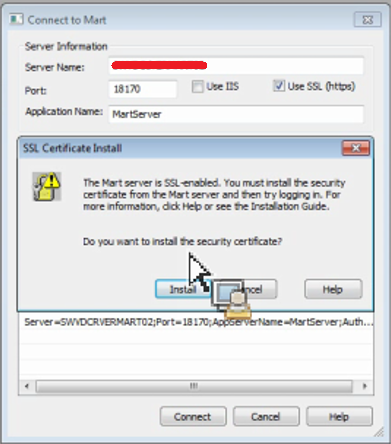
Figure 3.
Press Install.
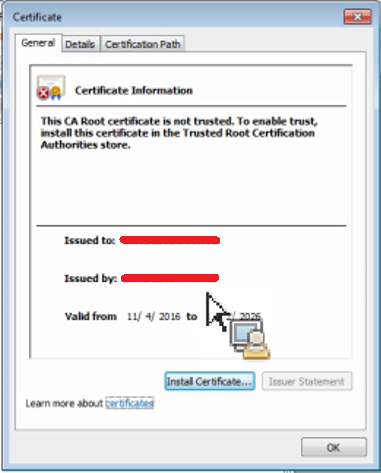
Figure 4. Press install Certificate.
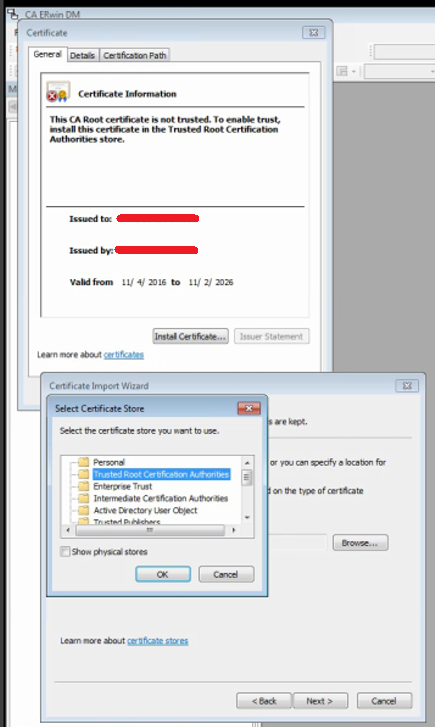
Figure 5. Install the certificate in the folder Trusted Root Certification Authorities.
Press OK and next to complete the process.
ERwin connects to the mart.

