To Collect information for all services with an existing WindowsAgent,
- Navigate to Administration | Agents | Agent Properties
- Select a WindowsAgent
- Click the Edit Properties button
- Click the link to edit the private properties for this agent

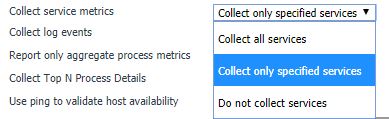
- Set the appropriate Collect Service Metrics pulldown value
- Scroll down to Monitored services
- Set the Services Collect Type to either Collected services by display name or Collected Services by name

- Click the Clone button to create a new secondary list
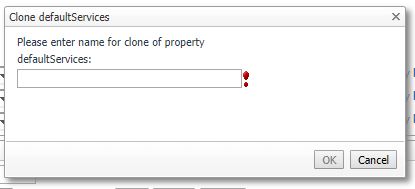
- Enter a new name for the Service List
- Click the OK button
- Click the Edit button

- Click the Add Row button

- Scroll down to the bottom of the panel to where a new blank row has appeared
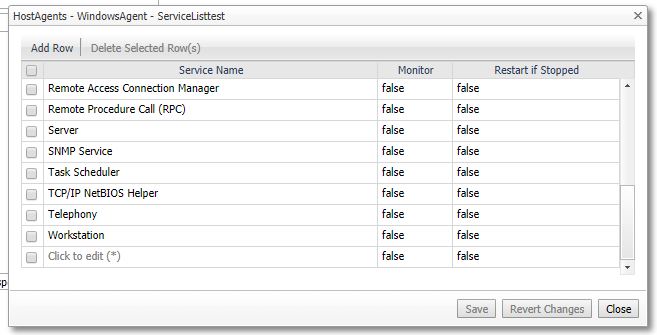
- Click the new row that was added
- Enter the Service Name or Display Name for the monitored service, then enable the checkboxes for Monitor and Restart if Stopped as desired.
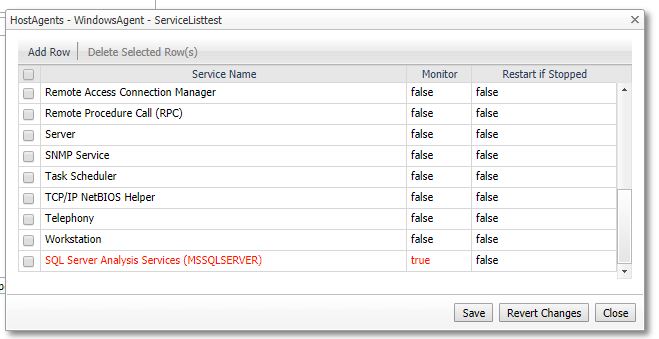
- Click the Save button
- For testing, change the status of the specified service on the monitored host.
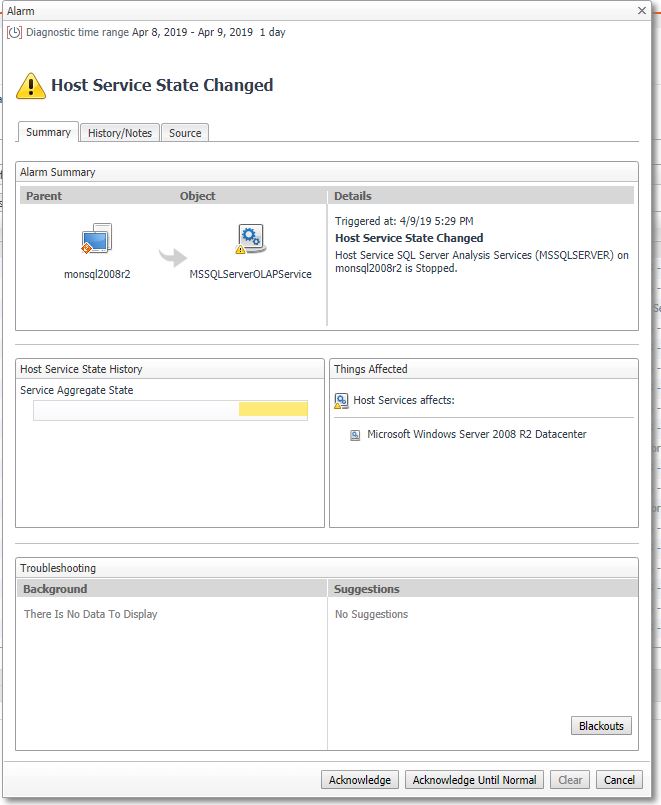
In this example we have stopped the SQL Server Analysis Services (MSSQLSERVER) service for the following alarm to be fired.
A Windows server can be specified for monitoring when a WindowsAgent is created or later by editing the agent configuration.
When the WindowsAgent is created, configure the settings for the "Collect Service Metrics" and Services to Monitor fields in the Agent Properties and follow the steps 11-16 listed above.


