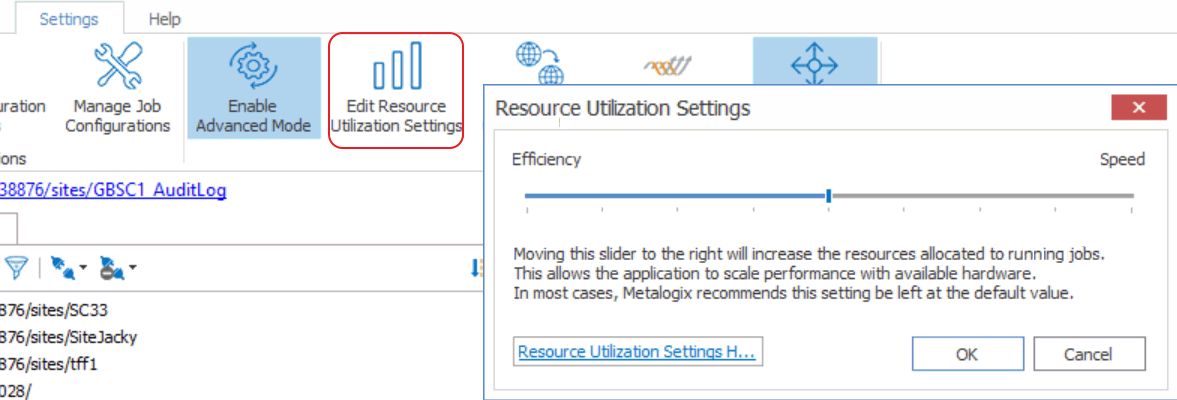
How many threads can be used simultaneously per job in Content Matrix is controlled by the Edit Resource Utilization Settings option, which is accessible from the Settings ribbon at the top of the Console UI.
If the option is clicked, a dialog containing a slider will appear that will allow control of the number of threads available within a single action. If the slider is moved all the way to the left, this will turn off multithreading and only allow a single thread to be used during the action. (For more information on threading, refer to the Microsoft article About Processes and Threads.)
NOTE: Turning off multithreading in this way can be a valuable way of troubleshooting whether multithreading is causing issues.
If the slider is left in the middle, it will allow twice the number of processors in threads to be created per action. For example, if the machine running Content Matrix has a two core CPU, four threads will be able to be used if the slider is in the below state:
Moving the slider farther to the right will allow more threads to be used, but can potentially overwhelm system resources. This could lead to potential errors if the system resources cannot handle the data being migrated. There is a chance that if the speed is too high, you would see a slowdown in the overall migration, because the migration is trying to run actions faster than the resources properly allow.
While this value can be set through the Content Matrix Console, you can also set it through the back end, if the UI setting does not seem to be working for you. Please contact Quest Support for more information on this back end setting.
This section answers some of the most frequently asked questions about using Content Matrix.
Question
I would like to activate my license outside of the Content Matrix Console. Is that possible?
Answer
You can activate your Content Matrix license using PowerShell. Follow the steps below.
NOTE: This method can only be used for online activations.
1.Open the Content Matrix PowerShell Console.
2.Run the following cmdlet, which includes specifying the Content Matrix Console Edition for which you want to activate the license.
if (Get-Command Set-MetalogixJobPrerequisites -ErrorAction SilentlyContinue){ Set-MetalogixJobPrerequisites -Value "Content Matrix Console - <Edition_name>" }
NOTE: Valid values for <Edition Name> are SharePoint Edition, FileShare Edition and Public Folder Edition. If you license covers more than one Edition, it is only necessary to activate one. The license activation will automatically be applied to any other Edition for which you are licensed.
3.Run the Set-MetalogixLicense cmdlet. Note that additional parameters are required if a proxy server is used.
Without proxy server:
Set-MetalogixLicense -Key "<license_key>"
With proxy server:
Set-MetalogixLicense -Key "<license_key>" -ServerUrl "<proxy_server_IP_addres>" -Port "<proxy_port_number>" -UserName "<user_account>" -Password "<password>"
NOTE: When entering the license key, include hyphens.
Question
I have been unable to get Content Matrix to recognize my license key. When I copy and paste it into the box, I get a "the specified license key is invalid" error.
Answer
Here are some things to check:
·Make sure that the license covers the product edition. (For example, if you are licensed for SharePoint Edition and try to activate the license for Public Folder Edition, the invalid error will display.)
·Confirm that the license you are installing is for the correct application versions of Content Matrix. Contact Quest to verify that it is. (For example, license keys beginning with 823, 824, and 827 are not compatible with File Share Edition since its reintroduction in version 9.9.)
·When performing an offline key activation, make sure to enter the long key in its entirety, including the "=" symbol at the end of it.
·Verify that you have write privileges to the registry. The installer will fail if the registry is locked. In some cases there may be a group plicy that is preventing the user from adding the key in the registry, despite the user having the correct permissions.
·Some versions of Windows will automatically block write access to the registry under the user account, even if that account has write access to the registry. In this case you can go to the application installation folder, right click on the application .exe file, and choose 'Run as Administrator'. Then re-enter the license key.