Once become familiar with the source control basics (SQL Server Source Control – Part I – understanding source control basics), development client can be connected to both SQL Server and the version control system. This article will review 3 options: native support in SQL Server Management Studio, Visual Studio, and the 3rd party ApexSQL Source Control tool.
SQL Server Management Studio offers an option to use source control by using a Microsoft Source Code Control Interface (MSSCCI) provider.
A MSSCCI provider enables source control systems to integrate with Windows applications, meaning that by using a MSSCCI provider, the source control functionality is integrated within the application, in this case SQL Server Management Studio, and there is no need for another client to perform source control operations.
A prerequisite for using a MSSCCI provider with SQL Server Management Studio is that either Visual Studio or Team Explorer (the Team Foundation Server client) is installed because the MSSCCI provider relies on Microsoft TFS libraries.
To get started with source control in SSMS:
Install the source control plugin, for example Team Foundation Server MSSCCI provider.
Note: There are a few versions of the Team Foundation Server MSSCCI provider. Choosing between the 64-bit or 32-bit build depends on the version of operating system. In this example, Microsoft Visual Studio Team Foundation Server 2013 MSSCCI Provider 32-bit will be used.
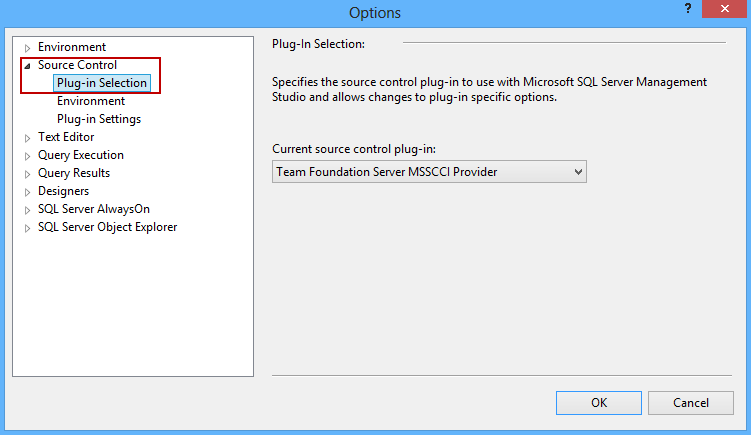
Under the Source Control ➜ Plug-in tab, select the installed MSSCCI provider
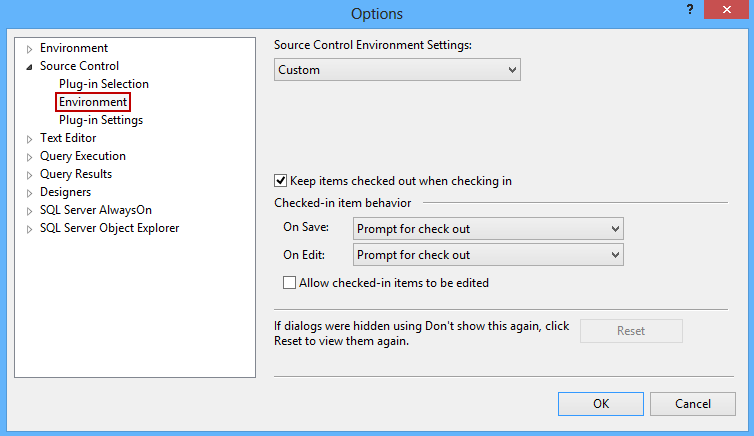
For more settings under the Source Control ➜ Environment select the environment settings between Custom, Individual developer and Visual SourceSafe settings.
Under Source Control ➜ Plug-in settings set up the plug in specific options:
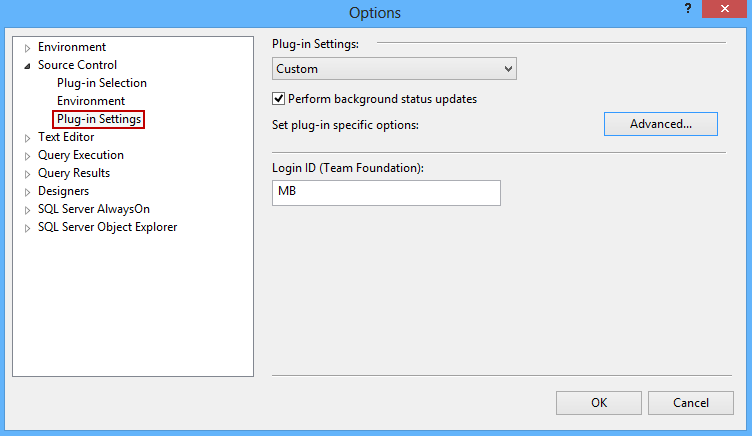
The Login ID field is filled automatically with the user name for log in to the source control provider.
The Perform background status updates option updates the source control icons in the Solution Explorer pane automatically. Note that using this option may affect performance when performing server-intensive operations, and also during the opening a project from source control.
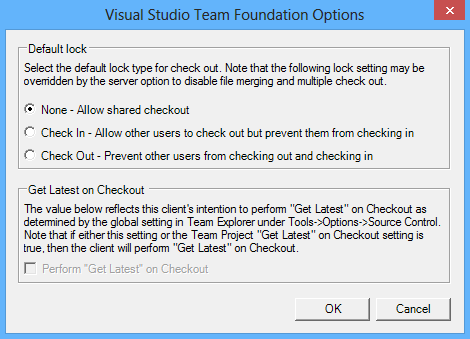
The Advanced settings group, in the Plug-in settings dialog, depends on the source control provider:
To start using source control in SQL Server Management Studio:
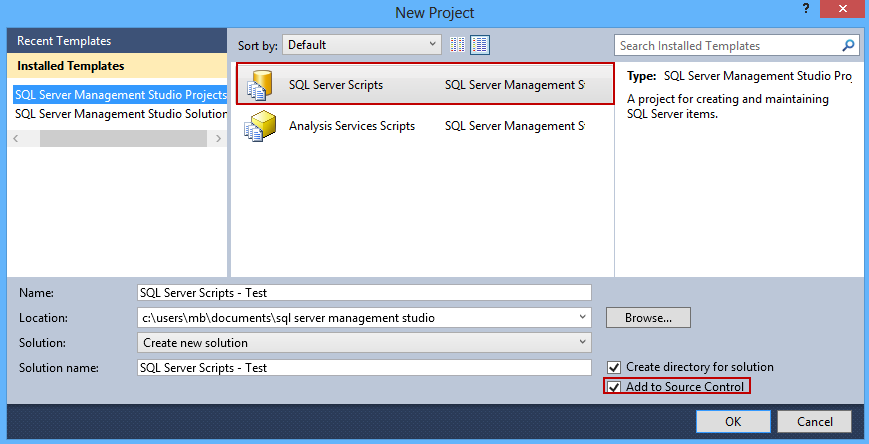
Create a new project and check the Add to source control check box:
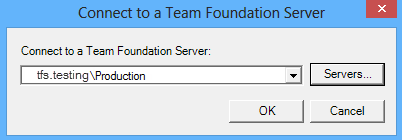
Connect to Team Foundation Server:
In the Choose Folder form of the Team Foundation Server dialog specify local and server locations for the project and the Workspace location:
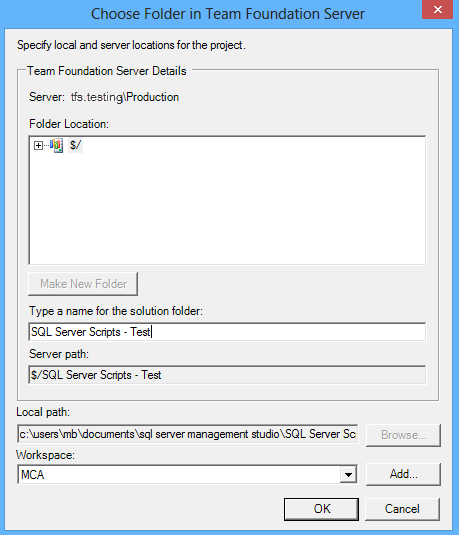
Note: Team Foundation Server 2012 brought up a change in the workspace options bringing a new type of workspace - a local workspace. A local workspace is an improvement in offline work and it allows performing a number of source control operations without the connection to Team Foundation Server.
However, when using the Team Foundation Server MSSCCI provider with SQL Server Management Studio, the following warning may appear:
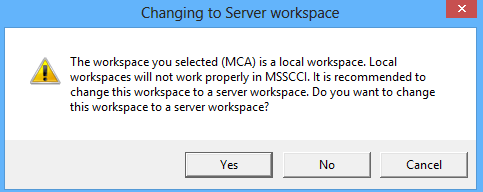
For more information about server workspaces vs. local workspaces refer to the following article
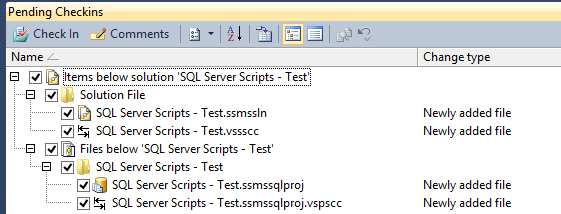
SQL Server Management Studio project is added into Team Foundation Server and ready to use:
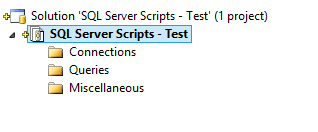
The project is shown in the Solution Explorer pane:
With Visual Studio and SQL Server Data Tools, developers have a wider set of source control capabilities comparing to SQL Server Management Studio.
To start using source control in Visual Studio:
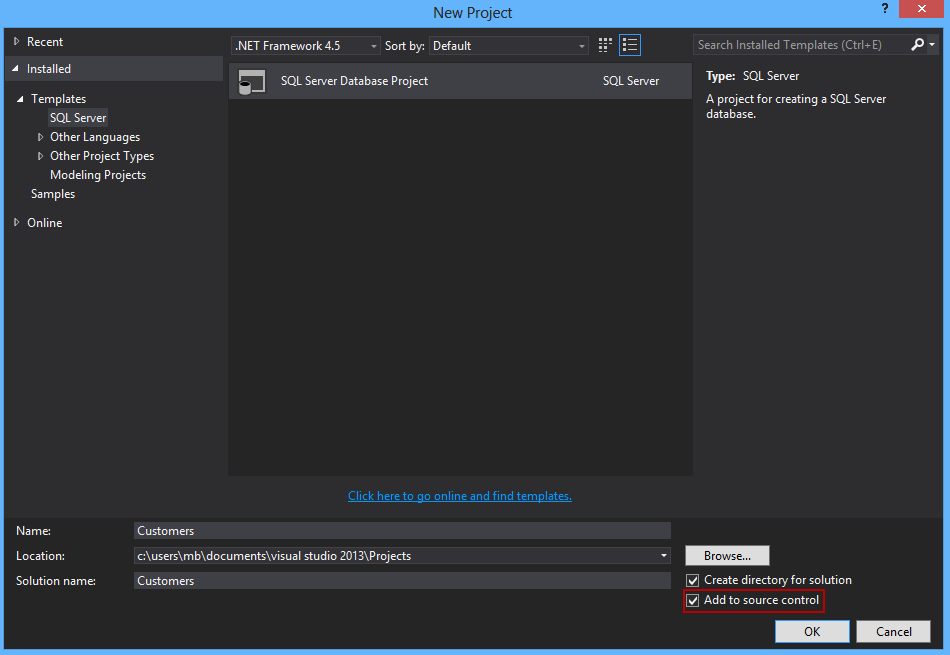
Create a new project and check the Add to source control check box
In the next step choose a source control system for a new project:
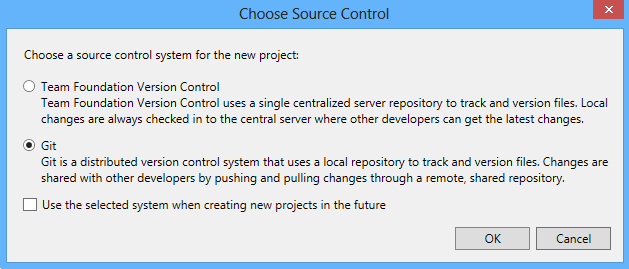
Until the release of the Visual Studio 2013 Update 1, Visual Studio has had source control features oriented towards centralized source control systems. Starting with Visual Studio 2013’s the Git client is built into the IDE:

For hybrid teams there is also a possibility to work locally with a Git repository and then synchronize with a central Team Foundation Server repository by using the open source solution Git - TFS.
ApexSQL Source Control is a SQL Server Management Studio SQL source control add-in that natively supports all mayor source control systems such as Git, Mercurial, Perforce, Subversion and Team Foundation Server.
ApexSQL Source Control provides access to the source control system by using native drivers developed by ApexSQL. The advantage of native drivers is that there is no need to install client-side application of the specific source control system because all necessary source control functionality is already integrated.
Follow this link to get more details about how to start using ApexSQL Source Control

