Labels associated to an item of any kind cannot delete within the KACE Systems Management Appliance. Before deleting a label you must remove the associations, that is "unapply" the label. A label gets applied to individual items either manually or automatically through Smart Label or LDAP Label. Determine the type of label you want to delete and then follow the corresponding instructions.
How Do I Know the Label Type?
The Label Management page displays all labels, the number of associations, and type. Go to Home | Label Management, note that the columns: Machines, Users, Software, Patches, Dell Updates, and IP Scan show you the number of items that have the label and for Smart and LDAP Labels an icon.
When a column shows:
· No information. You can just delete it; it's not associated with anything.
· Only numbers; it's a manual label
· A Funnel; it's a Smart Label.
· A Contact Card; it's an LDAP Label.
To Delete Manually Applied Labels
Manual labels are groups you created by selecting items and applying labels. You must manually remove the label before it can be deleted. You could click into the details of each item, click Edit Label and remove it or you can remove from multiple items as follows:
1. Go to the page that lists the items associated with the label, for example to remove a label from computers go to the Inventory | Computers tab.
2. In the View by menu (above table on right-side) click Labels | your_label.
3. Select all items by clicking the check-box in the far left header row of the table.
4. In Choose Action click Remove Label | your_label.
5. Go to Home | Labels | Label Management, select your_label, and then in Choose Action click Delete Selected Items.
To Delete Labels Associated with Smart Labels
Labels associated with Smart Labels dynamically group items that match your criteria (a SQL query). The label is automatically applied by the K1000. "Smart" is the application method of the label. To remove a smartly applied label, you delete it from the Smart Label list first. This leaves you with a Label which is applied to no items.
1. Go to Home | Labels | Smart Labels, select your_label and in Choose Action select Delete.
2. Go to Home | Labels | Label Management, select your_label, and then in Choose Action click Delete Selected Items.
Labels associated with LDAP Labels dynamically group machines or users that match your LDAP query. LDAP is the application method of the label. To "unapply" a Label associated with an LDAP Label, you delete the LDAP Label first. This leaves you with a Label which is applied to no items.
1. Go to Home | Labels | LDAP Labels, select your_label and in Choose Action select Delete.
2. Go to Home | Labels | Label Management, select your_label, and then in Choose Action click Delete Selected Items.
TIP Even after a Smart or LDAP Label has been deleted the "containing" Label still exists. Deleting the "criteria" turns the Label into a manual label. You can now associate new criteria with the Label. For example, go to Inventory | Computers | Smart Label tab, enter criteria and in the Create Smart Label dropdown you can select your_label. This allows you to change the criteria without recreating all your jobs such as Distribution > Managed Installations.
1. Go to the Home | Labels tab
2. Click on Label Management
3. Find your_label in and click on it
4. Examine the list
You will see something like this image
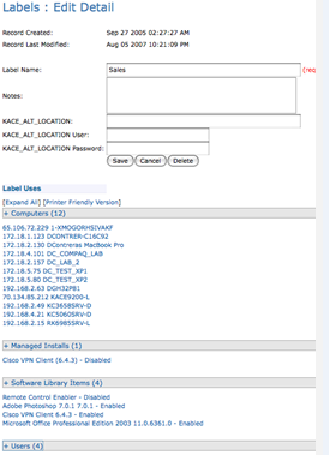
Each item is hyperlinked to its source so you can examine them in more detail if you like.
Troubleshooting
· If you get the error message "This label can not be deleted until it is no longer configured in the services listed in the Label Uses" then that means you have not deleted every reference. Please clear your browser cache and follow the steps above to try again.

