Windows Devices are showing online, however inventory is not updating unless inventory is forced from the agent device.
Powershell is not starting properly on the system due to corrupt or missing .Net Framework install, which prevents inventory to be able to execute when requested from the KACE SMA Server.
To diagnose the issue and confirm inventory is not getting updated due to Powershell failing to start as expected on the system, please do the following simple test:
1. Open CMD.
2. Try to start Powershell from CMD.
3. If this action throws an error or a message notifying that .Net Framework is required for Powershell to run properly, check that the .Net Framework is installed (version 4.5 or later).
.png )
4. If the .Net Framework is already installed please try to repair it. If not present, please install.
5. Once completed, test again to make sure Powershell is able to start.
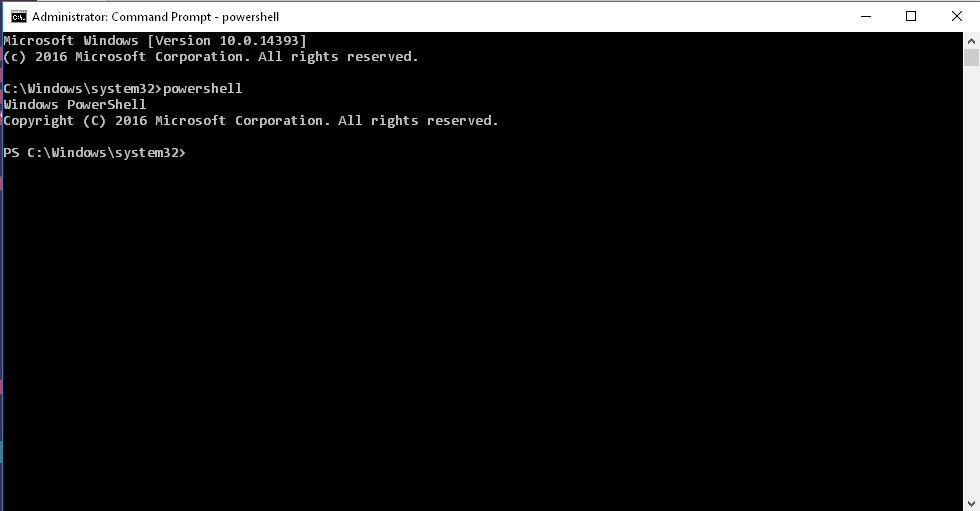
6. Device should now be able to update inventory without needing to have it forced from the agent.
7. One other detail you may want to check is the environment variables, make sure the path for Powershell is included.
Once Powershell is running properly on the system and you have confirmed the environment variable (%PATH%) is correct you may need to wait a few hours, depending on the last time inventory was done on the device and your inventory frequency, to see the device inventory updated.
To check when the next inventory is scheduled to happen for a device:
Single Organization appliance:
1. Navigate to Settings | Support | Troubleshooting Tools | Display Agent Task Status.
Multiple Organization appliance:
1. Navigate to System console. Settings | Troubleshooting Tools | Display Agent Task Status.
2. Change "View By" to All Tasks and then have search for the device name. Check when "Next Run" for inventory is scheduled to be.
Windows Agents 7.0 and Higher Require PowerShell
Note: Powershell is no longer required on version 8.1 and newer

