サポートと今すぐチャット
サポートとのチャット

Foglight for Hyper-V 5.7.0 - User and Reference Guide

About Foglight for Hyper-V Agent administration Performance monitoring with the Hyper-V Environment dashboard Performance investigation with the Hyper-V Explorer Foglight for Hyper-V alarms Appendix: Hyper-V Agent error codes

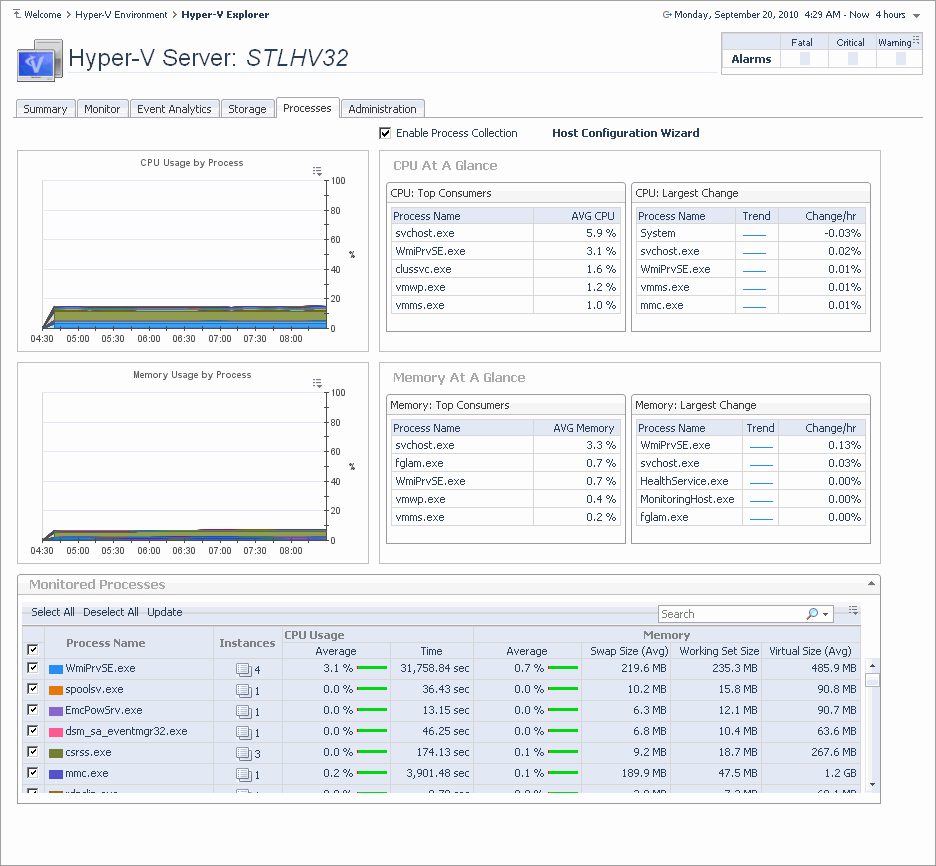
Hyper-V Explorer Processes

Figure 229. Processes tab

Hyper-V Explorer Cost

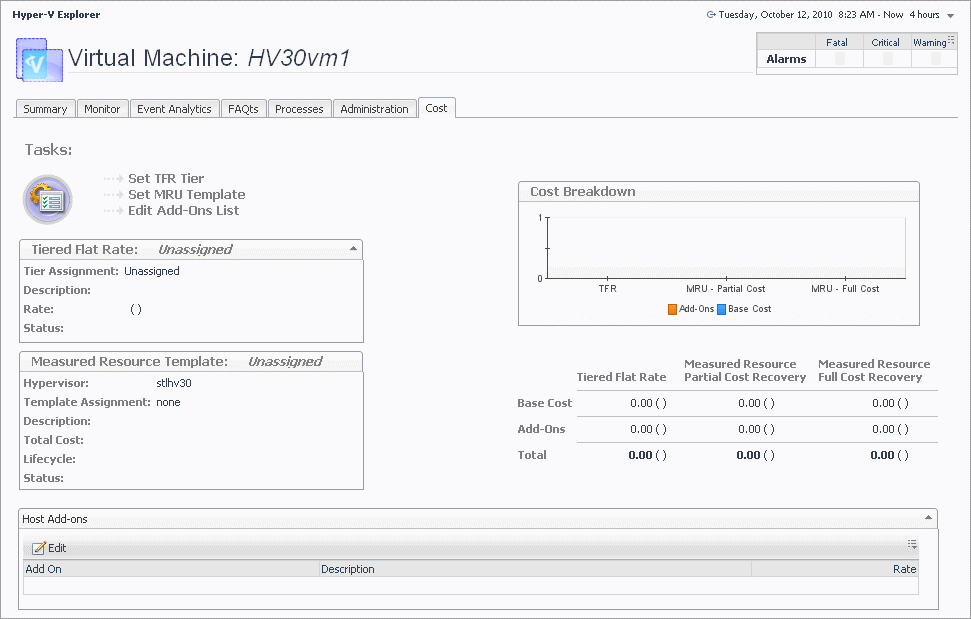
Figure 230. Cost tab

Hyper-V Explorer Cost tab

The Cost tab contains information about the costs associated with the selected virtual machine’s usage. The information about these costs is provided by the cost models and server assignments that are configured in Foglight for Chargeback. For more information about Foglight for Chargeback, see the Foglight for Chargeback User and Reference Guide.
Figure 231. Cost tab
Table 105. Cost Breakdown
Add-Ons. Shows the cost of upgrades to standard host configurations. These upgrades could include hardware, software, licensing, or even infrastructure items such as rack space or power backup units.
Base Cost. Shows the cost of a standard host configuration.
Table 106. Host Add-ons
Add-On. Contains the name of the add-on.
Edit. Allows you to edit a selected add-on.
Description. Contains the description of the add-on.
Description. The description of the template associated with the selected virtual machine.
Hypervisor. The name of the server in which the virtual machine is running.
Lifecycle. The length of time the selected virtual machine will be used.
Status. The template status.
Template Assignment. The name of the template associated with the selected virtual machine.
Total Cost. The total cost of the selected virtual machine for the duration of its life cycle.
Table 108. Tasks
Edit Add-Ons List. Starts a wizard that allows you to add add-on’s to the selected virtual machine.
Set MRU Template. Starts a wizard that allows you to create a measured resource template and associate it with the selected virtual machine.
Set TFR Tier. Starts a wizard that allows you to create tiers and associate them with the selected virtual machine. A tiered flat rate (TFR) is a pre-configured level of expense that is associated with a virtual machine.
Table 109. Tiered Flat Rate
Description. The description of the tiered flat rate associated with the selected virtual machine.
Rate. The rate of the tier cost over time.
Status. The tier status.
Tier Assignment. The name of the tiered flat rate associated with the selected virtual machine.

Hyper-V server and virtual machine administration

A Hyper-V® environment typically includes a collection of clusters, server, and virtual machines. A cluster can have one or more servers associated with it, one or more virtual machines can run on each server. Each virtual machine is allocated a portion of the server’s resources, including disk, CPU, memory, and network resources. A virtual machine has its own machine name and IP address, and it runs a guest OS (for example, Microsoft® Windows® XP), along with other applications.
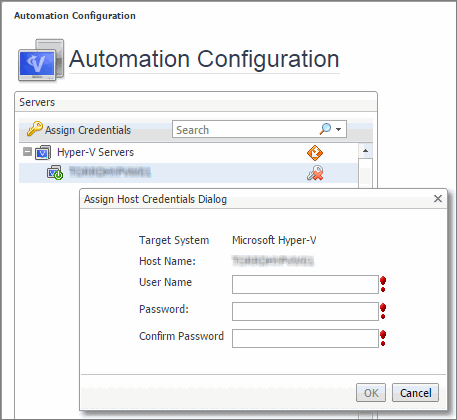
These actions require that you set up credentials for the virtual center on the Automation Configuration dashboard. To do that, on the navigation panel, under Dashboards, choose Hyper-V > Automation Configuration. On the Automation Configuration dashboard that appears, in the Servers view, select a Hyper-V server, click Assign Credentials, and provide host credentials in the Assign Host Credentials Dialog box. Failing to configure host credentials results prevents the automated tasks from being executed.
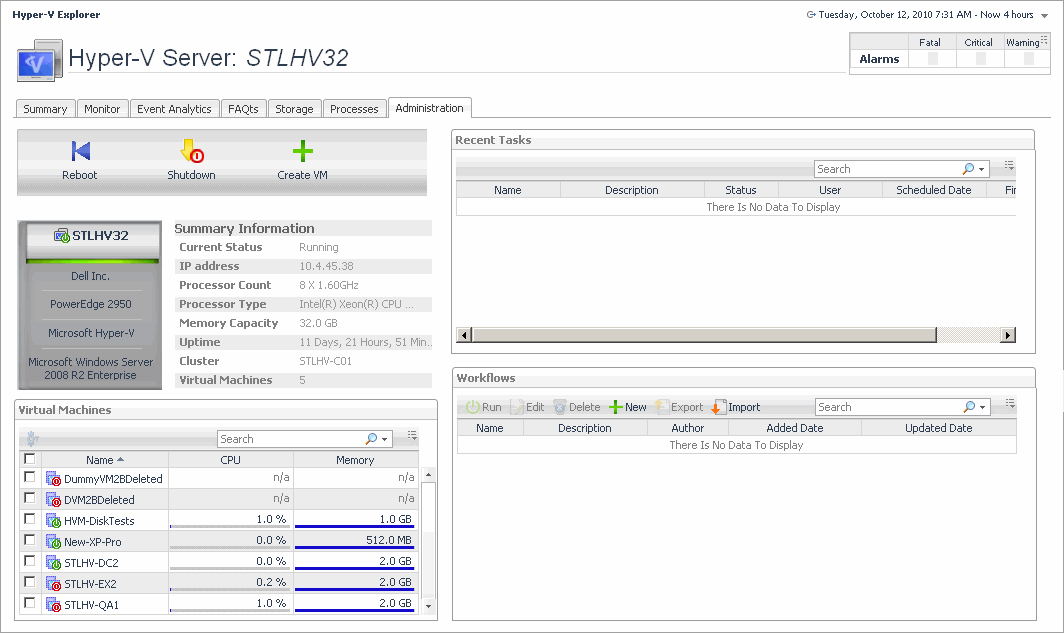
NOTE: The Hyper-V Explorer Administration tab is only available when the Virtual-HyperV-Admin-<version>.car and Virtual-HyperV-<version>.car are installed. This tab is accessible if your Foglight user account includes the Hyper-V Automation User role, when you are exploring individual servers and virtual machines.
Figure 233. Administration tab
関連ドキュメント

The document was helpful.

評価を選択

I easily found the information I needed.

評価を選択