Chatta subito con l'assistenza
Chat con il supporto

Foglight for VMware 5.7.0 - User and Reference Guide

Using Foglight for VMware
Introducing the virtual infrastructure Navigation basics Interacting with Foglight for VMware VMware Performance Agent configuration
Reference
Views
VMware Alarms views VMware Explorer views VMware Modeler views VMware VirtualCenter views VMware Environment views Other views
Rules
Agent Rules Cluster Rules Datacenter Rules Datastore Rules Resource Pool Rules ESX Server Rules VirtualCenter Rules Virtual Machine Rules VMW Stale Data Management Rule Virtual Switch Rules
Appendix: Alarm Messages

Instances and Limits view

On the VMware Environment dashboard, on the Administration tab, click Review Instances and Limits.
The Instances and Limits view appears in the display area.
Instance Count. The current number of object instances of this type.
Instance Limit. The maximum number of object instances of this type that can be instantiated.
Object Type. The type of the topology object.
Status. The current status representing the highest severity level associated with an instance of that type.
Utilized. The percentage of the object limit instance that is currently utilized.

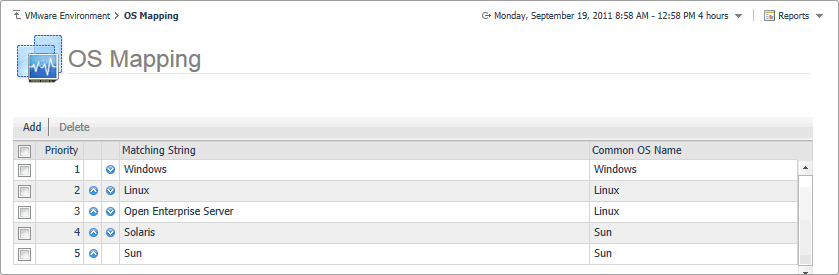
OS Mapping view

Figure 318. OS Mapping view
On the VMware Environment dashboard, on the Administration tab, click Configure OS Mapping.
The OS Mapping view appears in the display area.
Common OS Name. The OS name.
Matching String. The OS name to be matched against existing OS names.
Priority. The matching priority. Selecting a mapping and clicking or allows you to edit the priority sequence.

Quick-View

Figure 319. Quick-View
The Quick-View appears in the middle of the display area.

Resource Pool Summary view

The Resource Pool Summary view shows the overall resource utilization and the amounts of system resource consumption for a physical resource pool.
1
On the VMware Environment dashboard, on the Monitoring tab, in the Virtual Environment Overview, select the Resource Pools tile.
2
In the Quick-View, select a resource pool node in the Resource Pools view.
The Resource Pool Summary view appears on the right.
Table 153. Alarms
Alarm Message. An explanation about why the alarm occurred.
Severity. Indicates the alarm severity: Warning, Critical, or Fatal.
Time. The time when the alarm was generated.
Alarm Message, Severity, or Time. Displays the Alarm dialog box, showing additional information about the alarm. For more information about alarms in Foglight, see the Foglight User Help.
Figure 321. Alarm dialog box
Table 154. Related Items
Cluster. The name of the cluster associated with the selected resource pool, followed by the related alarm counts.
Datacenter. The name of the datacenter associated with the selected resource pool, followed by the related alarm counts.
Resource Pools. The name of the selected resource pool, followed by the related alarm counts.
Virtual Center. The name of the virtual center associated with the selected resource pool, followed by the related alarm counts.
Virtual Machines. The number of virtual machines that are associated with the selected resource pool, followed by the related alarm counts.
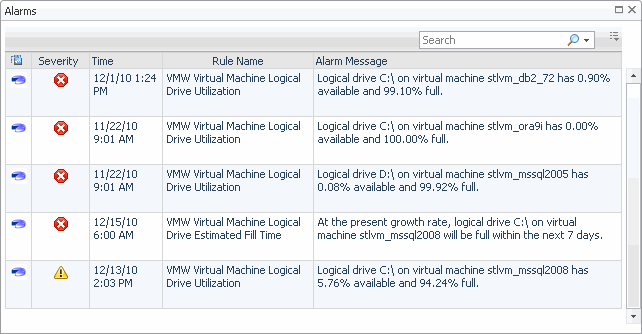
Alarm count. Displays the Alarms dialog box that shows a list of all related alarms. For each alarm entry, it shows its severity, the time at which it was triggered, the rule name that triggered the alarm, and the alarm message.
Figure 322. Alarms dialog box
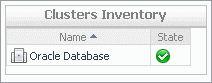
Cluster. Displays the Clusters Inventory dwell, showing the name and state of the cluster associated with the selected resource pool.
Figure 323. Clusters Inventory dwell
Datacenter. Displays the Datacenters Inventory dwell, showing the name and state of the datacenter associated with the selected resource pool.
Figure 324. Datacenters Inventory dwell
Resource Pool. Displays the Resource Pools Inventory dwell, showing the name and state of the selected resource pool.
Figure 325. Resource Pools Inventory dwell
Virtual Center. Displays the Virtual Centers Inventory dwell, showing the name and state of the virtual center associated with the selected resource pool.
Figure 326. Virtual Centers Inventory dwell
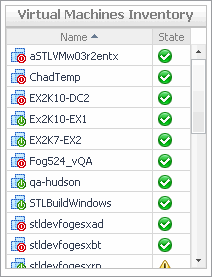
Virtual Machines. Displays the Virtual Machines Inventory dwell, showing the names and states of all virtual machines that are associated with the selected resource pool.
Figure 327. Virtual Machines Inventory dwell
CPU Load. The current percentage of the selected resource pool’s CPU load, used to execute system code and user programs, based on the total CPU capacity.
CPU Utilization, % Ready. The percentage of the resource pool’s CPU resources that is ready to execute system code and user programs during the selected time period.
CPU Utilization, % Used. The percentage of the CPU utilization used by the resource pool to execute system code and user programs, during the selected time period.
Disk I/O. The current disk I/O rate for the selected resource pool.
Disk Utilization, Read Rate. The rate at which the resource pool reads data from the disk during the selected time period.
Disk Utilization, Write Rate. The rate at which the resource pool writes data to the disk during the selected time period.
Memory Usage. The current percentage of the average memory usage by the selected resource pool, based on the total memory capacity.
Memory Utilization, Active. The amount of the available memory used by the selected resource pool during the selected time period.
Memory Utilization, Ballooned. The amount of physical memory that is actively being used by the VMware Memory Control Driver to allow the guest OS to selectively swap memory.
Memory Utilization, Shared. The amount of the virtual machine memory that is freed up due to transparent page sharing.
Memory Utilization, Swapped. The amount of memory that is stored in disk swap space
Network I/O. The current rate at which the selected resource pool transfers data from and to the network.
Network Utilization, Receive Rate. The rate at which the selected resource pool receives data from the network during the selected time period.
Network Utilization, Send Rate. The rate at which the selected resource pool sends data to the network during the selected time period.
CPU Load spinner. Displays the CPU Load dialog box.
Figure 328. CPU Load dialog box
CPU Utilization graph. Displays the CPU Utilization dialog box.
Figure 329. CPU Utilization dialog box
Disk I/O spinner. Displays the Disk I/O dialog box.
Figure 330. Disk I/O dialog box
Disk Utilization graph. Displays the Disk Utilization dialog box.
Figure 331. Disk Utilization dialog box
Memory Utilization graph. Displays the Memory Utilization dialog box.
Figure 332. Memory Utilization dialog box
Network I/O spinner. Displays the Network I/O dialog box.
Figure 333. Network I/O dialog box
Network Utilization graph. Displays the Network Utilization dialog box.
Figure 334. Network Utilization dialog box
Related Documents

The document was helpful.

Seleziona valutazione

I easily found the information I needed.

Seleziona valutazione