Chatta subito con l'assistenza
Chat con il supporto

Foglight for PeopleSoft 5.6.11 - User and Reference Guide

Using Foglight for PeopleSoft
Exploring the PeopleSoft Dashboards Foglight for PeopleSoft Agents PS_AppMonitor Agent PS_AppServer Agent PS_DB2SQL Agent PS_MSSQL Agent PS_OracleSQL Agent PS_PPM Agent PS_SchedMonitor Agent PS_SchedServer Agent PS_Scheduler Agent Manual Agent Naming Deployment Scenario Procedures
Foglight for PeopleSoft Reference
Views
PS_AppServer Views PS_DB2SQL Views PS_MSSQL Views PS_OracleSQL Views PS_PPM Views PS_SchedServer Views PS_Scheduler Views
Data

PS_AppServer Agent

PS_AppServer Agent Properties

For more information about working with agent properties, see the Foglight Administration and Configuration Guide.
On the navigation panel, under Dashboards, choose Administration > Agents > Agent Properties.
On the navigation panel, under Dashboards, choose Administration > Agents > Agent Status.
The position of the Properties pane depends on the dashboard you used to access agent properties. If you used the Agent Properties dashboard, the Properties pane appears to the right of the Namespace > Type pane in the display area. If you used the Agent Status dashboard, the Properties pane appears across the display area.

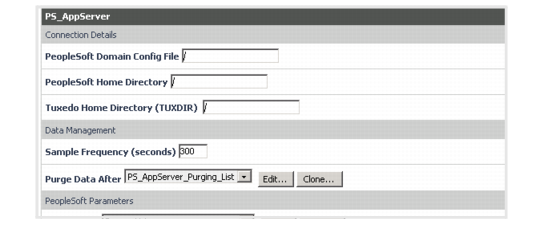
Setting the PS_AppServer Connection Details

1
Go to the Connection Details set of properties.
5
Click Save.

Setting the PS_AppServer Data Management Parameters

1
Go to the Data Management set of properties.
2
Enter the collection interval in the Sample Frequency (seconds) box.
3
Ignore the Edit PS_AppServer Table Data Purge Days list. This field is not functional.
4
Click Save.
Related Documents

The document was helpful.

Seleziona valutazione

I easily found the information I needed.

Seleziona valutazione