|
• |
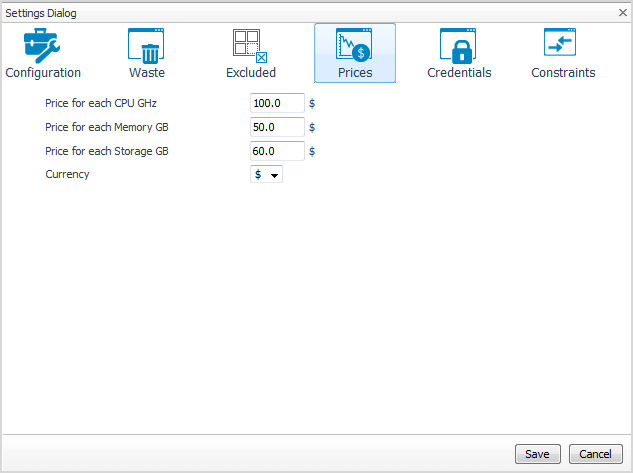
To save any changes made to the Prices settings, click Save at the bottom of the tab. The new values for prices apply to all hosts in the environment.
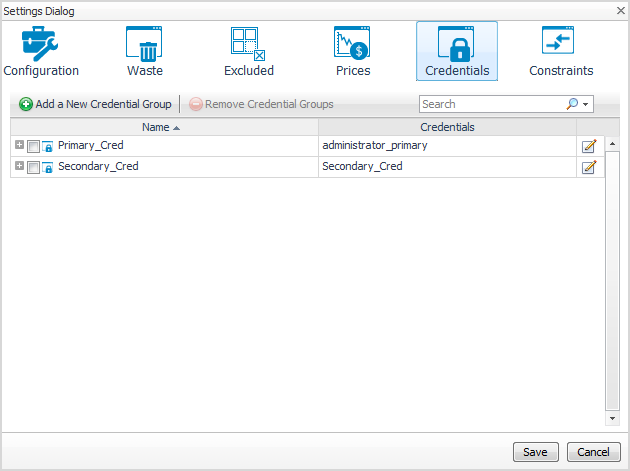
A credential is a piece of information that an agent instance needs, in order to gain access to the monitored system. Credentials are encrypted and stored in lockboxes. You can manage credentials in Foglight using the Administration > Credentials dashboard. For information about this topic, see the “Controlling System Access with Credentials” section in the Foglight Administration and Configuration Guide.
|
1 |
Click Add a New Credential Group. |
|
2 |
In the Credential Group Name field, type in name of the new group. |
|
3 |
In the List of Related Object area, define the objects that are related to this credential group. Click Add Services and Add Virtual Machines, and select the objects from the available lists. |
|
4 |
In the List of Assigned Credentials area, select the credentials you want to assign to this group. Click Assign a Credential and select a credential type from the available options. |
|
5 |
|
1 |
Click the Edit icon at the right end of the credential group you want to modify. |
|
3 |
|
1 |
Select the check box for the credential group you want to delete, and click Remove Credential Groups. |
|
2 |
To proceed with the operation, click Confirm. |
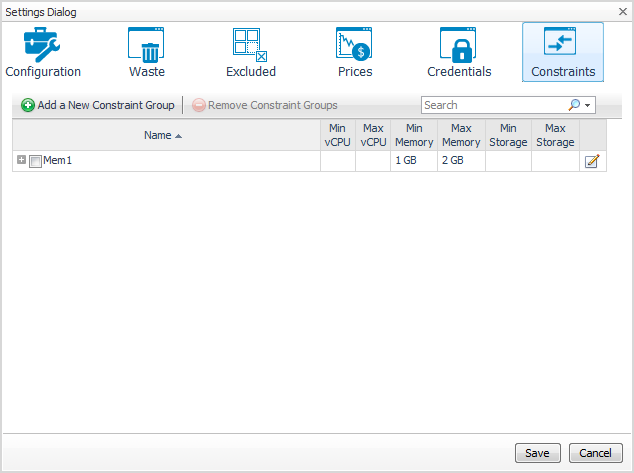
The Constraints tab allows you to set custom thresholds for select objects in the environment. These recommendations are displayed in the Optimizer tab > VM Configuration/ CPU/ Memory/ Storage views > Modify Recommendation column. Use this tab to add, edit, and remove constraints groups.
|
1 |
|
2 |
In the Constraint Group Name field, type in name of the new group. |
|
3 |
In the List of Related Object area, define the objects that are related to this constraint group. Click Add Services or Add Virtual Machines, and select the objects from the available lists. |
|
4 |
In the Constraints area, select the options or type the values you want to assign to this group. |
|
5 |
Click Save. |
|
6 |
|
1 |
|
2 |
Click the Edit icon at the right end of the constraint group you want to modify. |
|
4 |
Click Save. |
|
5 |
|
1 |
|
2 |
Select the check box for the constraint group you want to delete, and click Remove Constraint Groups. |
|
3 |
To proceed with the operation, click Confirm. |
|
4 |
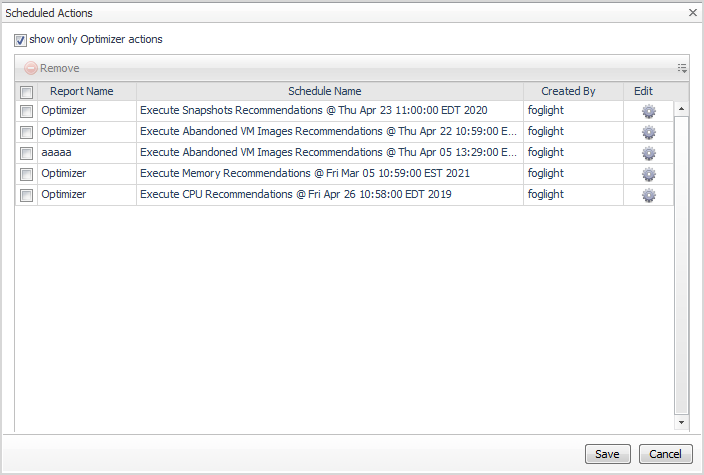
Use the Scheduled Actions menu to access the list of operations scheduled to be run at a particular time in the future.
The Scheduled Actions dialog shows the list of operations scheduled to be run at a particular time in the future, and allows you to edit or remove any scheduled actions. To view only the actions specific to Foglight Resource Optimizer, select the “show only Optimizer actions” checkbox. When the checkbox is not selected, the dialog shows all actions scheduled for your virtual environment.
|
1 |
In the Scheduled Actions dialog, click the Edit icon at the right end of the action you want to modify. |
|
3 |
Click Apply. |
|
4 |
|
1 |
In the Scheduled Actions dialog, select the check box for the action you want to delete, and click Remove. |
|
2 |