|
1 |
Log into the AWS IAM console at: https://console.aws.amazon.com/iam/. |
|
2 |
|
3 |
|
4 |
In the Resource Groups view, click the user which Access Key is to be retrieved. |
|
5 |
|
6 |
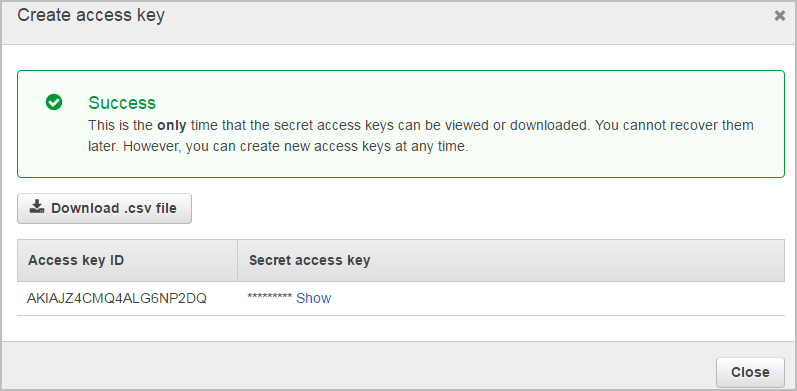
|
7 |
Click Download .csv file to keep the access key and secret access key somewhere safe. |
|
8 |
(Optional) If you see the Limit exceed message, click the  button next to the Status column to delete an access key that is not being used. Then repeat Step 6 to create and retrieve a new access key. button next to the Status column to delete an access key that is not being used. Then repeat Step 6 to create and retrieve a new access key. |

|
3 |
|
4 |
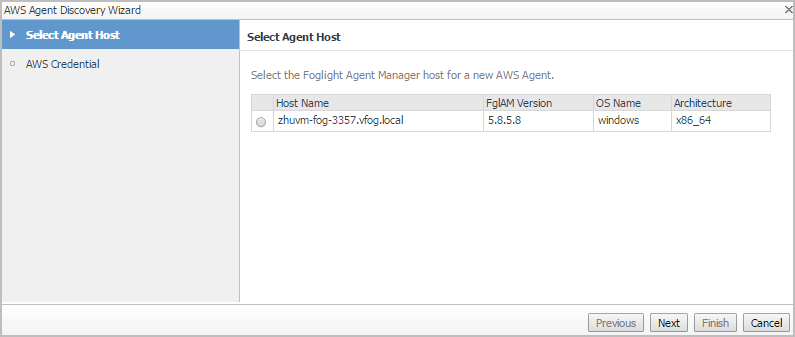
|
5 |
In the Select Agent Host view, select the agent manager on which the new agent is to be deployed, and then click Next. |
|
6 |
|
• |
Account Alias: The display name of this account. |
|
• |
|
• |
Secret Access Key: The secret access key retrieved in Getting authentication information through console. |
|
• |
Collect Memory Metric: Select this option to enable the collection of instance memory metrics. The default value is disabled. |
|
• |
Collect Linux Volume Utilization: Select this option to enable the collection of Linux volume utilization. The default value is disabled. |
|
• |
Specify an agent name (Optional): Specify the name of agent. |
|
• |
Configure regions to be monitored (Optional): Select AWS regions for monitoring. All regions will be monitored if this field is not configured. |
Foglight Hybrid Cloud Manager enables you to configure the interval for data collection using the Agent Status dashboard.
|
1 |
|
2 |
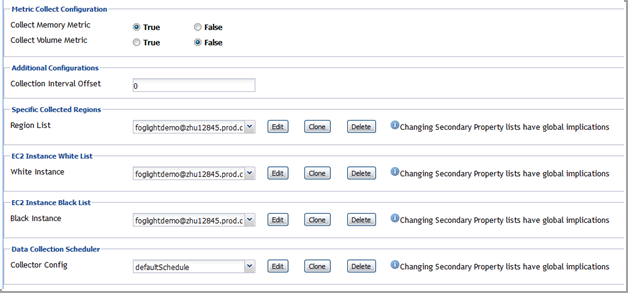
On the Agent Status dashboard, select the AWS agent that you want to monitor, and then click Edit Properties. |
|
3 |
Select True for Collect Memory Metric and Collect Volume Metric, and then specify a value for Collection Interval Offset. |
|
• |
Collection Interval Offset must be set to a non-negative integer. |
|
• |
n represents the value of Collection Interval Offset. |
|
• |
I represents the value of Collector Config (in minutes). |
After installing Foglight Hybrid Cloud Manager for AWS, the Cloud Manager entry appears under Homes.
|
3 |
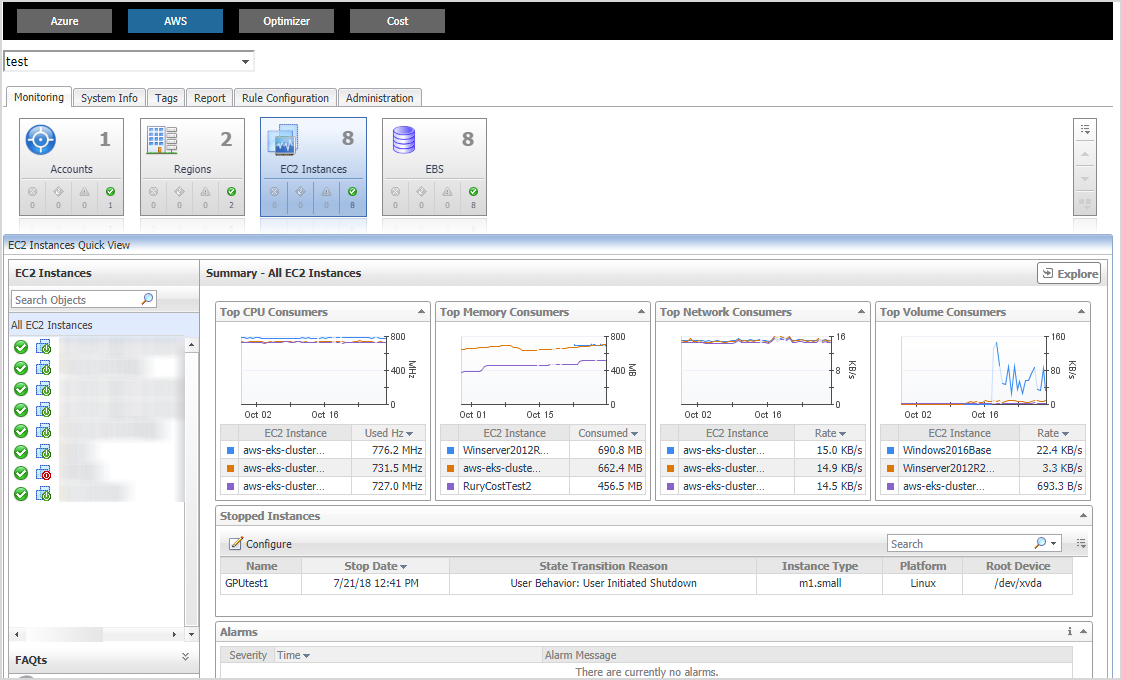
The Cloud Manager dashboard consists of the following UI elements:
|
• |


 on the left.