Chat now with support
Chat with Support

Foglight for Java EE Technologies 5.9.10 - Application Servers User Guide

Monitoring Application Servers Monitoring Systems Monitoring Servers Monitoring Deployed Applications Monitoring Requests Managing Traces Using Object Tracking to Locate Memory Leaks Monitoring Methods Application Servers Monitor Views
JVM view Method Groups view Request Types view Entity EJBs view Message Driven EJBs view Stateful Session EJBs view Stateless Session EJBs view Deployed Applications view JSPs/Servlets components view Resource Adapters components view Web Applications components view Web Services components view .NET views JBoss Services views Oracle Services views Tomcat Services views WebLogic Services views WebSphere Services views JMX Administration dashboard JMX Explorer dashboard
Appendix: Regular Expressions

Investigating system component health

Monitoring Servers

Use the Servers tile of the Application Servers Monitor dashboard to monitor specific application servers. From this view, you can investigate individual application servers in your internal and remote infrastructure and review the invoked operations that these application servers use.
1
On the navigation panel, under Dashboards, click Application Servers > Monitor. The Application Servers Monitor dashboard opens.
2
Click the Servers tile.
The Quick View option provides condensed charts that show the general state of a selected system. These charts answer questions such as: What are the slowest three requests on server ABC, or what thread pools have the most waiters? The Quick View Selection menu differs for application server type. The following table outlines the charts available for each application server.
1
On the navigation panel, under Dashboards, click Application Servers > Monitor. The Application Servers Monitor dashboard opens.
2
Click the Servers tile.
3
Click Quick View, or the edit icon beside the text.
5
Click OK to close the dialog box. The Quick View refreshes.

Viewing JVM data for systems or servers

1
On the navigation panel, under Dashboards, click Application Servers > Monitor. The Application Servers Monitor dashboard opens.
2
Click the Systems tile.
1
On the navigation panel, under Dashboards, click Application Servers > Monitor. The Application Servers Monitor dashboard opens.
2
Click the Servers tile.
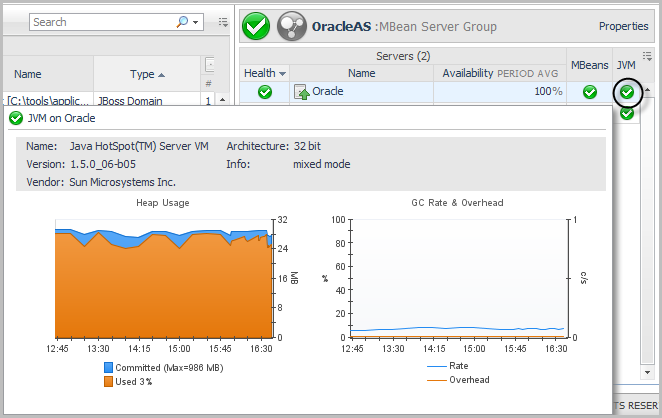
Click JVM in the server details view. The JVM view opens.
Click Quick View, located just below the server details view, and select JVM — Heap Usage from the dialog box that opens. Click OK. The JVM Heap Usage chart appears in the Quick View area.

Monitoring Deployed Applications

On the Application Servers Monitor dashboard, the Deployed Applications tile lists all the deployed applications running in a monitored environment (domain, cell, cluster topology, server group, or partition) and the related components, such as Application Pool, EJBs, Web Applications, and the Web Services health status. From here you can drill down to explore the components in further detail.
Collect Traces (from the Action panel > General)
1
On the navigation panel, under Dashboards, click Application Servers > Monitor. The Application Servers Monitor dashboard opens.
2
Click the Deployed Applications tile.
Related Documents

The document was helpful.

Select Rating

I easily found the information I needed.

Select Rating