|
• |
Add: Starts a workflow for creating new agent instances. For more information, see Configuring monitoring agents. |
|
• |
Refresh: Refreshes the list of agent instances and their states. |
|
• |
Activate: Activates one or more selected agent instances. Activating an agent instance starts the agent process on the machine on which the agent is installed. |
|
• |
Deactivate: Deactivates one or more selected agent instances. Deactivating an agent stops the agent process on the machine on which the agent is installed. |
|
• |
Start Data Collection: Starts the data collection for one or more selected agent instances. Starting an agent’s data collection causes the agent to begin monitoring the Hyper-V server and to send the collected metrics back to the Management Server. |
|
• |
Stop Data Collection: Stops the data collection for one or more selected agent instances. Stopping an agent’s data collection causes the agent to stop monitoring the Hyper-V server. |
|
• |
Edit Properties: Starts a workflow for editing the properties of one or more selected agent instances. Each agent comes with a set of properties that it uses to configure its correct running state. For more information, see Configuring agent properties. |
|
• |
Remove: Deletes the selected agent instance. |
|
• |
Version: Updates the agent package to the latest version. |
|
IMPORTANT: Updating the agent package using this command generates the previously existing credentials. However, if you update the agent package by re-deploying its .gar file through the Agent Status page, the credentials need to be re-created. To do that, select an agent instance, click Edit Properties, and configure the required credentials on the Credentials tab of the Edit Tab Manager dialog box. |


| |||
| |||
| |||
| |||
| |||
| |||
| |||
| |||
| |||
|
|
• |
Hyper-V Agents collect information from monitored Hyper-V servers. A Hyper-V server is a physical component required to begin building a virtual infrastructure. Hyper-V servers provide hypervisor-based architecture for controlling and managing resources for the virtual machines that run on it. |
|
• |
SCVMM Agents collect information from Virtual Machine Managers (VMM). A VMM allows you to manage host, networking, and storage resources when creating and deploying virtual machines to virtual clouds. |
|
2 |
|
3 |
On the Hyper-V Environment dashboard that appears in the display area, open the Administration tab. |

|
4 |
On the Administration tab, under Agents, open the Hyper-V Agents or the SCVMM Agents tab, as required. |
|
5 |
Click Add to launch the Agent Setup wizard. |

|
• |
To configure these settings manually, see the Agent Manager Guide. |

|
8 |
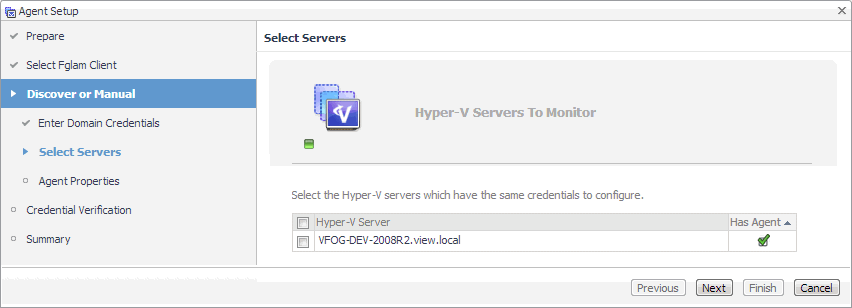
Hyper-V Agents only. On the Discover or Manual page that appears, you can indicate if you want to manually specify the Hyper-V Server that you want to monitor, or to choose between the servers running in a given domain. |

|
a |
Discovering Hyper-V Servers only. On the Enter Domain Credentials page that appears, specify the information needed to search for the running Hyper-V Servers. |

|
• |
Domain: Type the fully qualified name of a domain to search for the Hyper-V Server. For example, myDomain.com. |
|
• |
User: Type the user name to be used by the agent to be used to query Active Directory on the selected domain using the syntax Domain\UserName. For example, myDomain\jsmith. |
|
• |
Password: Type the password associated with the above user name. |

|
d |
|
b |
Manually specifying a Hyper-V Server only. On the Manual Agent Properties page that appears, specify the information needed to search for the running Hyper-V servers. |

|
c |
On the Credential Verification page that appears, review the existing set of credentials. If the wizard determines that the selected Agent Manager has any credentials configured for the host on which the Hyper-V Server is running, they appear listed on this page. |
|
9 |
SCVMM Agents only. On the Input Agent Properties page that appears, type the name of the SCVMM server, and click Next. |

|
10 |
On the Credentials Verification page that appears, select one of the following options: |
|
• |
Do not configure a credential: Select this option if you want to configure the credential for this resource at a later time. Click Next and continue with Step 13. |
|
• |
Add host(s) to a new credential: Select this option if you want to add the host to a new credential. This option is suitable if none of the existing credentials have the connection details needed to access the new host. Click Next and continue with Step 11. |
|
• |
Add host(s) to an existing credential: Select this option if you want to add the host to an existing credential. This option is suitable if an existing credential has the security data needed to access the new host, but you need to edit its resource mappings to include this host. Click Next and continue with Step 12. |

|
a |
On the Credential Type page that appears, select the credential type from the available options. |

|
b |
Click Next. |

|
c |

|
d |
On the Credential Name and Lockbox page, provide a name to uniquely identify the credential, and select a lockbox in which you want to keep the credential. A lockbox can be used to group credentials for access and/or security. In smaller Foglight installations, using the default System lockbox should be sufficient. |

|
e |
On the Resource Mapping page, indicate which hosts you want to associate with this credential. Click Next. |

|
f |
Optional—On the Policies page, define one or more policies for this credential. A policy defines the number of times a credential can be used, the number of allowed authentication failures, the time range during which the credential is valid, or the length of time the credential data can be cached on the client. For example, you can specify the number of times the credential can be used, or the time period during which it can be used. For complete information about the available credential policies, see the Administration and Configuration Help. |

|
a |
On the Credential page that appears, select an existing credential to contain this host. |

|
b |
Click Next. |

|
c |
On the Resource Mapping page, indicate which hosts you want to associate with this credential. You can either select the host that you are about to start monitoring, all monitored hosts, or hosts whose name contains a specific text string. |
|
13 |
On the Summary page that appears, review the information provided about the host and the monitoring agent. |
|
14 |
Click Finish. |

|
a |
Select an agent and click Edit Properties. |

|
c |
Open the Credentials tab, and review the available credentials. |

|
• |
New credentials. Click New Credential and use the Create Credential Wizard that appears to provide the required information. For more details, see Step 11. |
|
• |
Existing credentials. Click Add to Existing Credential and use the Create Credential Wizard that appears to provide the required information. For more details, see Step 12. |
|
18 |
Click Refresh |

|
• |
On the Hyper-V Environment dashboard, on the Administration tab, select an agent instance and click Edit Properties (see Configuring monitoring agents ). |
|
NOTE: This method only allows you to edit the Configuration properties, but not the Data Collection Scheduler properties. |
|
• |
On the Agent Status dashboard, select an agent instance and click Edit Properties. This method provides access to the full set of Hyper-V Agent properties, and is described in this topic. |
|
e |
|
f |





 ), or it needs to be updated (
 ).
). on the left.