

|
• |
Monitoring: Use this tab to review data specific to the main components of your monitored environment such as servers, delivery groups, desktops, applications, sessions, or vSphere resources. When you navigate to the XenDesktop Environment dashboard for the first time, the Monitoring tab appears open. This tab provides an overall summary of your monitored environment. It is described in this section. |
|
• |
Reports: Use this tab to run and schedule Foglight for Citrix XenDesktop and XenApp reports. For more information, see Generating reports. |
|
• |
FAQts: Use this tab to review the answers to common questions about your monitored systems. For more information, see Reviewing Frequently Asked Questions. |
|
• |
Administration: Use this tab to discover XenDesktop® hosts, and to manage XenDesktop Agent instances. For more information, see Setting up data collection agents . |
|
• |
Getting Started: Use this tab to activate, purchase, or renew your Foglight license. For more information, see Activating Foglight for Citrix XenDesktop and XenApp licenses. |


|
• |
XenDesktop Site represents your monitored XenDesktop environment, consisting of Delivery Controllers, virtual desktops that they distribute to end-users, and other associated components. |
|
• |
Delivery Controllers distribute virtual desktops to end-users, manage user access, and optimize connections. |
|
• |
License servers allow Citrix® licenses to be shared among application components. |
|
• |
StoreFronts represent services that provide users with access to applications and desktops. |

|
1 |
|
2 |
On the XenDesktop Environment dashboard, on the Monitoring tab, click the XenDesktop Infrastructure tile. |
|
3 |
In the XenDesktop Infrastructure Quick View, in the XenDesktop Infrastructure view on the left, click Site Overview. |

|
• |
When the Application tile on left is selected this view shows the list of services running on the selected License Server or Delivery Controller, and displays any alarms associated with it. |

|
• |
When you select Guest, the view shows the usage of system resources on the machine on which the selected License Server or Delivery Controller is running. |


|
6 |
|
• |
Delivery Group View: A Delivery Group specifies which users can access Desktops or Applications based on their user type. This tab illustrates the relationships between main components associated with the Delivery Groups that belong to the selected XenDesktop site, including any Delivery Groups, Desktops, and Applications provided by the Delivery Groups. |

|
• |
Infrastructure View: This tab illustrates the relationships between main infrastructure elements components associated with the Delivery Groups that belong to the selected XenDesktop site, such as the NetScaler Gateway, StoreFront Server, Delivery Controller, Domain Controller Database, and the License Server. |


|
Figure 50. Properties view
 Click Unregistered Desktops to find out the names and types (desktop, application, or desktop and application) of the unregistered desktops, and the delivery groups they belong to.
Figure 51. Unregistered Desktops
 | |
|
Figure 52. Session and Connected User tab
 | |
|
Figure 53. Logon Duration tab
 | |
|
Figure 54. Machine Failure tab
 | |
|
Figure 55. Connection Failure tab
 | |
|
Figure 56. Inventory tab
 | |
|
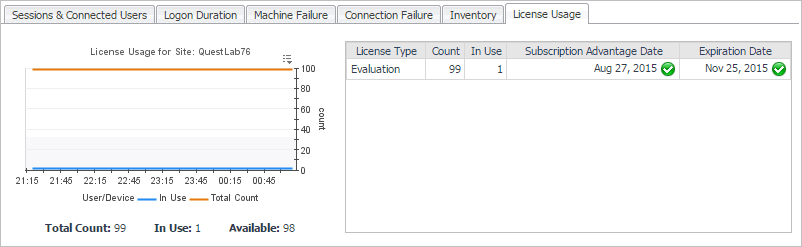
The counts of currently used licenses and available licenses over the selected time period. For each license type (for example, Evaluation), this view displays the total number of licenses, the number of used licenses, the dates when the licenses are first used, and their expiration date. Alarms are generated when the number of used licenses exceeds predefined thresholds.
Figure 57. License Usage tab
 | |
|
Figure 58. Alarms view
 |


