Chat now with support
Chat with Support

Foglight for Citrix XenDesktop and XenApp 5.7.2 - User Guide

Getting started Setting up data collection agents Monitoring the performance of your XenDesktop environment

Exploring and managing monitoring agents

The Agents area contains several tabs that allow you to explore and manage the agent instances that monitor your integrated XenDesktop® environment. Each tab provides information about the agents of a specific type.
Figure 19. Agents tabs
XenDesktop Agents and NetScaler Agents tabs: These tabs list the existing instances of the XenDesktop and NetScaler type, and allow you to manage them. These agents are provided with Foglight for Citrix XenDesktop and XenApp. For more information, see Managing XenDesktop and NetScaler Agent instances.
VMware Performance Agents tab: This tab lists any existing VMware Performance Agent instances, provided with Foglight for VMware, if you have Foglight for VMware installed and deployed.
Host Agents tab: If you have Foglight for Infrastructure installed and deployed, this tab lists any existing Host Agent instances.
Figure 21. Host Agents tab
The list displays the hosts in your XenDesktop environment, and for each monitored host it shows the name of the Host agent, the host name, and its type. If a host is not monitored, a link is provided to launch the Add Monitored Host wizard and create a Host Agent instance. For more information about this wizard, see your Foglight for Infrastructure documentation.
Multi-Desktop Process/Session Collection tab: This tab lists XenDesktop sites.
To enable or disable the collection of process or session metrics for a site, click the Process Collection or Session Collection column, as required.

Managing XenDesktop and NetScaler Agent instances

The XenDesktop Agents and NetScaler Agents tabs list the existing agent instances of these agents and allow you to manage them. Each tab contains a set of columns that indicate various states of individual agent instances, along with several commands that you can issue to manage them. For example, to see if an agent instance is collecting data, look at the agent’s Data Collection column. A green check mark a green check mark in this column indicates that the agent is collecting data.
With the exception of the Alarms column that only appears on the XenDesktop Agents tab, the type of information appearing on these two tabs is identical.
Figure 24. XenDesktop Agents tab
NOTE: This column only appears on the XenDesktop Agents, but not on the NetScaler Agents tab.
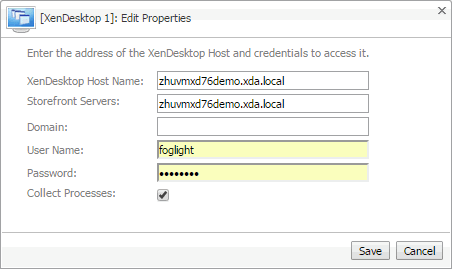
XenDesktop Domain: The name of the domain to which the monitored XenDesktop® system belongs.
NOTE: The XenDesktop Domain, User Name, and Password boxes should only be populated if you need to change these values. Otherwise, they can remain clear.
Storefront Servers: A comma-separated list containing the names of StoreFront servers that provide access to desktops and applications. This step is optional.
XenDesktop Host Name: The name of the machine hosting the XenDesktop site.
User Name: The user name the agent instance needs to connect to the XenDesktop site.
Password: The password associated with the XenDesktop user.
Collect Processes: Select this check box if you want the XenDesktop agent to collect process metrics.
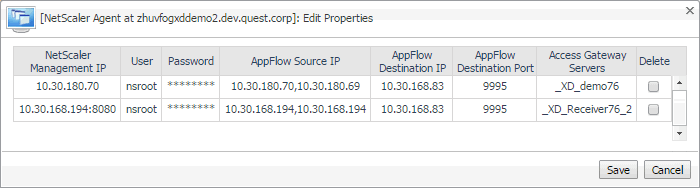
NetScaler Management IP: The NetScaler IP address.
User: The user name required to access NetScaler.
Password: The password of the user account required to access NetScaler.
AppFlow Source IP: A comma-separated list containing the AppFlow Source IP addresses that NetScaler uses to send NetFlow packets. The agent can handle multiple IPs automatically.
AppFlow Destination IP, AppFlow Destination Port: The IP address and port number the Agent Manager can use to receive AppFlow data sent by NetScaler.
Access Gateway Servers: The monitored NetScaler Gateway Server.
Delete: Select this option if you no longer want to monitor this NetScaler Gateway Server.
The toolbar appearing on top of the Agents table provides a set of commands that allow you to manage XenDesktop Agent instances. To issue any of the available commands, simply select one or more agent instances using the check boxes in the left-most column, and click the appropriate button on the tool bar. For example, to start an agent’s data collection, select a XenDesktop Agent instance and click Start Data Collection.
Figure 27. Agents table toolbar
Table 2. Agents table toolbar

Creating XenDesktop Agent instances

NOTE: Unlike the Discover XenDesktop Wizard, the Create XenDesktop Agent wizard does not offer to create VMware Performance agents for the detected vCenters, or to create Windows or Unix agents for the discovered servers. For more information about the Discover XenDesktop Wizard, see Discovering XenDesktop sites .
1
Log in to the Foglight browser interface.
2
On the navigation panel, under Dashboards, click XenDesktop.
Figure 28. Administration tab
4
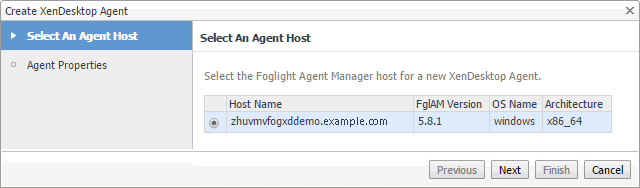
In the Agents area, click Add to launch the Create XenDesktop Agent wizard.
Figure 29. Create XenDesktop Agent wizard
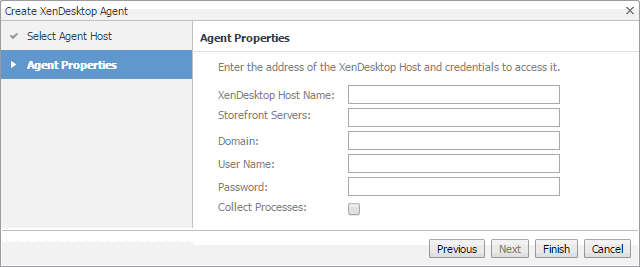
Figure 30. Agent Properties page
6
On the Agent Properties page, provide the following information.
XenDesktop Domain: The name of the domain to which the monitored XenDesktop® system belongs.
Storefront Servers: A comma-separated list containing the names of StoreFront servers that provide access to desktops and applications. This is optional.
XenDesktop Host Name: The name of the machine hosting the XenDesktop site.
User Name: The user name the agent instance needs to connect to the XenDesktop site.
Password: The password associated with the XenDesktop user.
Collect Processes: Select this check box if you want the XenDesktop agent to collect process metrics.
7
Click Finish.
The wizard closes, and the Agents area refreshes, showing a newly created agent instance.
9
Click Start Data Collection.

Configuring agent properties

Foglight for Citrix XenDesktop and XenApp uses the following agents to collect information from monitored environments:
XenDesktop Agent collects information about your integrated XenDesktop® environment. For information about the XenDesktop Agent properties, see the following topics:
NetScaler Agent collects information about user experience data from monitored desktops, using AppFlow extensions. For information about the XenDesktopSession Agent properties, see the following topics:
f
On the navigation panel, under Dashboards, choose Administration > Agents > Agent Status.
h
Click Modify the private properties for this agent.
Related Documents

The document was helpful.

Select Rating

I easily found the information I needed.

Select Rating