|
• |
|
• |
|
1 |
Click the TFR Assignments tab. |
|
2 |
Click Set Currency. |
|
3 |
In Currency Units, enter $. This is the currency unit used in the chargeback calculations. |
|
4 |
Click Save. |
|
5 |
Click Add New Tier. |
|
6 |
Enter Human Resources Tier in Tier Definition Name. |
|
7 |
In the Description box, enter a brief explanation of the tier, for example, |
|
8 |
In Rate (/month) enter 100.00. |
|
9 |
If not enabled, click Enabled. |
|
10 |
Click Save. |
|
11 |
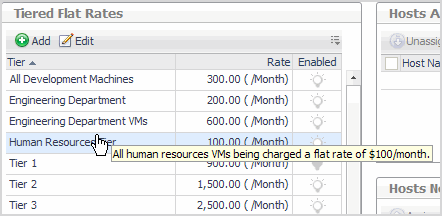
Click the Human Resources Tier in Tiered Flat Rates. |
|
12 |
From the Hosts Not Assigned To table, select the Human Resources VMs. |
|
13 |
Click Assign. |
|
1 |
Click the Add Ons tab. |
|
2 |
Click Add New On. |
|
3 |
In Add On Name, enter All Human Resource Add Ons. |
|
4 |
In Description, enter “All Human Resource Add Ons for the year at a rate of $50/month.” |
|
5 |
|
6 |
Click Save. |
|
7 |
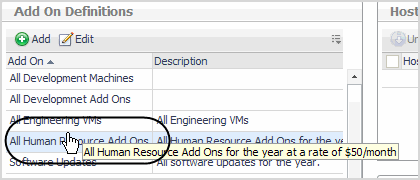
In Add On Definitions, click the All Human Resources Add Ons definition. |
|
9 |
Click Assign. |
|
1 |
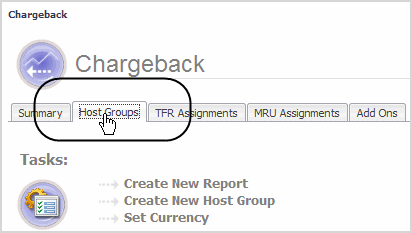
Click the Host Groups tab. |
|
2 |
Click Create New Host Group. |
|
3 |
Enter Human Resources VMs in Name and the the required descriptions. |
|
4 |
Click Save. |
|
5 |
Click the Human Resources group previously created. |
|
6 |
From the Hosts Not Assigned To table, select the Human Resources VMs. |
|
7 |
Click Assign. |

