Set security levels and define PMI levels before configuring your environment.
If you want to run WebSphere® while J2EE security or Global security is enabled, edit the WebSphere's server.policy file to prevent problems between WebSphere and the Java EE agent.
To edit the server.policy file:
|
1 |
Open the server.policy file located in <websphere_home>/properties or in <websphere_profile_home>/properties. |
|
TIP: To understand what metrics Foglight for Java EE Technologies collects, review the agent_collector_<SERVER>.config files for your server type. For example, agent_collector_websphere-6.config. You can access these files from the Application Servers Administration > Java Administration > Advanced Configuration view. |
|
• |
For WebSphere 6.x — click Servers > Application servers. |
|
• |
For WebSphere 7.x/8.x/9.0.0.x — click Servers > Server Types > WebSphere Application servers. |
|
3 |
Under Performance, click Performance Monitoring Infrastructure (PMI). |
|
4 |
Select the Enable Performance Monitoring Infrastructure (PMI) check box. |
|
5 |
Optional — Select or clear the Use sequential counter update check box to enable or disable precise statistic update. |
|
7 |
|
8 |
In the Messages pane, click Save to apply your changes. |
|
9 |
You can use the Java EE Integration Agent to integrate the Java EE agent with WebSphere® Startup Scripts. Specify the WAS Home and WAS Profile type for the application server that you want to integrate with.
|
1 |
On the navigation panel, under Dashboards, click Application Servers > Administration. |
|
2 |
|
3 |
|
4 |
On the Setup Options page, select the type of integration. This example describes how to Setup a new application server integration (the default selection). |
|
5 |
On the New Integration — Type page, select the type of Java application server you want to integrate with. In this case, select WebSphere on Solaris, Linux, HP-UX, or AIX, or WebSphere on Windows. |
|
Startup Scripts for a non-federated WebSphere Application Server | |
|
IMPORTANT: If your WebSphere Windows Service uses encoded parameters (for example, if you provided the ‑encodeParams option when the service was created, or if you ran the ‑encodeParams <service_name> command sometime after service creation) you cannot use the integration method described here. Instead, use the instructions in Manual integration with IBM WebSphere Application Server . |
|
c |
Click Next. |
|
b |
Optional — If your application server uses startup scripts with customized names, click the arrow beside Other Options to open a list of script paths and names. Type the custom names in the appropriate boxes. |
|
c |
Optional — Click the arrow beside Command Line Options to show the agent and pre-instrumentor option boxes. Use these boxes to provide command-line parameters for the agent or pre-instrumentor. |
|
• |
To add agent options, type them in the Agent Options box. |
|
• |
To add pre-instrumentation options, type them in the pre-instrumentor Options box. |
|
d |
Click Next. |
|
• |
Click New log configuration. The New Log Configuration dialog box opens. |
|
TIP: If you are uncertain about how to adjust these settings, click Help for an overview of log targets and their purposes. For details, see Creating or editing logging properties . |
|
• |
To accept the default directory, leave the Directory name box blank. |
|
a |
By default, the instrumentation script is assigned a name based on the integration type. For example: WebSphere on Windows: StandaloneServerScripts. |
|
b |
Click Finish. |
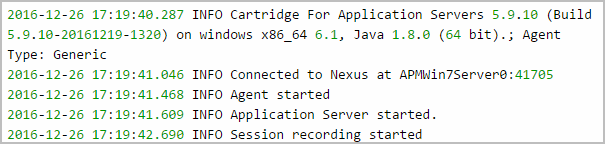
The agent starts collecting data after the application server has restarted and the agent is successfully integrated. Use the Application Servers Monitor dashboard to view the application servers status. For more information about the Application Servers Monitor dashboard, see the Foglight for Application Servers User Guide.
You can use the Java EE Integration Agent to integrate the Java EE agent with an IBM® WebSphere® Liberty on Windows and Linux.
|
1 |
Create a Generic installation only integration on Linux or Windows. For more information, see Creating a Generic Installation for Manual Java EE Agent Integration. |
|
• |
New Integration - Type: Select Generic installation only on Solaris, Linux, HP-UX, or AIX for Linux, or select Generic installation only on Windows for Windows. |

|
• |
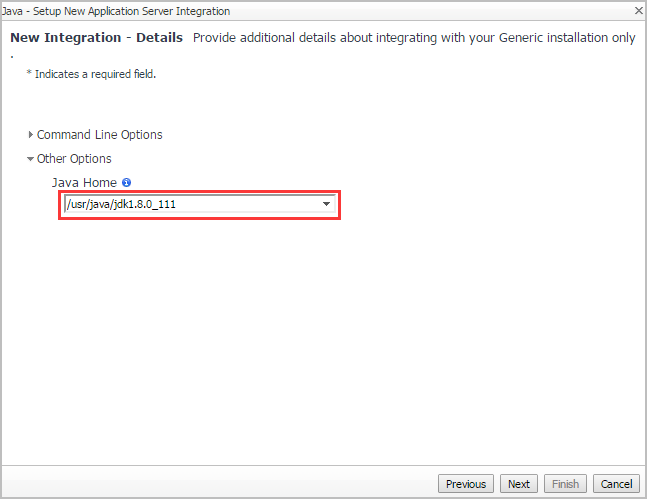
New Integration - Details: Type your Java Installation directory in the Java Home field. |
|
2 |
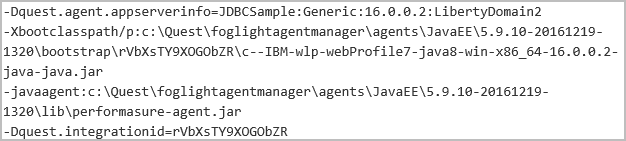
After the generic installation is complete, create a new file named jvm.options under the <Liberty Home>/usr/servers/<Server Name> directory. |
|
3 |
|
IMPORTANT: During the integration, change the variables inside “<>” to the actual values used in your environment.
|
|
NOTE: The value of quest.integrationid is generated during the agent setup, and this value is a part of bootclasspath. For example, if the bootclasspath is "/opt/quest/foglightagentmanager/agents/JavaEE/5.9.10-20161219-1320/bootstrap/rVbXsTY9XOGObZR/-usr-java-jdk1.8.0_111.jar", then the value of quest.integrationid will be "rVbXsTY9XOGObZR". |
|
• |
Linux: Assume Liberty is installed under “/opt/IBM/wlp-webProfile7”, Java EE agent directory is “/opt/quest/foglightagentmanager/agents/JavaEE/5.9.10-20161219-1320”, and the Liberty server to be monitored is “JDBCSample”. Then add the following contents into jvm.options under “/opt/IBM/wlp-webProfile7/usr/servers/JDBCSample/”. |

|
• |
Windows: Assume Liberty is installed under “C:\IBM\wlp-webProfile7-java8-win-x86_64-16.0.0.2”, Java EE agent directory is “C:\Quest\foglightagentmanager\agents\JavaEE\5.9.10-20161219-1320”, and the Liberty server to be monitored is “JDBCSample”. Then add the following contents into jvm.options under “C:\IBM\wlp-webProfile7-java8-win-x86_64-16.0.0.2\usr\servers\JDBCSample\”. |
|
4 |
Save jvm.options. |