This probably should not be used often, but there can be an instance where a windows Profile can become corrupt.
Step 1: Take a screenshot of the users mapped drives in windows explorer
Step 2: Export the Users mailbox to a .pst file and save it to C:\Temp (you may have to create this folder
Step 3 : Restart the computer and log in with a Local admin account
Step 4 : Navigate to C:\Users
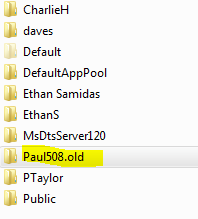
Step 5 : Rename the Profile to be deleted so it shows .old
Step 6 : Open the run command by pressing the windows key and R then type in Regedit.exe and press enter
Step 7 : Navigate to: Hkey_Local_Machine>Software>Microsoft>WindowsNT>CurrentVersion>ProfileList
Step 8 : You will need to click on each of the folders in turn to find the user profile you need to delete, the profileImagePath in the right hand window will let you know the username
Step 9 : Make a note of the Guid from the right hand window
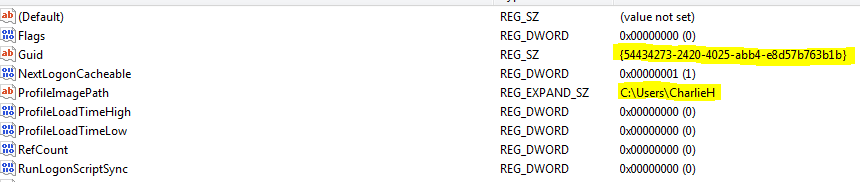
Step 10 : Delete the Folder from the ProfileList
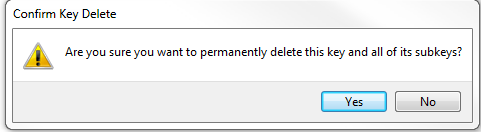
Step 11 : Above ProfileList you will see a folder called ProfileGUID. Expand this and look for the GUID number you made a note of in step 7 and delete it
Step 12 : reboot the computer and get the user to logon (this will take longer than usual as it is creating a fresh profile
You will need to reconnect the users email account and import the .pst file created in step 1 to outlook and will need to recreate any mapped network drives
All the users data is still held on the computer in the user profile you renamed in step 3 and this can be copied and pasted back

