Follow these steps to remove and re-apply the license file.
1. Remove the Update Service(s):
· Open Desktop Authority Manager
· Expand Deployment Options from the Navigation Pane
· Select Server Manager
· In the View Pane, select the Service Management Tab
· Locate the Update Service column
· Right-Click on the word “Started” and select “Remove”

2. Delete the current Register.ini file and licenses:
(On ALL the servers that had the update service installed)
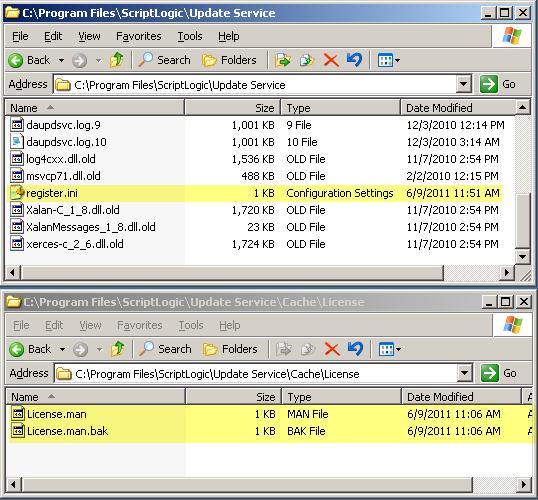
· Delete C:\Program Files\ScriptLogic\Update Service\Register.ini
· Delete C:\Program Files\ScriptLogic\Update Service\Cache\License\License.man
· Delete C:\Program Files\ScriptLogic\Update Service\Cache\License\License.man.bak
3. Re-apply the license file:
· In the Desktop Authority Manager
· Navigate to Help > Product Registration
· Click on Browse, and navigate to the folder where the Register.ini resides
· Select it, and Click Open

4. Install the Update Service:
(On one server only)
· In the Desktop Authority Manager
· Expand Deployment Options from the Navigation Pane
· Select Server Manager
· In the View Pane, select the Service Management Tab
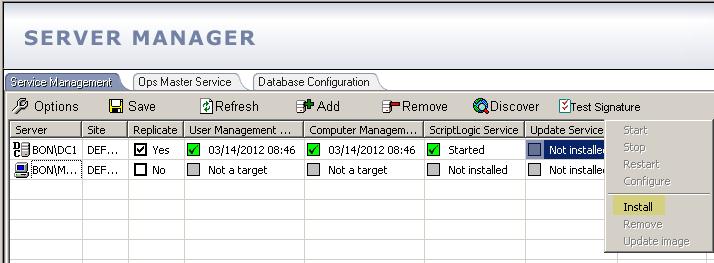
· Locate the Update Service column
· Right click on “Not installed” and select “Install”
5. Close and re-open the Desktop Authority Manager.
NOTE:Do Not Skip This Step: This step will refresh the System Dashboard
6. Verify:
· In the Desktop Authority Manager
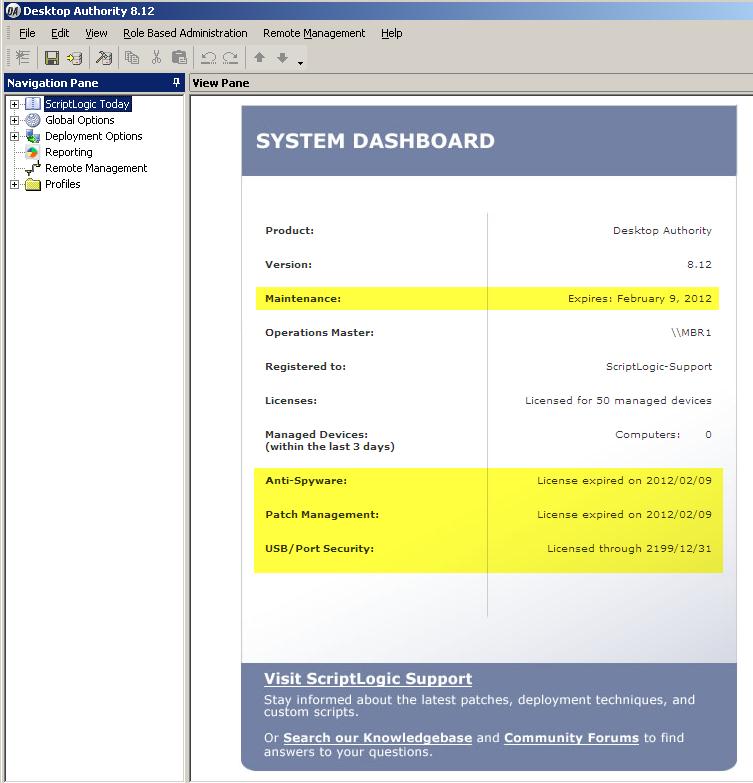
· Select ScriptLogic Today from the Navigation Pane
· Check the System Dashboard and confirm the license information is displaying correctly
7. Install the Update Service on any of the remaining servers if desired.

