The NamedMethods setting for a Java EE agent is used to track specific methods. Specify the names of methods by forming a regular expression that matches the name or pattern. The method signature can be specified but it must be specified using the internal JVM format, as in the "DominateWorld" example below. For more information, see http://docs.oracle.com/javase/specs/#7035.
The JVM format for constructors may not be as expected. For example, for the constructor: com.quest.controller.AuthenticateAdmin.AuthenticateAdmin(), the correct signature to specify would be: com.quest.controller.AuthenticateAdmin.<init>().
|
1 |
Click the Named Methods tab of the Edit dialog box. |
|
2 |
 Add named method to define a named method.
|
4 |
In the dialog box that opens, type the method name in the Specify a name box. |
|
5 |
Click OK. |
Add to add a single method at a time.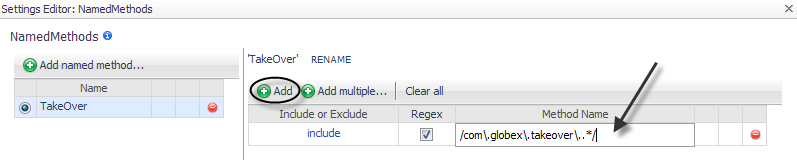 Add multiple to open a text box where you can type several methods.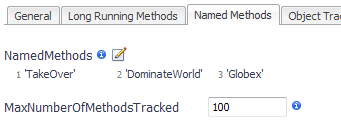
|
8 |
Next, specify the maximum number of named methods to track, as described in Changing the Maximum Number of Methods Tracked .
If you manually edit the instrumentation.config file, use the following syntax to specify named method instrumentation.
For more information about how to monitor specific methods, see the Monitoring Methods topic, in the Foglight for Application Servers User Guide.
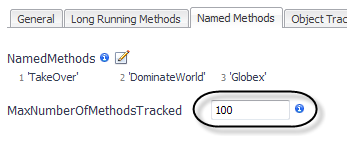
The MaxNumberOfMethodsTracked setting controls the maximum number of Named Methods that the Java EE agent tracks. If the Named Methods list contains a greater number of methods than the value set for MaxNumberOfMethodsTracked, only the first MaxNumberOfMethodsTracked methods are tracked.
|
1 |
Click the Named Methods tab of the Edit dialog box. |
|
2 |
Type a value for the maximum number of methods to track in the MaxNumberOfMethodsTracked box. |
|
3 |
Click Save. |
If you manually edit the instrumentation.config file, use the following syntax to specify the maximum number of methods tracked.
Use the ObjectTrackerClasses setting to watch for objects that are never reclaimed by the garbage collector. You can specify groups of classes with allocated object instances that are tracked during a sampled request.
Object tracking impacts performance overhead if the number of tracked instances is too high. The simplest way to reduce imposed overhead is to track a smaller number of classes. Recording should be delayed until the application has reached a steady state (that is, after start-up work is complete and permanent objects have been created). Use the IgnoredAllocations setting to indicate which objects should not be tracked, even if those allocations are performed by classes in this tracked class list. For more information, see Ignoring specific objects.
|
NOTE: The ObjectTrackerClasses settings only take effect when object tracking is enabled. Object Tracking can be enabled and disabled on a per request basis, by setting the Enable Object Tracking option found in the Application Servers Monitor > Server JVM view. For more information, see the Foglight for Application Servers User Guide. The pre-instrumentor script must be run on all agent machines after changing either the ObjectTrackerClasses or IgnoredAllocations properties. |
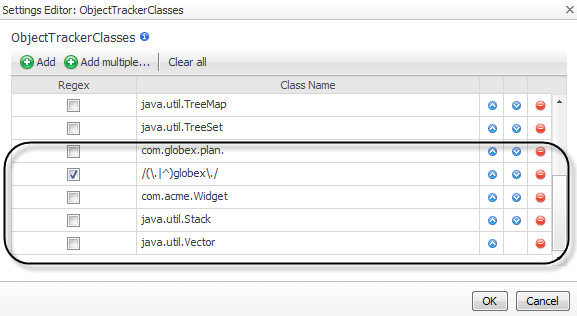
For example, the following procedure shows how to configure this object tracking:
|
• |
Track all classes in the com.globex.plan package. |
|
• |
Do not track any other classes with globex in the name. |
|
• |
|
1 |
Click the Object Tracking tab of the Edit dialog box. |
|
2 |
Add multiple to define several classes at once.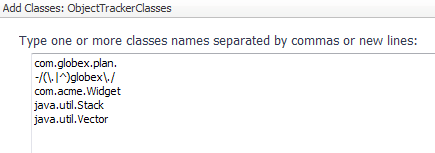
|
5 |
Click Add. |
|
6 |
Click OK. |
|
7 |
You may also want to ignore specific objects. For more information, see Ignoring specific objects.
If you manually edit the instrumentation.config file, use the following syntax to specify the object tracking instrumentation.
ObjectTrackerClasses = ClassList(
include "com.globex.plan.",
exclude /(\.|^)globex\./
include "java.util.Stack",
include "java.util.Vector",
);
This example tracks all classes in the com.globex.plan package, but it does not track any other classes with globex in the name. It also tracks the com.acme.Widget class, as well as the listed collection classes.



 beside