How to configure erwin Mart Portal SAML with Oracle Access Management
1. Open Oracle Cloud Infrastructure Console
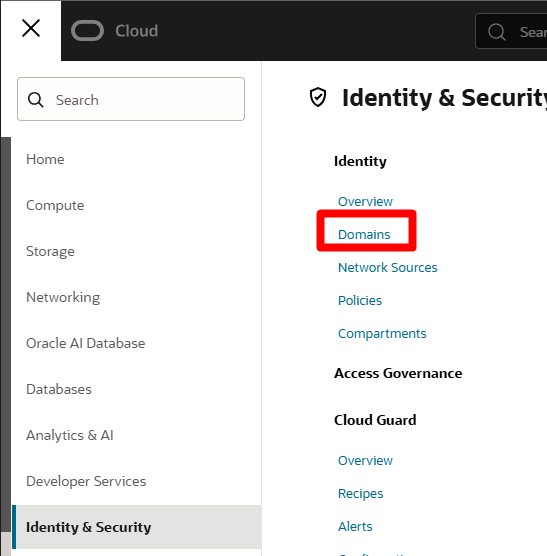
2. Click the Burger Menu Icon > Identity and Security>Domains
3. Click on the existing domain or create a new one

4. Click Integrated Applications>Add Application
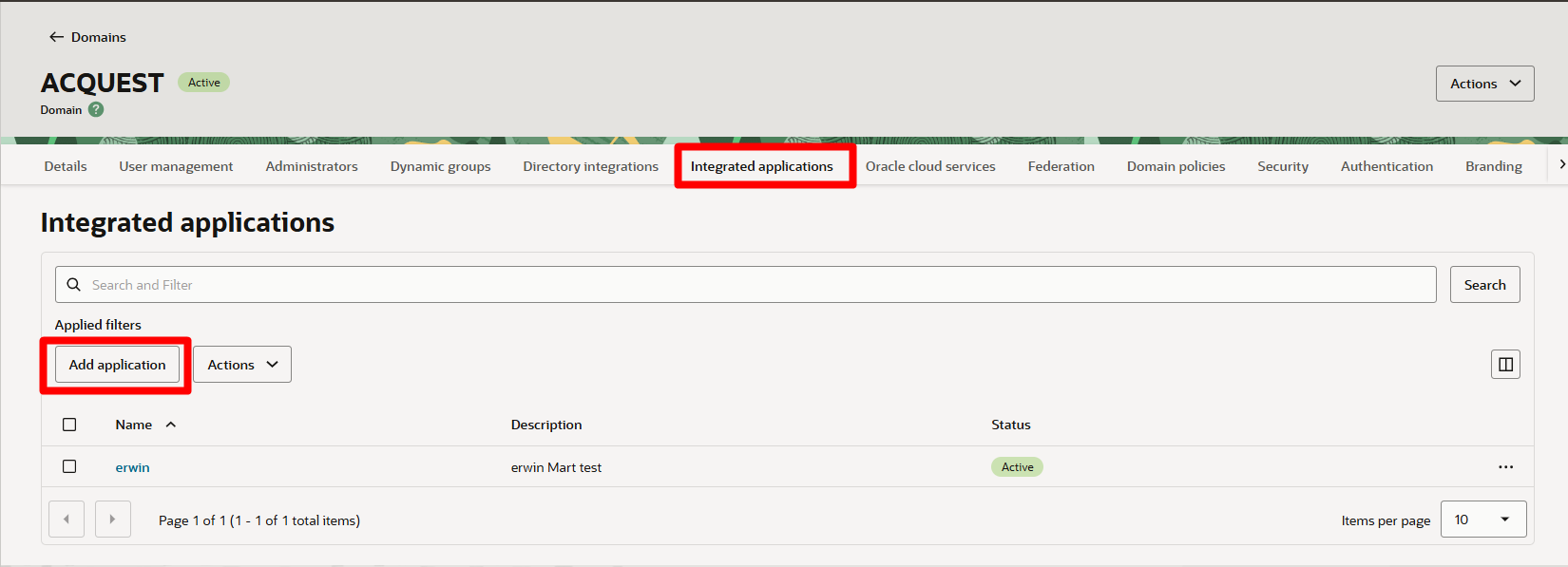
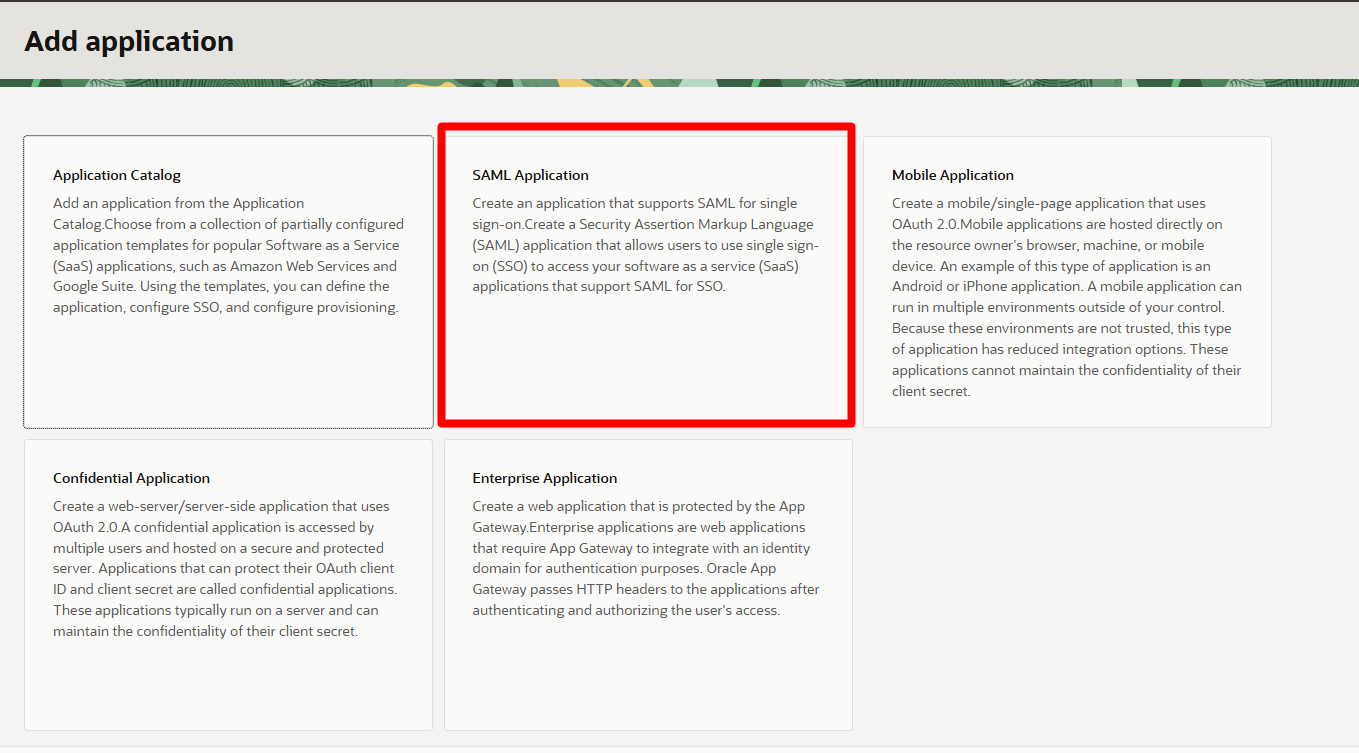
5. Select SAML Application
6. After creating application, go to SAML SSO Configuration>Edit SSO Configuration
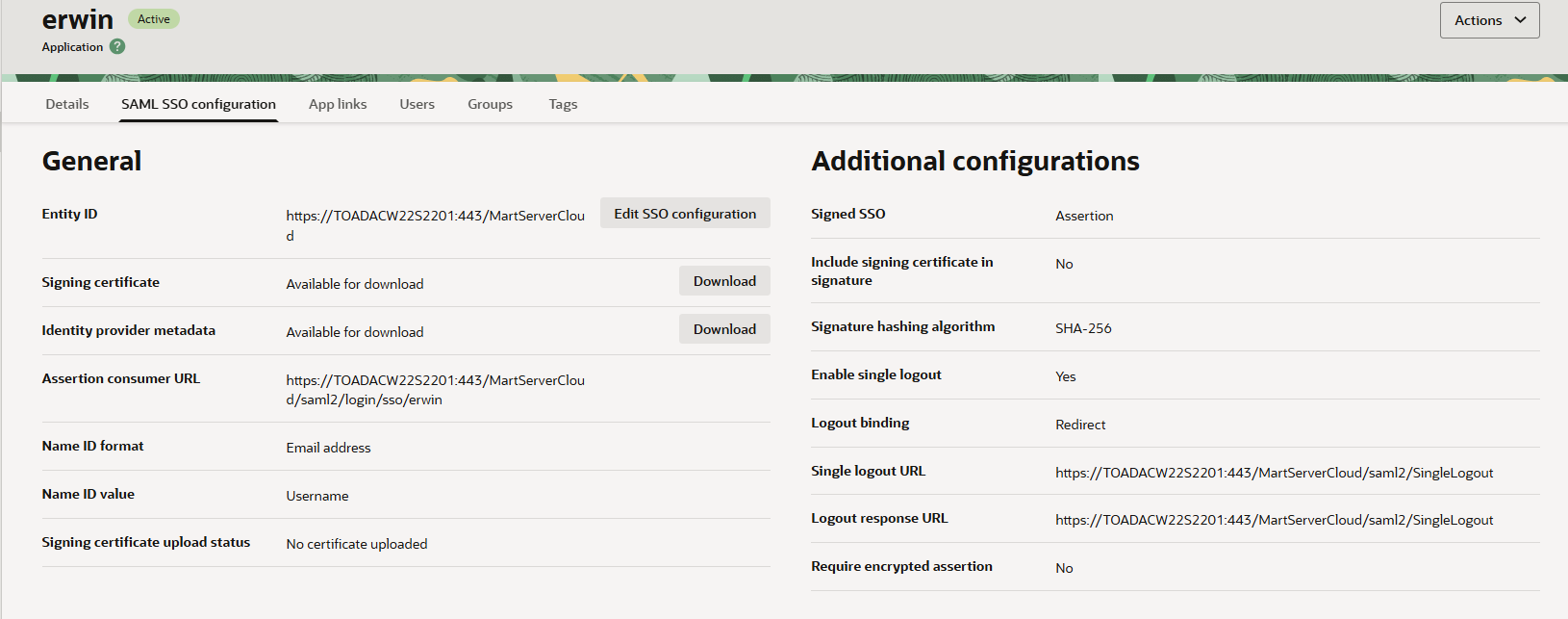
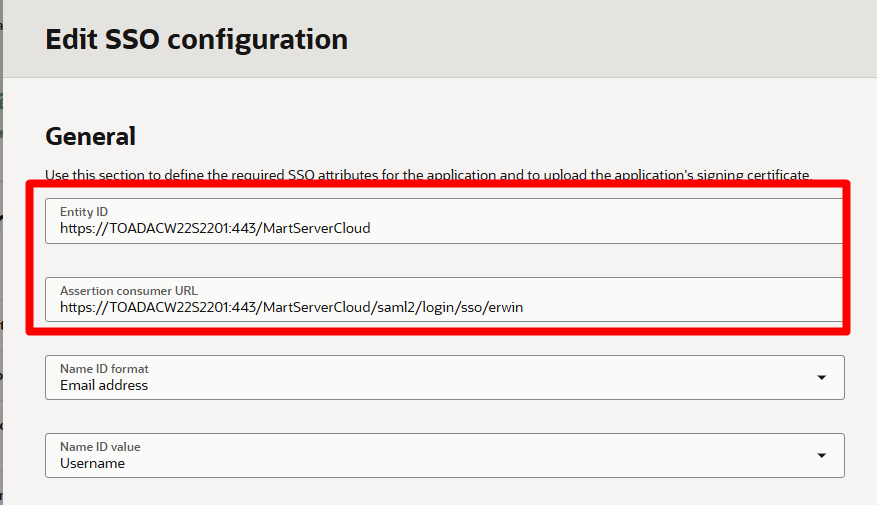
7. Under the general section, use the following values for Entity ID and Assertion Consumer URL
Entity ID: https://<YourHostName>:443/MartServerCloud
Assertion Consumer URL: https://<YourHostName>:443/MartServerCloud/saml2/login/sso/erwin
Under Additional Configurations, use the following value for Single logout URL and Logout response URL: https://<YourHostName>:443/MartServerCloud/saml2/SingleLogout

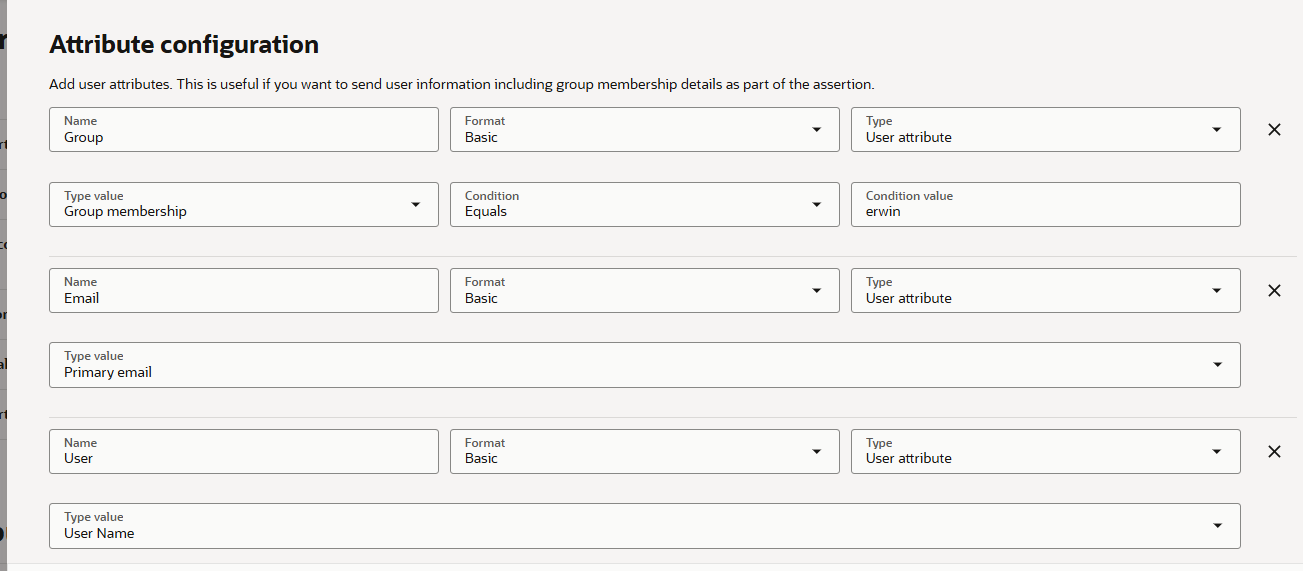
Under Attribute Configuration, Add the following Attributes: Group, Email and User as example below:
7. Click on Save Changes
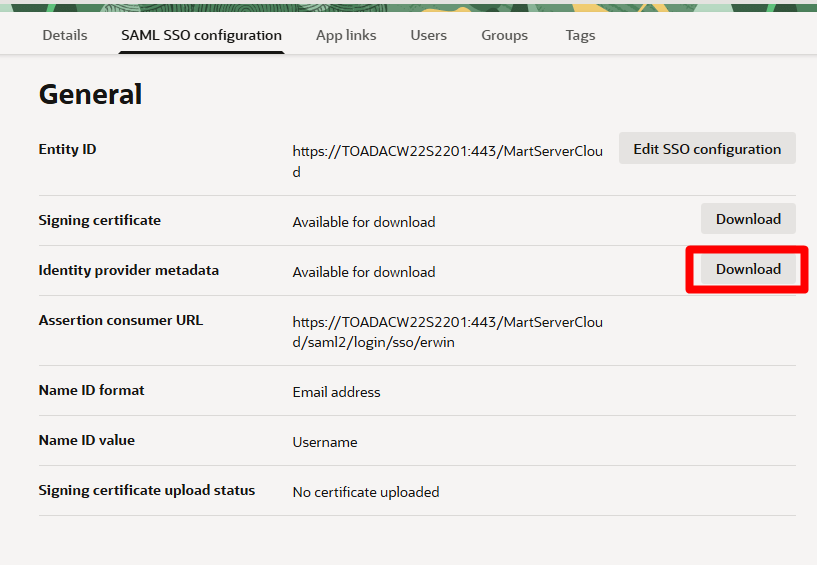
8. In the SAML SSO Configuration main screen>Identity Provider metadata click on Download and save this file for later
9. Go to Erwin Mart Portal Configuration> Authentication
10. Select SAML and browse for the file downloaded in step 8
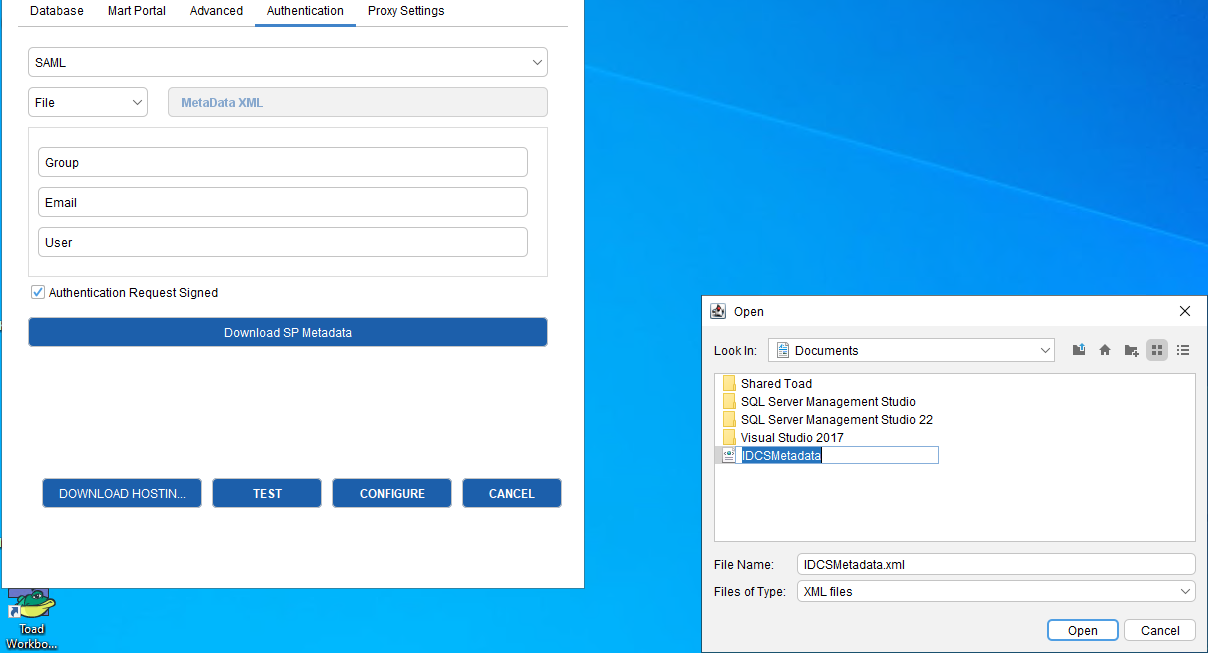
11. Enter the Group, Email and User properties. Make sure these names are the same as the ones created in Oracle and click on Test.
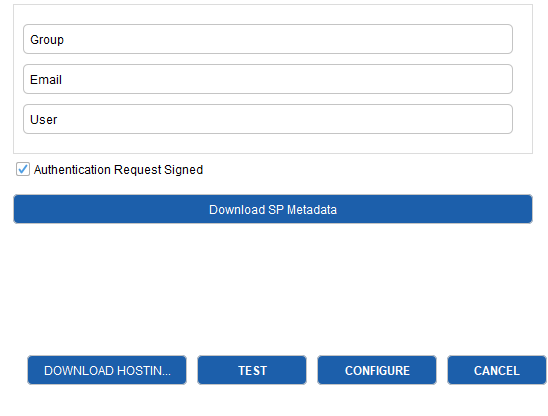
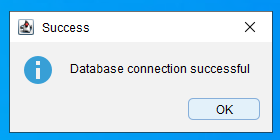
If the connection is successful, you can continue with the next steps.
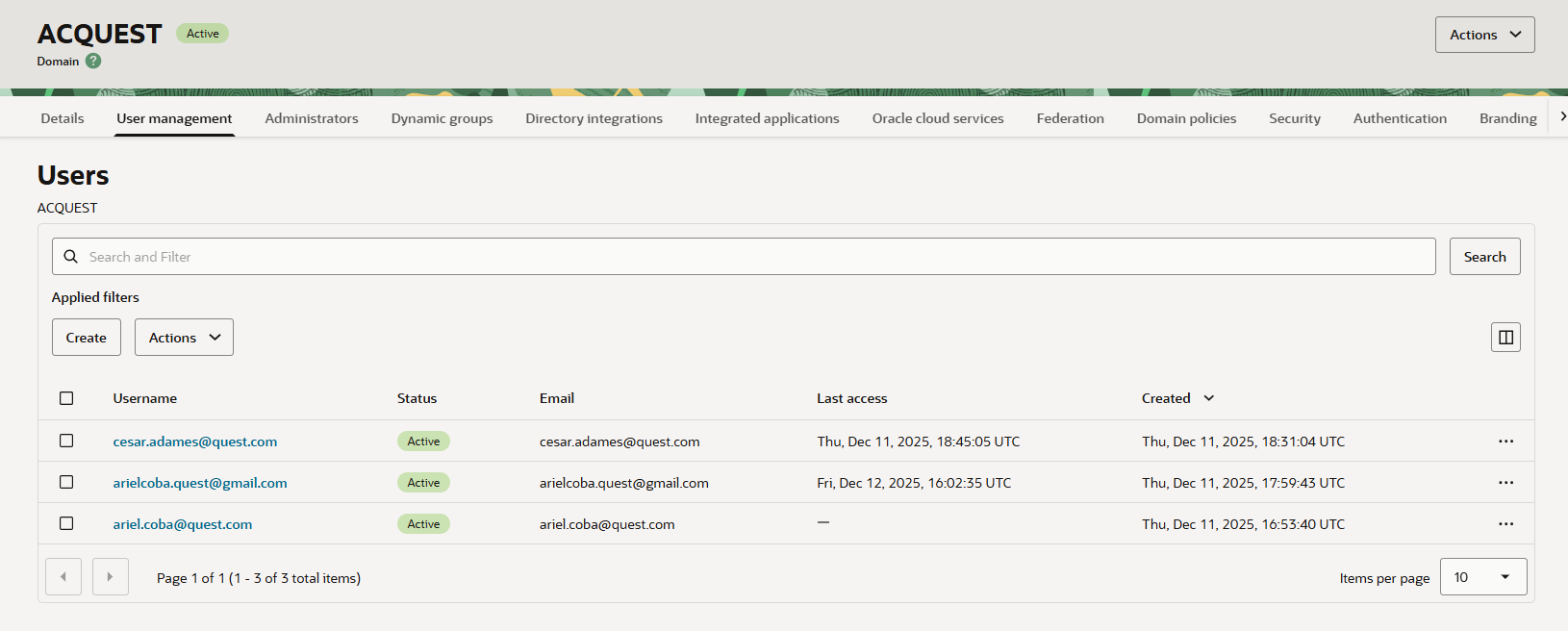
12. In Oracle OCI>Domains create users and groups (These are the ones will be accessing the SSO application from Erwin)
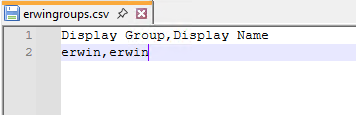
13. Create csv file with the following information
14. Log in to Mart Portal using Server Credentials>Go to Users>Add SAML Group

15. Browse for the csv file created and select the group name (Erwin in this example)
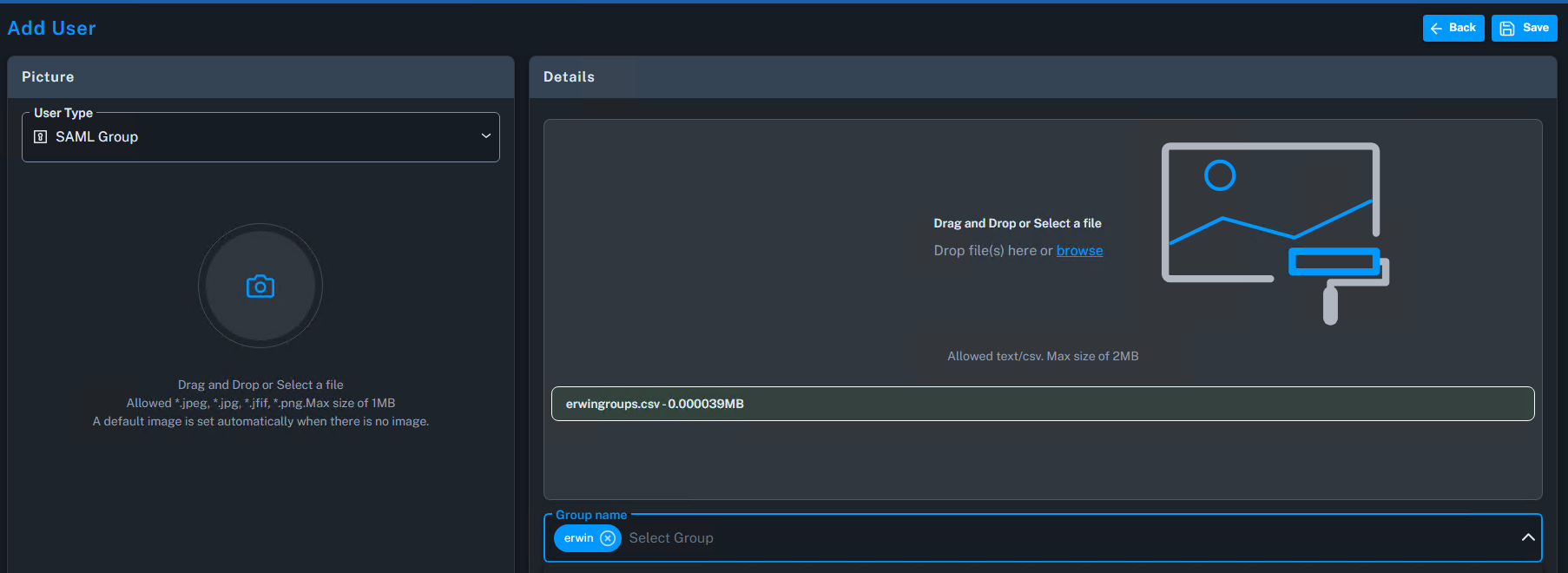
16. Click on Save and you'll see the group created under the users tab

17. You're ready to sign in to Erwin Mart Portal using SSO