In this article, it will be shown how to find objects using the MySQL information_schema database and retrieve information related to that specific object. In the second part of the article, 3rd party tool will be introduced, ApexSQL Search for MySQL and its search capability.
In many cases, during development, there is a need to search through MySQL database to retrieve database information for MySQL objects such as tables, table columns, views, users, indexes, functions, procedures, etc.
To list all available databases on MySQL instance, execute the following code:
SELECT SCHEMA_NAME
FROM information_schema.SCHEMATA;
This code will show all databases for a MySQL instance:
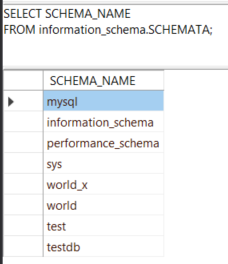
The same result can be achieved by using the code below:
SHOW DATABASES;
To list all tables from the MySQL database, execute the code below:
SELECT TABLE_NAME
FROM information_schema.TABLES
WHERE TABLE_SCHEMA = '';
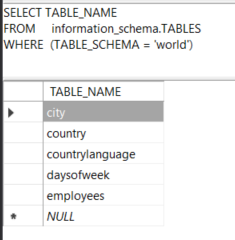
The same result can be got by using the code below:
USE world;
SHOW TABLES;
To perform object search in MySQL database for specific tables, for example, search for all tables which name starts with the letter C, execute the following MySQL code:
SELECT TABLE_NAME
FROM information_schema.TABLES
WHERE TABLE_SCHEMA = '' AND TABLE_NAME LIKE 'C%';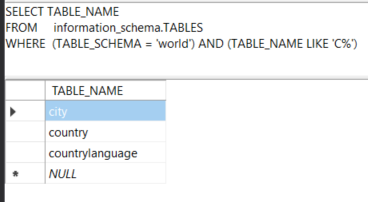
To perform a search for all views under the MySQL instance, use the code below:
SELECT TABLE_NAME
FROM information_schema.VIEWS
But, to narrow down the search scope to just one database, add one extra line of code:
SELECT TABLE_NAME
FROM information_schema.VIEWS
WHERE (TABLE_SCHEMA = '')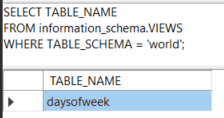
Below is the query which will retrieve all MySQL indexes from the database. Primary key indexes will have the same name unless an explicit name is given when created:
SELECT DISTINCT INDEX_NAME
FROM information_schema.STATISTICS
WHERE (TABLE_SCHEMA = ‘‘)
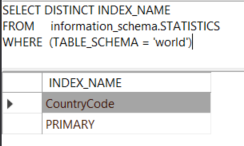
To retrieve all functions under a MySQL database, execute the code below:
SELECT ROUTINE_NAME
FROM information_schema.ROUTINES
WHERE(ROUTINE_TYPE = 'FUNCTION') AND (ROUTINE_SCHEMA = '');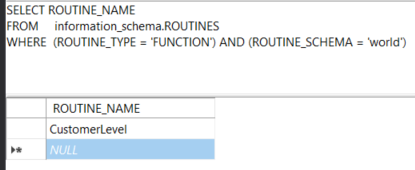
Alternatively, the following code can be used:
SHOW FUNCTION STATUS WHERE DB='world';
The code for finding all procedures under a MySQL database is similar to the code for finding all functions, just in the Where clause, under the ROUTINE_TYPE, set the ‘PROCEDURE’ value:
SELECT ROUTINE_NAME
FROM information_schema.ROUTINES
WHERE ROUTINE_TYPE = 'PROCEDURE' AND ROUTINE_SCHEMA = '';
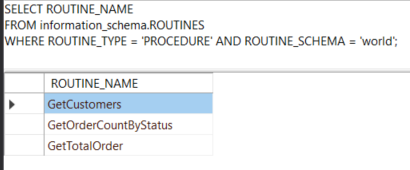
Alternatively, the following code can be used:
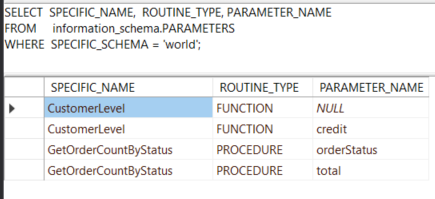
SHOW PROCEDURE STATUS WHERE DB='world';Under the PARAMETERS table of the MySQL information_schema database, information related to stored procedures and function parameters can be found. The PARAMETERS table does not include built-in SQL functions or user-defined functions (UDFs):
SELECT SPECIFIC_NAME,  ROUTINE_TYPE, PARAMETER_NAME
FROM information_schema.PARAMETERS
WHERE SPECIFIC_SCHEMA = '';
The code below finds all triggers for a database specified in the Where clause:
SELECT TRIGGER_NAME, EVENT_OBJECT_TABLE
FROM information_schema.TRIGGERS
WHERE TRIGGER_SCHEMA = '';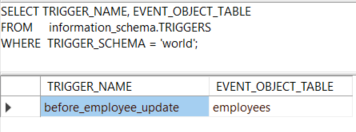
Another way to view all triggers is to use this code:
SHOW TRIGGERS;
To find columns in a table, the COLUMNS table from the MySQL information_schema database can be used:
SELECT COLUMN_NAME, COLUMN_TYPE
FROM information_schema.COLUMNS
WHERE TABLE_SCHEMA = '' AND TABLE_NAME='';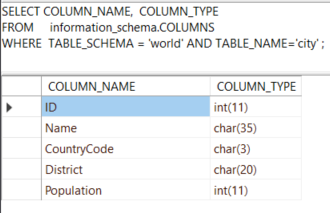
ApexSQL Search for MySQL is a free MySQL search add-in that can be integrated into Visual Studio and can perform all the above-mentioned search options, just like the MySQL information_schema database with only one difference, there is no need to type any line of code in order to find an object of interest.
ApexSQL Search for MySQL has the Object search feature that can perform the search through MySQL databases based on search criteria set in the Search text box under the Object search panel.
To initiate the Object search feature, in Server Explorer panel, select a database, go to the ApexSQL Search for MySQL main menu and, from the list, choose the Object search command:
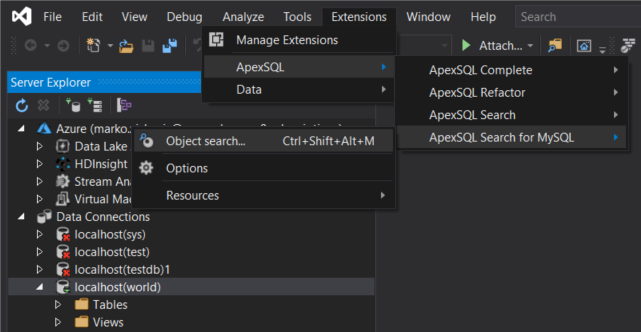
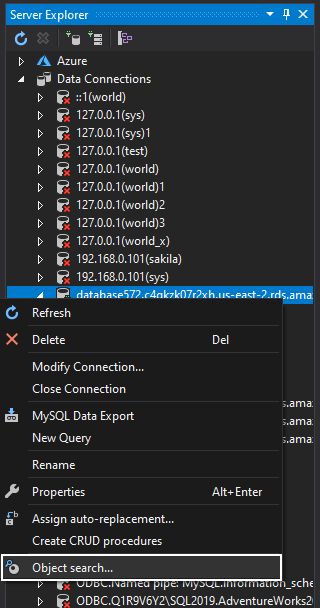
Another way to open the Object search panel is to select a database in Server Explorer panel, right-click and, from the context menu, choose the Object search command:
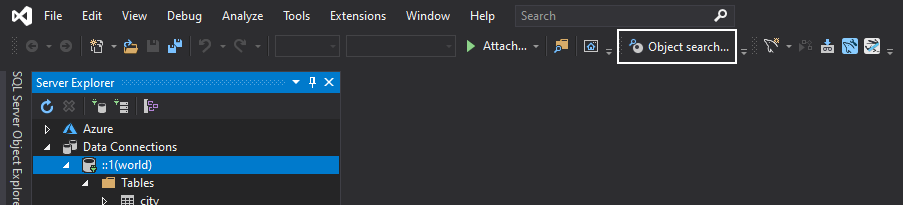
You can use the Ctrl+Shift+Alt+M shortcut or ApexSQL Search for MySQL toolbar with a click on the Object search button to launch the Object search feature:
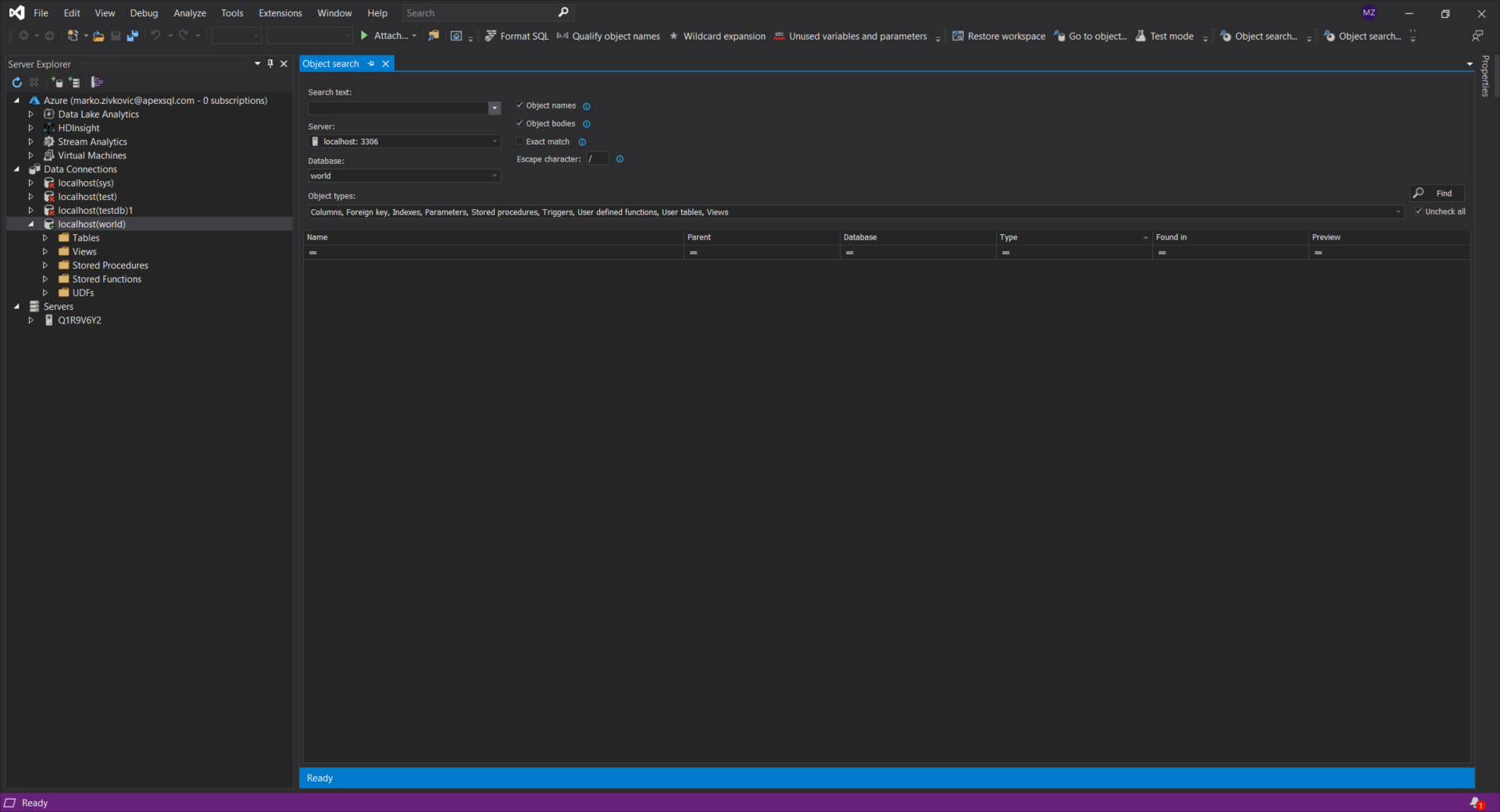
The Object search panel will appear:
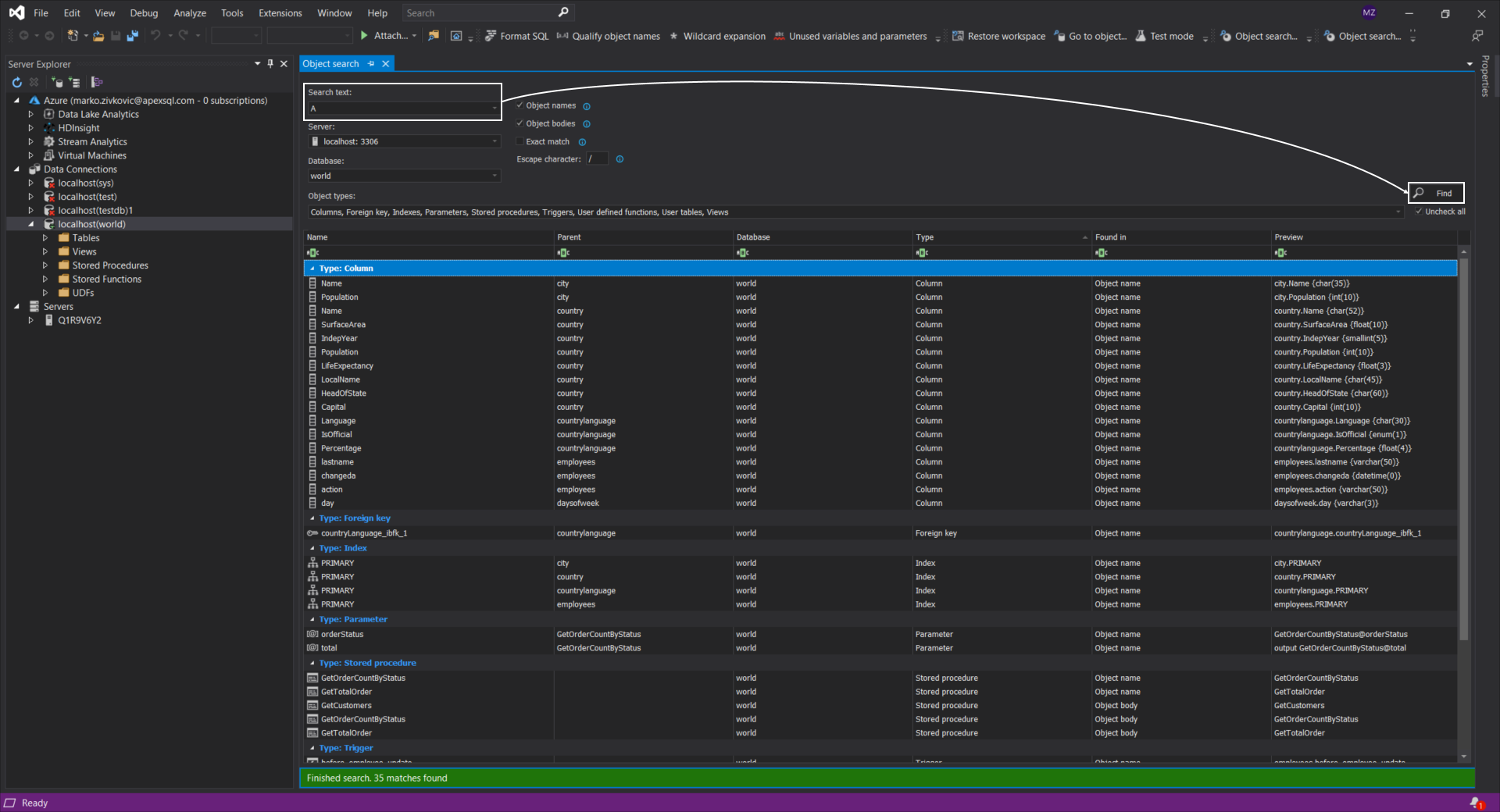
In the Search text box, enter the searched string and click the Find button:
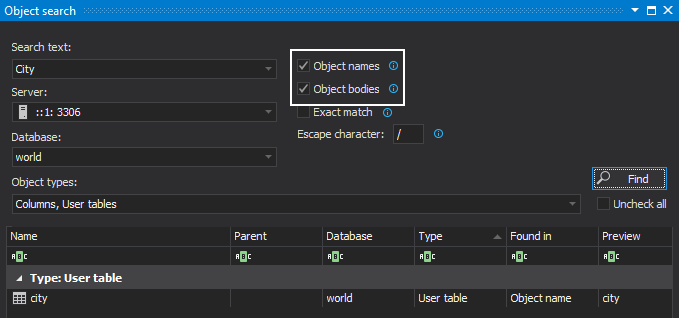
Under the Object search panel, set options to specify where the searched text should look for results, so it can be set to search results in the object name by selecting the Object names checkbox or in the object body by selecting the Object bodies checkbox:
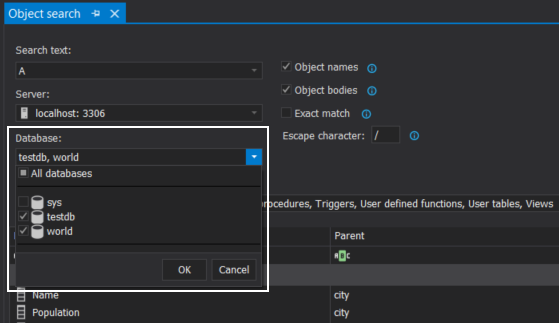
The search criteria can be performed over one or more MySQL databases from a particular MySQL instance, by selecting available databases from the Database drop-down box:
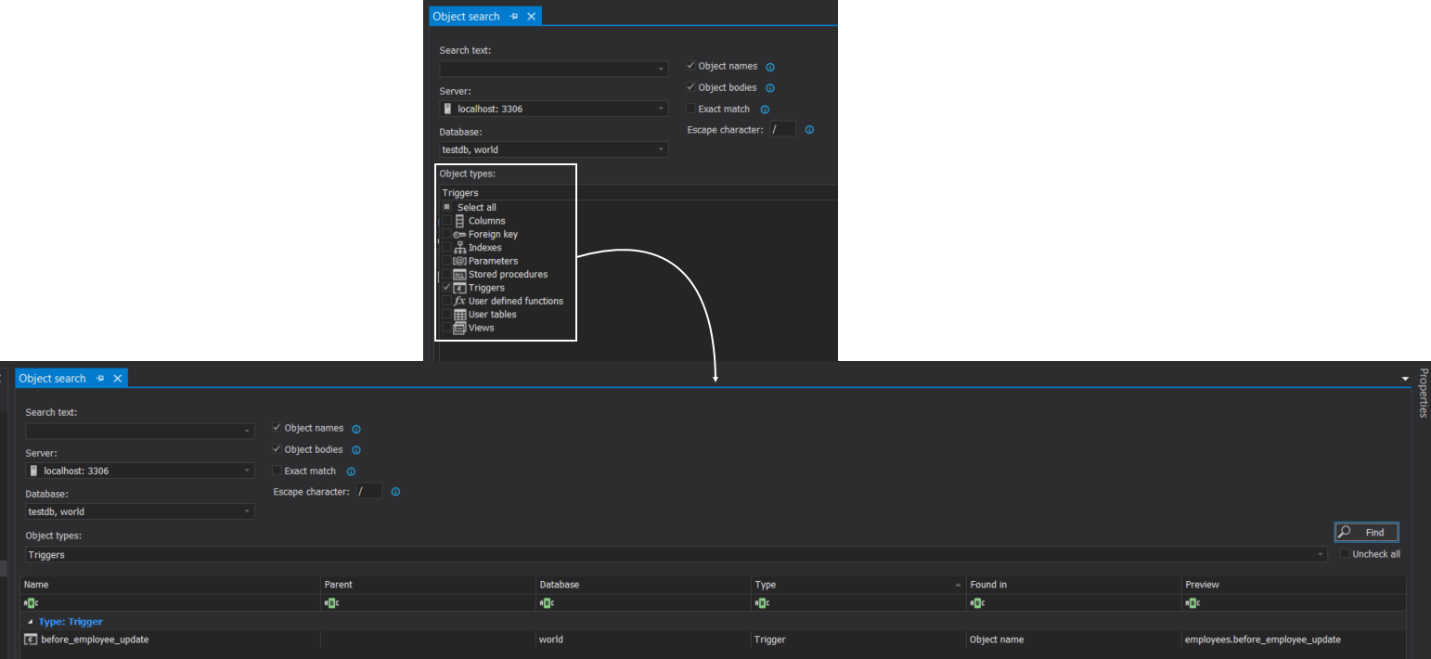
 To get search focus on a particular object, type from MySQL database, for example, to search only triggers, in the Object types drop-down box, select the only the object type of interest. In this case, that is the Triggers item, so click the Find button. This will find all triggers for the world and testdb databases:
To find all parameters for the stored procedures and functions in a MySQL database, in the Object types drop-down box, check the Parameters checkbox and click the Find button:
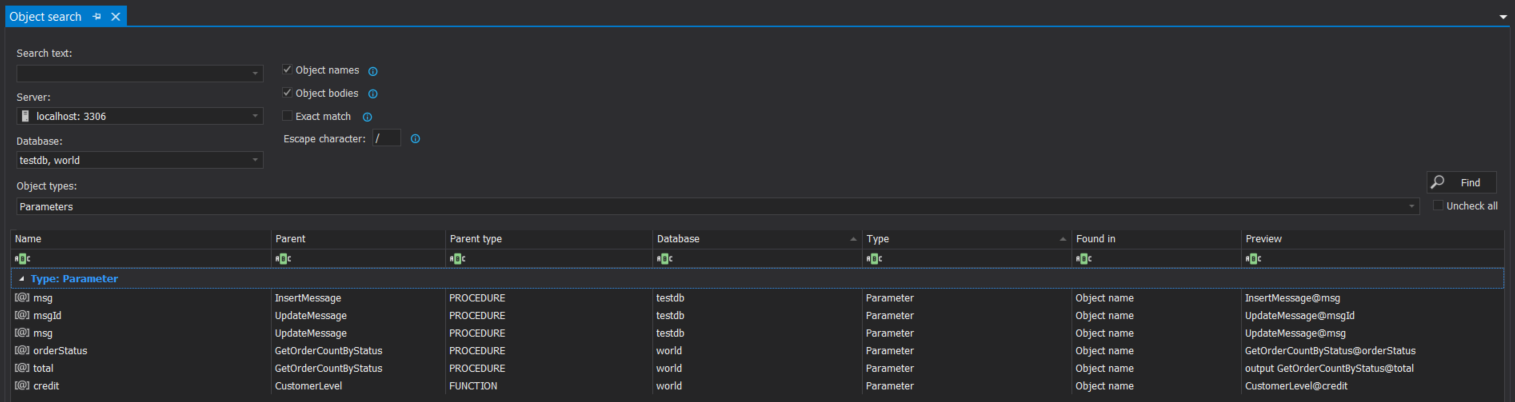
As can be seen, the results are the same as used for the PARAMETERS table from the MySQL information_schema database.
Besides finding results and displaying those results in the Object search results grid, additionally, the searched objects can be easily located in the Server Explorer panel by using the Navigate to server explorer node command from the right-click context menu:
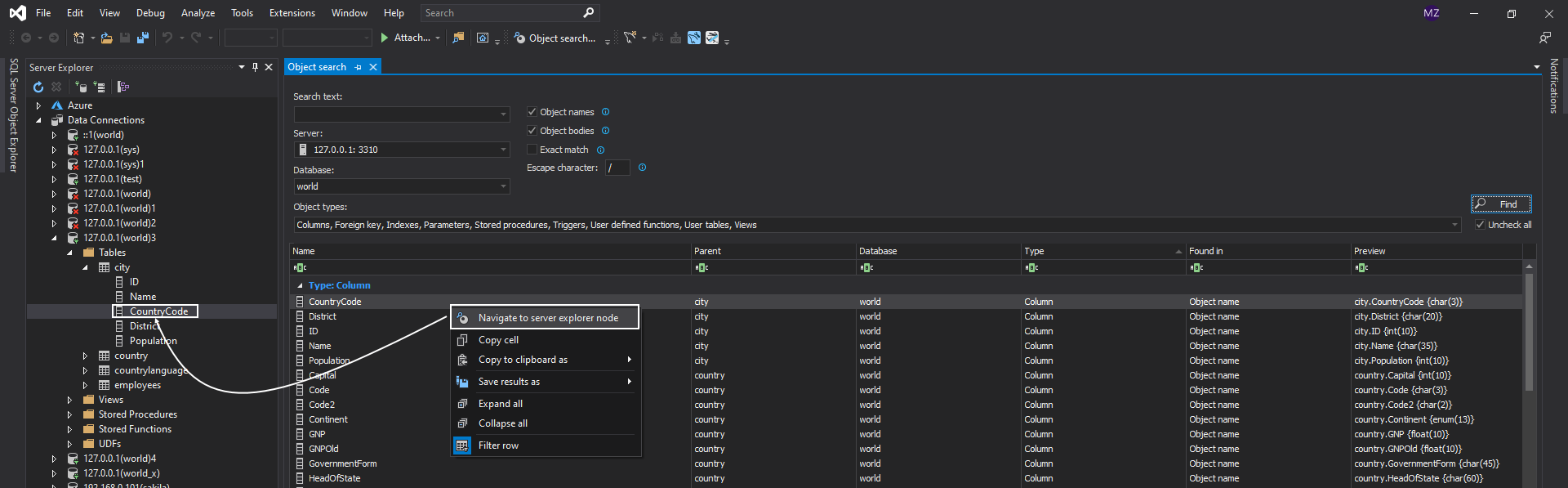
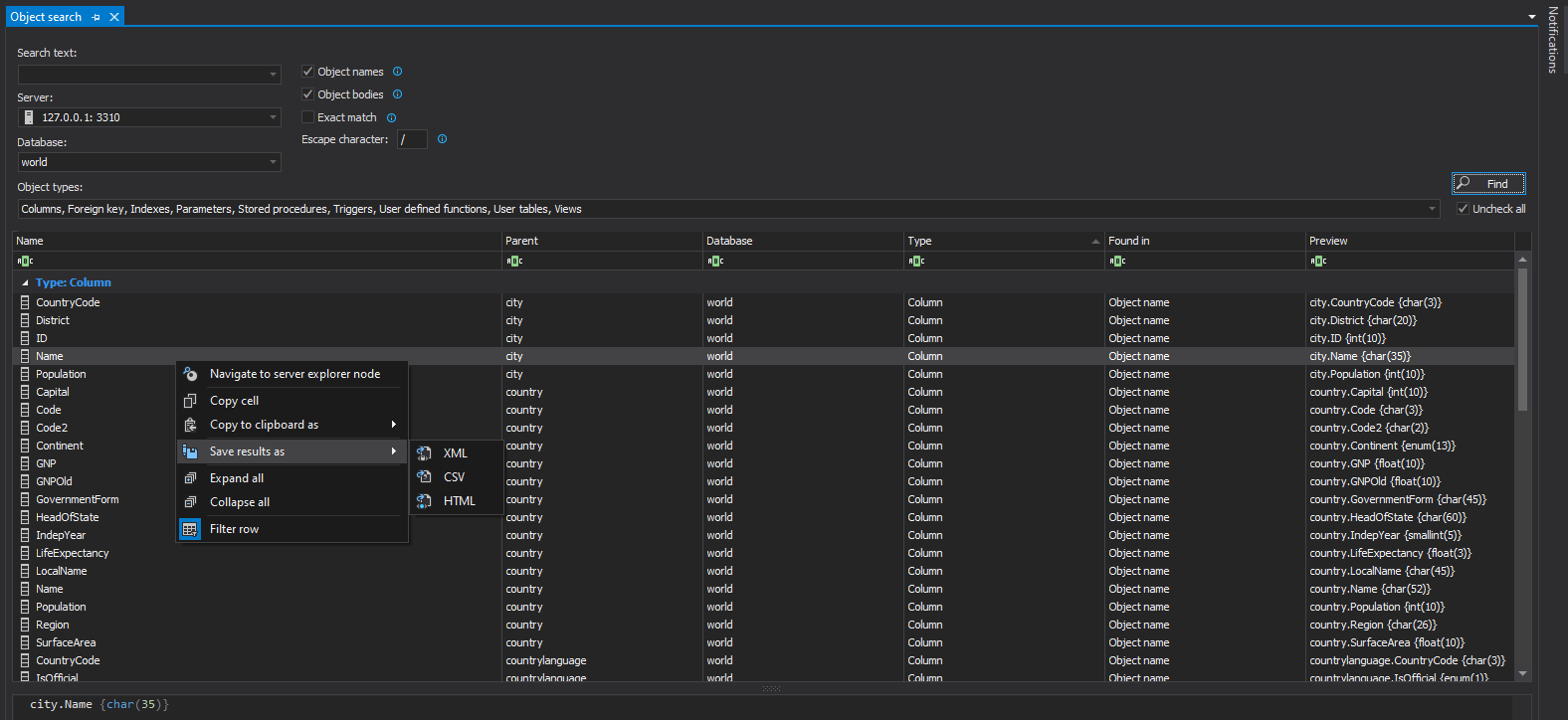
Results from the Object search results grid can be copied or saved in one of the available formats like XML, HTML, CSV: