Applies to
ApexSQL Data Diff
Summary
This article explains how to use the
Row filter option in
ApexSQL Data Diff to limit the comparison in SQL Server to a specific subset of rows.
Description
The
Row filter option allows filtering database rows and including or excluding some of them from the SQL Server comparison and synchronization process, depending on the defined condition.
In the
New project window, set the data sources (source and destination database), expand the
Advanced options tab, and select the
Object filter tab:
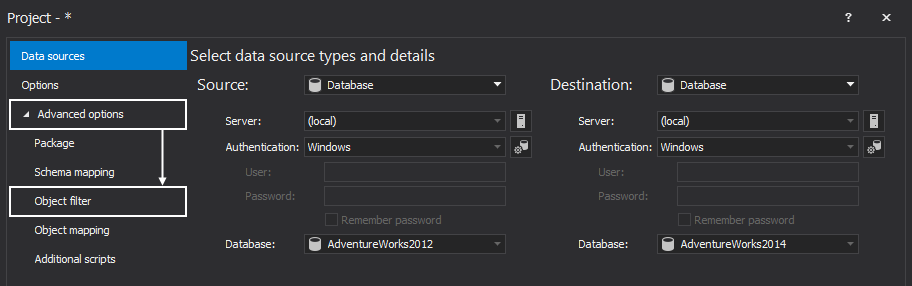
After selecting the
Object filter a list of all objects in the databases will be presented. Select the
Row filter cell of the desired object, and click the ellipse (...) button:

|
|
Quick tip:
Excluding unneeded rows from the SQL Server comparison and synchronization, can speed up the process
|
Enter the query condition in the
Row filter window:
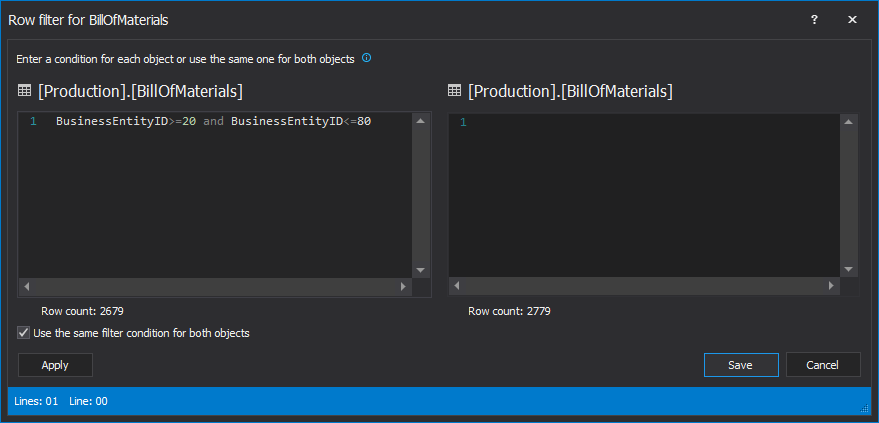
The entered condition will filter the
Employee table comparing only rows that match the condition.
|
|
Quick tip:
Any condition that can be used in the WHERE clause of a T-SQL query, and other related clauses (GROUP BY, ORDER BY, HAVING, etc.) can be used as a Row filter condition as well.
|
The filter condition can be the same for both databases, or it can be different. Uncheck the
Use the same filter condition for both objects option to enter different conditions for source and destination database:

Using the Row filter feature
In the following example we will show the usage of the
Row filter option with the same condition for a source and destination databases. The condition in this example will filter the
ContactTypes table by
ContactTypeID column values from 5 to 20:
ContactTypeID>=5 and ContactTypeID
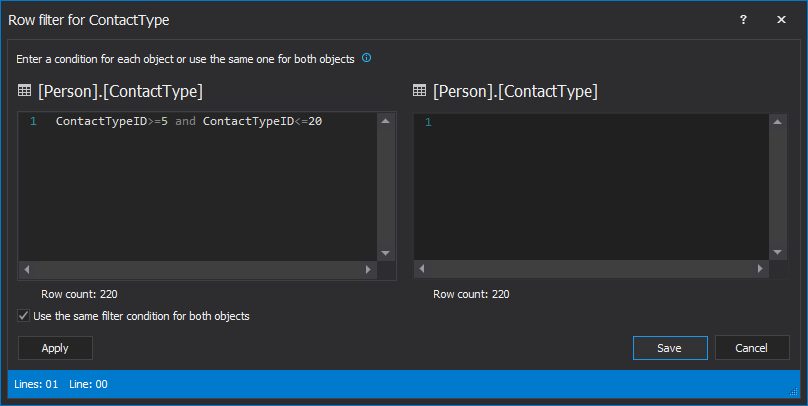 Click the Apply button, at the bottom of this window, to get the Row count, which is the number of the rows that match previously mentioned condition.
ApexSQL Data Diff will add this condition as the WHERE condition into the T-SQL synchronization script and update only rows that match the condition:
Click the Apply button, at the bottom of this window, to get the Row count, which is the number of the rows that match previously mentioned condition.
ApexSQL Data Diff will add this condition as the WHERE condition into the T-SQL synchronization script and update only rows that match the condition:
UPDATE [Person].[ContactType]
SET [ModifiedDate]='19980601 00:00:00.000'
WHERE [ContactTypeID]=5
AND (ContactTypeID>=5 and ContactTypeID<=20)
…
UPDATE [Person].[ContactType]
SET [ModifiedDate]='19980601 00:00:00.000'
WHERE [ContactTypeID]=20
AND (ContactTypeID>=5 and ContactTypeID<=20)
To apply a different condition to a destination database, uncheck the
Use the same filter condition for both objects option, and enter the WHERE clauses for both databases.
For example, if there are two databases with the same credit card, but with different dates for using the credit card, and those uses need to be compared by the
ModifiedDate column, a different WHERE condition can be specified in order to filter rows for comparison.
The condition in this example filters the
ModifiedDate column from date 2002-07-01 to 2003-07-01 for the source database, and
ModifiedDate column from date 2006-07-01 to 2007-07-01 for the destination database.
The condition for this example is as follows:
For the source database:
ModifiedDate>='2002-07-01' and
ModifiedDate
For the destination database: ModifiedDate>='2007-07-01' and ModifiedDate
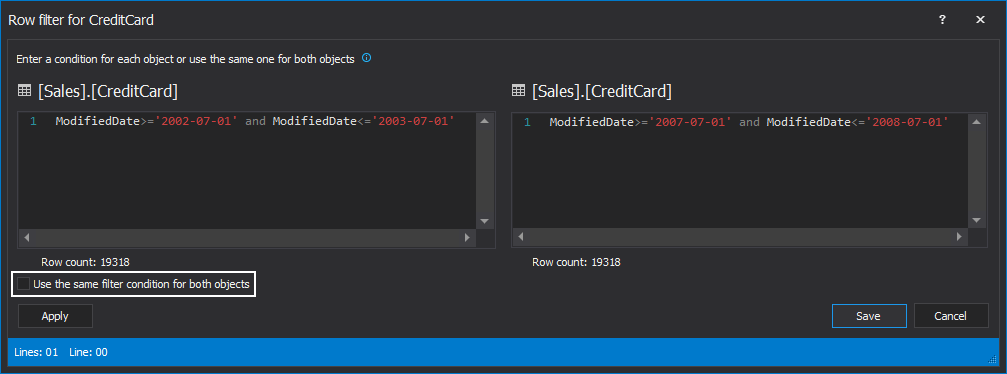 After refreshing the row count, the same number of rows is in both objects. It means that the same products with modified date cost are filtered for comparison and synchronization.
A T-SQL synchronization script for this condition will be:
After refreshing the row count, the same number of rows is in both objects. It means that the same products with modified date cost are filtered for comparison and synchronization.
A T-SQL synchronization script for this condition will be:
DELETE TOP(1) FROM [Production].[ProductCostHistory]
WHERE [ModifiedDate]='20070617 00:00:00.000'
AND (ModifiedDate>='2002-07-01' and ModifiedDate<='2003-07-01')
…
DELETE TOP(1) FROM [Production].[ProductCostHistory]
WHERE [ModifiedDate]='20070630 00:00:00.000'
AND (ModifiedDate>='2007-07-01' and ModifiedDate<='2008-07-01')


