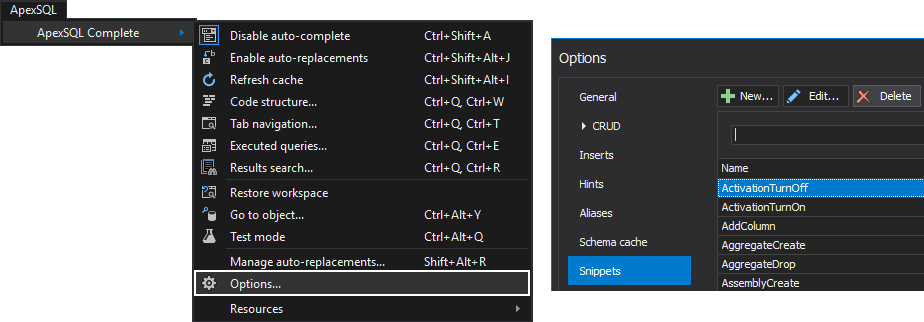
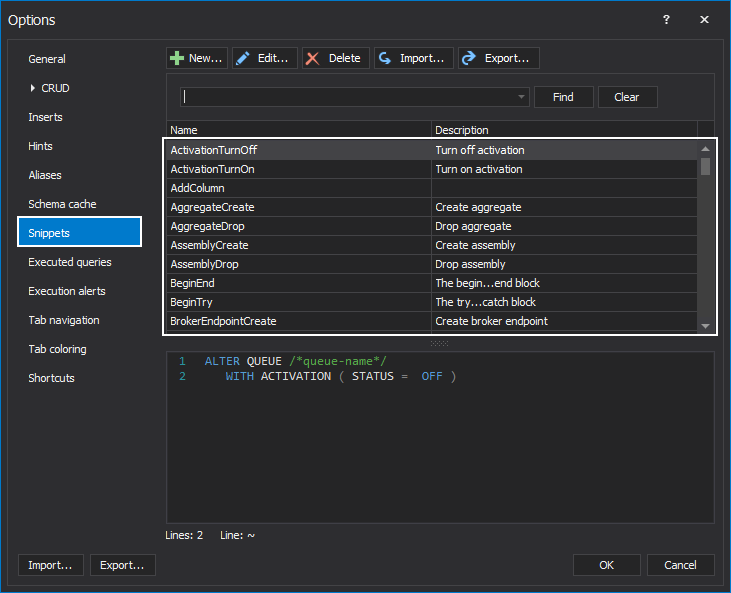
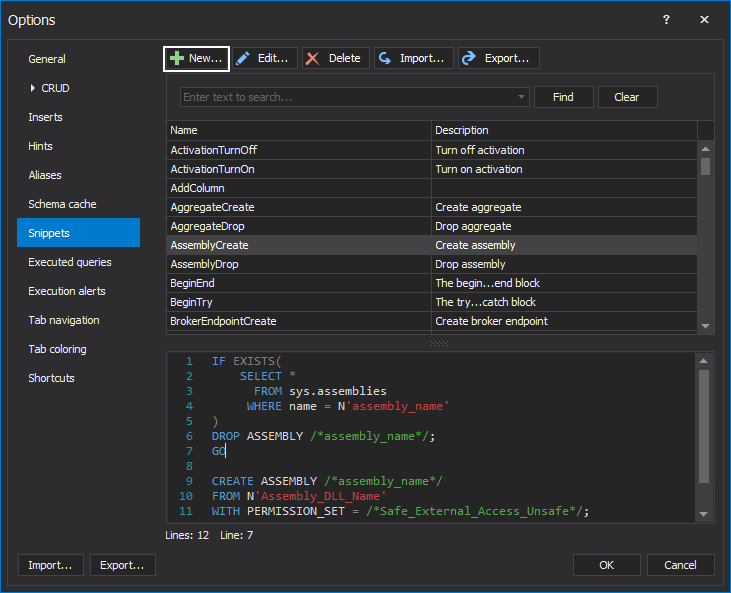
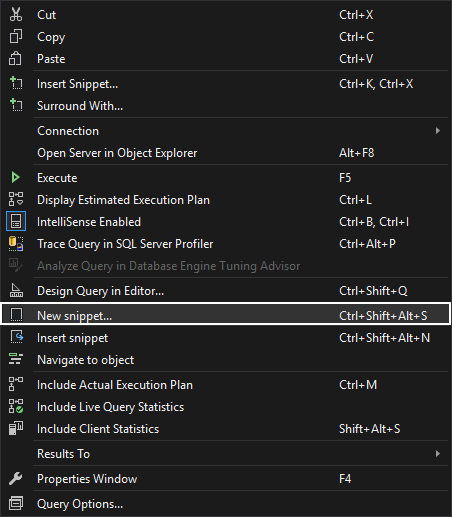
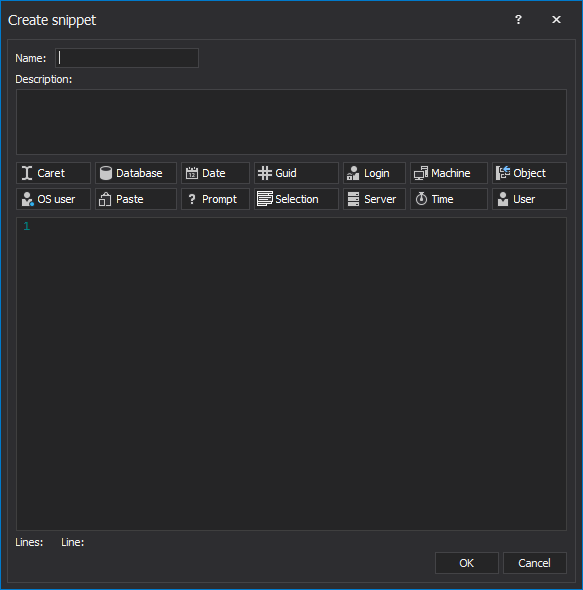
 If nothing is selected, all code from the query window will be inserted in the code section of the Create snippet window:
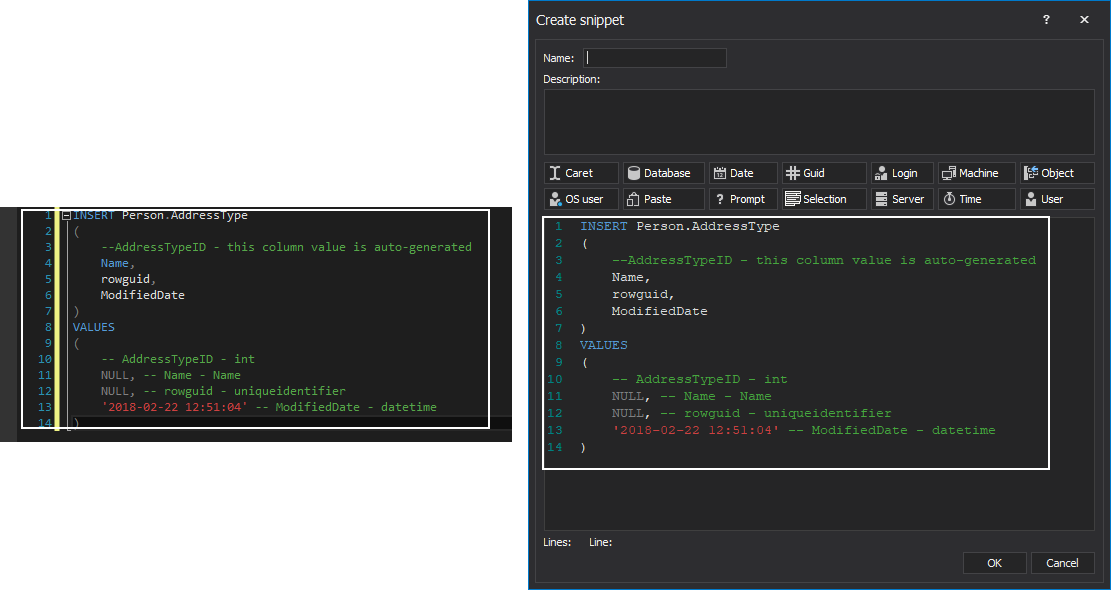 Fill out some basic info and click the OK button to create a SQL snippet:
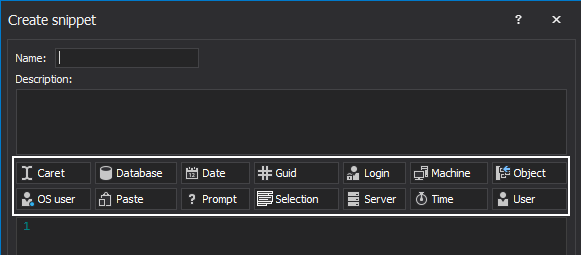 A macro allows add/replace values to be automatically added to the snippet code that represent more detailed values.
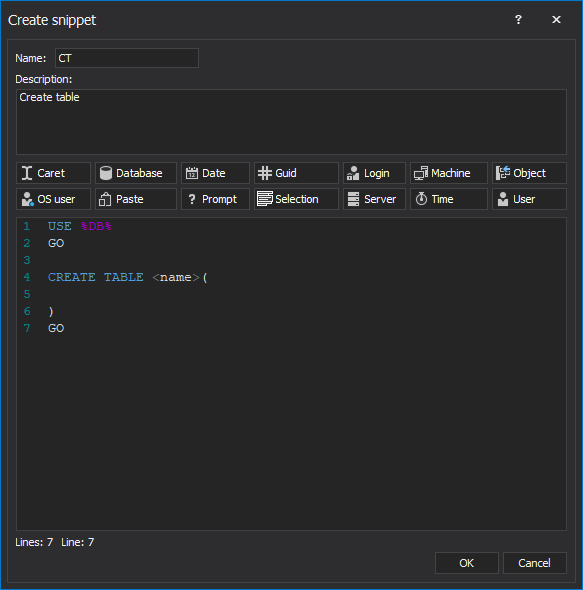
So the Database macro would be placed in the variable %DB%, which, when the snippet is entered during the course of coding, would render to the name of the currently logged into the database:
A macro allows add/replace values to be automatically added to the snippet code that represent more detailed values.
So the Database macro would be placed in the variable %DB%, which, when the snippet is entered during the course of coding, would render to the name of the currently logged into the database:
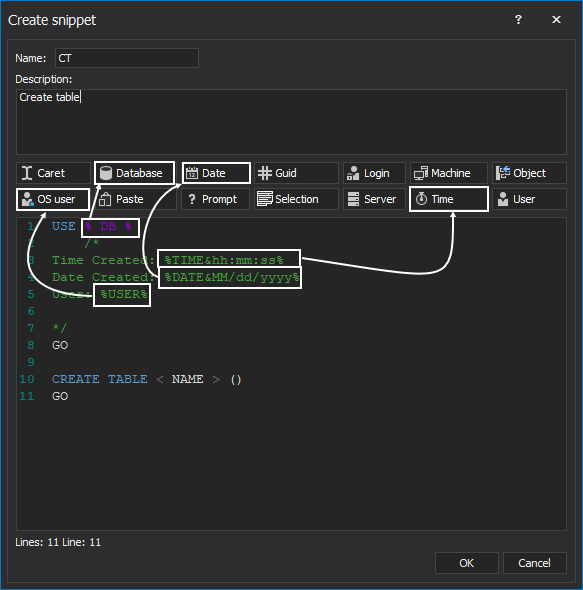 Here is the code that is created in a snippet managing window with macros:
USE % DB %
	/*
Time Created: %TIME&hh:mm:ss%
Date Created: %DATE&MM/dd/yyyy%
User: %USER%

*/
GO

CREATE TABLE < NAME > ()
GO
USE test
	/*
Time Created: 11:28:53
Date Created: 04/29/2016
User: Mare

*/
GO

CREATE TABLE < NAME > ()
GO
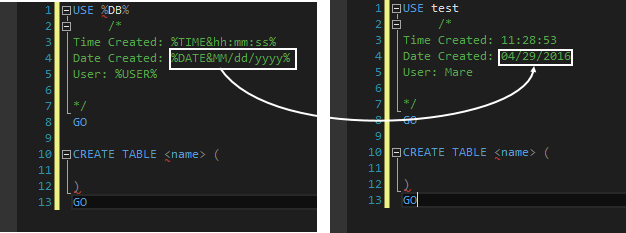 A list of all available SQL Server date formats can be found on this link.
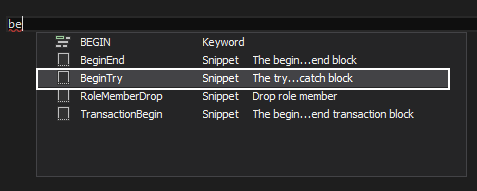
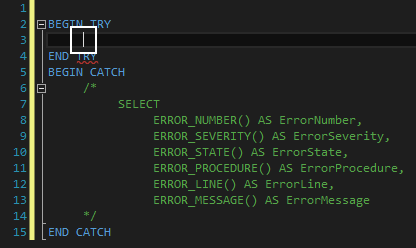
 Start typing the name of the SQL snippet and from the hint-list, choose the BeginTry snippet:
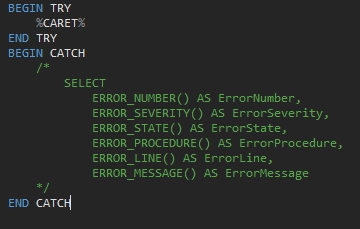
 The cursor will be placed in the place of the %CARET% variable:
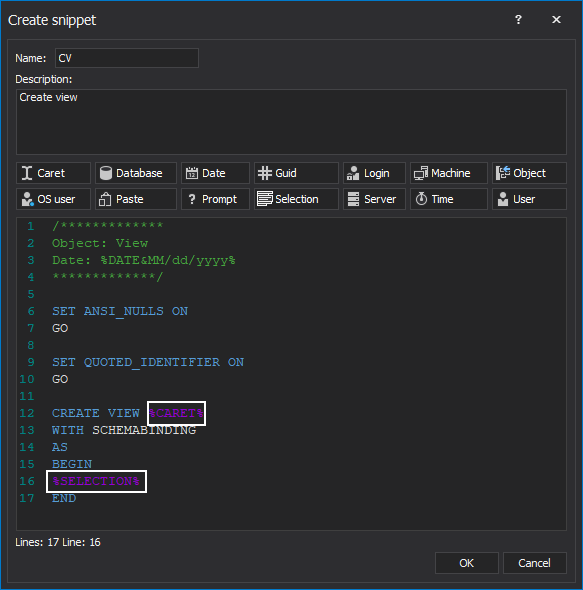
 The Selection macro variable will replace the %SELECTION% variable with the selected code from the query window.
In the below example is a SQL snippet for creating a view:
The Selection macro variable will replace the %SELECTION% variable with the selected code from the query window.
In the below example is a SQL snippet for creating a view:
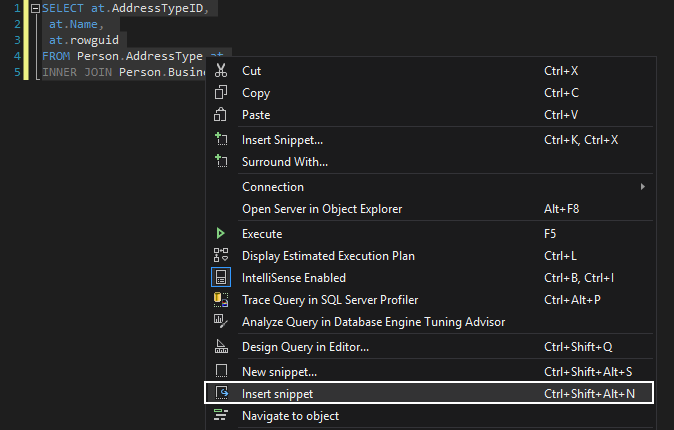
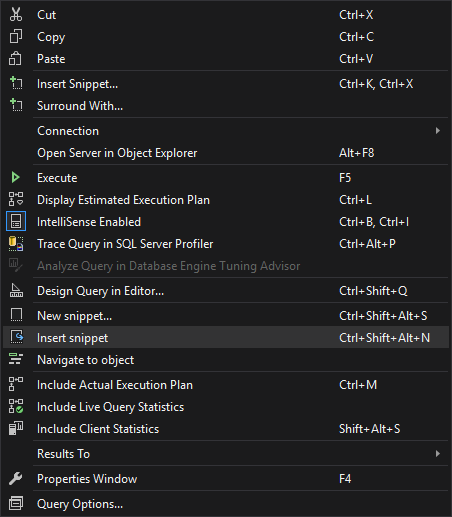
 Select the code in the query window, right click and choose the Insert snippet command:
 From the prompted drop-down list, select the CV SQL snippet:
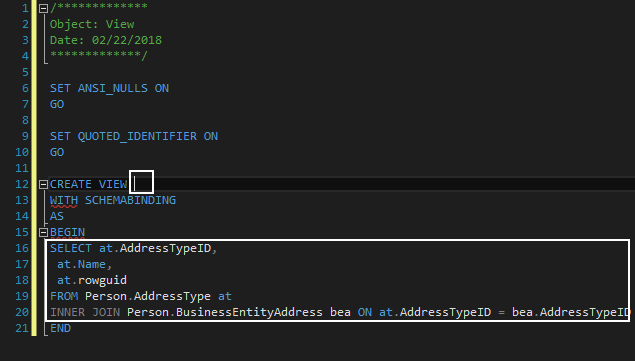
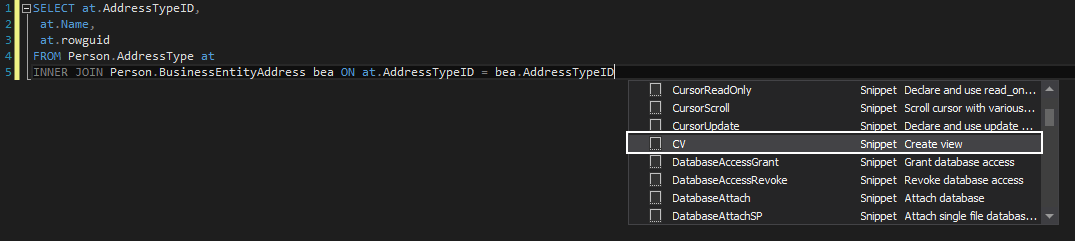 The %SELECTION% variable between Begin/End statement, will be replaced with selected code from the query window and the cursor will be inserted instead the %CARET% variable after View command:
 For more information about using macros, please visit How to create and use T-SQL code snippets page.
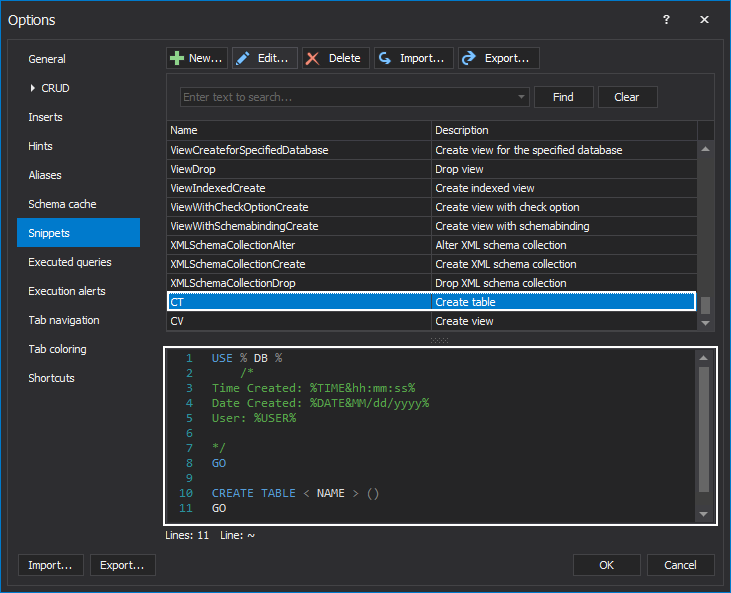
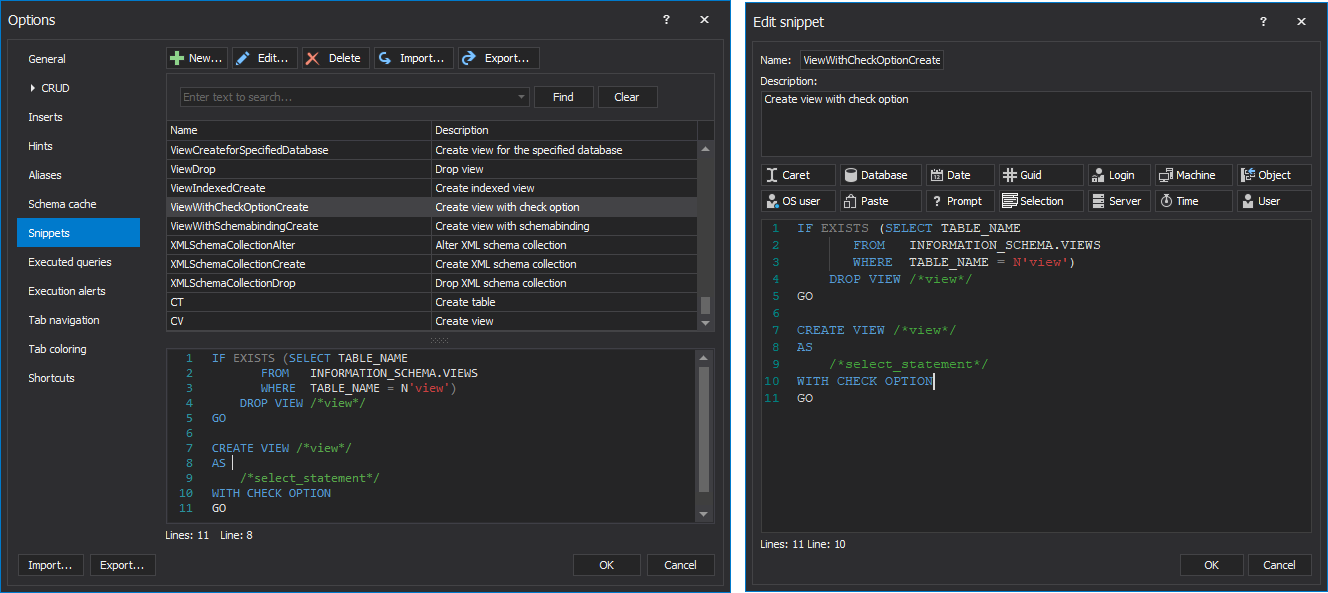
Once created, user defined SQL snippet will be placed in the list among with built-in SQL snippets under the Snippets tab. The Snippets tab includes a code preview for a selected SQL snippet:
For more information about using macros, please visit How to create and use T-SQL code snippets page.
Once created, user defined SQL snippet will be placed in the list among with built-in SQL snippets under the Snippets tab. The Snippets tab includes a code preview for a selected SQL snippet:
 The hint-list will be shown with all available SQL snippets:
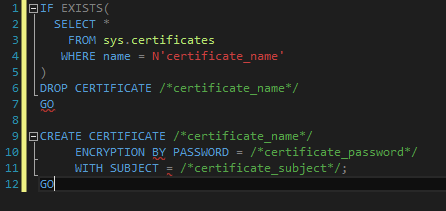
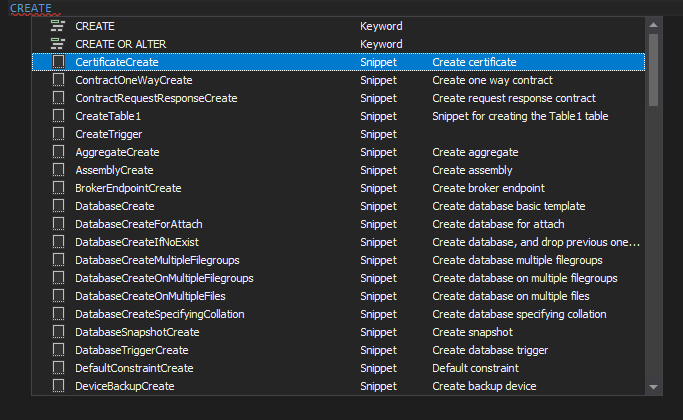 Double-clicking on the desired SQL snippet or select a SQL snippet and press the Enter key, will insert the code of a SQL snippet in the query window:
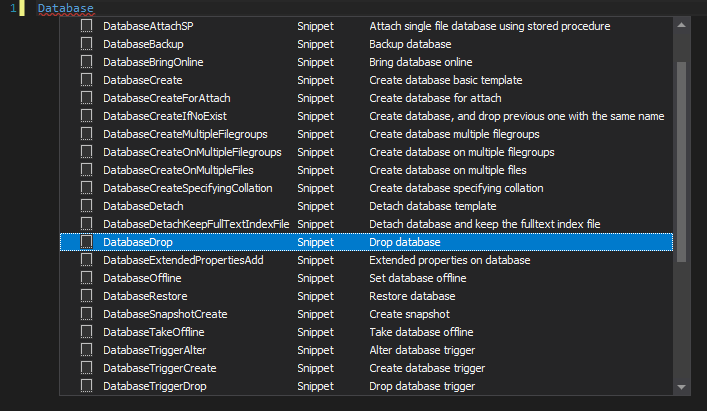
 Another way to insert a SQL snippet is to start typing the name of the SQL snippet in the query window and from the hint-list, choose a SQL snippet by double-clicking on it, or first select a SQL snippet from the list and press the Enter key:
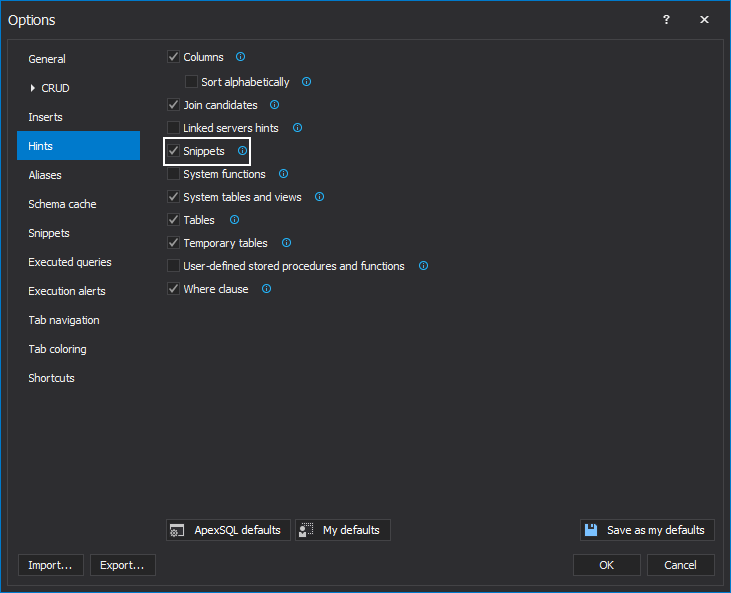
 By default, SQL snippets appear in the auto-complete hint-list. To remove them go to the ApexSQL Complete menu, choose the Options command, and under the Hints tab uncheck the Snippets check box:
 All snippets are saved as xml file. Here is an example of a SQL snippet:
<?xml version="1.0" encoding="utf-8"?>
<Snippet xmlns:xsi="http://www.w3.org/2001/XMLSchema-instance" xmlns:xsd="http://www.w3.org/2001/XMLSchema">
<Name>CT</Name>
<Description>Create a Table</Description>
<Text>
USE %DB%
/*
Time Created:%TIME&hh:mm:ss%
Date Created:%DATE&yy-MM-dd%
User:%USER%
*/
GO
CREATE TABLE <name>(
)
GO
</Text>
</Snippet>
By default, built-in and user defined SQL snippets are placed under the following path:
C:\Users\<current_user>\AppData\Local\ApexSQL\ApexSQLComplete\Snippets
All snippets are saved as xml file. Here is an example of a SQL snippet:
<?xml version="1.0" encoding="utf-8"?>
<Snippet xmlns:xsi="http://www.w3.org/2001/XMLSchema-instance" xmlns:xsd="http://www.w3.org/2001/XMLSchema">
<Name>CT</Name>
<Description>Create a Table</Description>
<Text>
USE %DB%
/*
Time Created:%TIME&hh:mm:ss%
Date Created:%DATE&yy-MM-dd%
User:%USER%
*/
GO
CREATE TABLE <name>(
)
GO
</Text>
</Snippet>
By default, built-in and user defined SQL snippets are placed under the following path:
C:\Users\<current_user>\AppData\Local\ApexSQL\ApexSQLComplete\Snippets
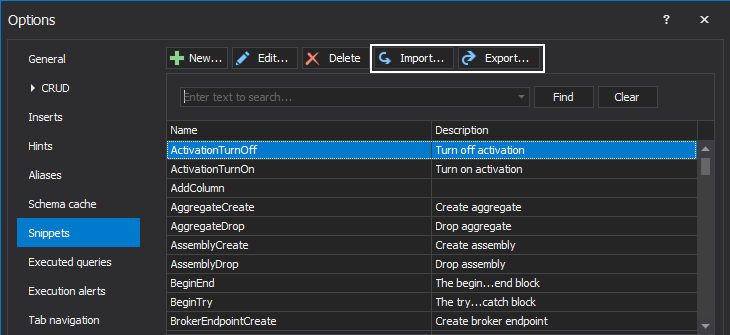 When using the Export option, by default, all (built-in and user defined) SQL snippets will be compressed as Snippets.zip file
To import SQL snippets in the Snippets tab, click the Import button, from the Open window, navigate to the Snippets.zip file and click the Open button:
When using the Export option, by default, all (built-in and user defined) SQL snippets will be compressed as Snippets.zip file
To import SQL snippets in the Snippets tab, click the Import button, from the Open window, navigate to the Snippets.zip file and click the Open button:
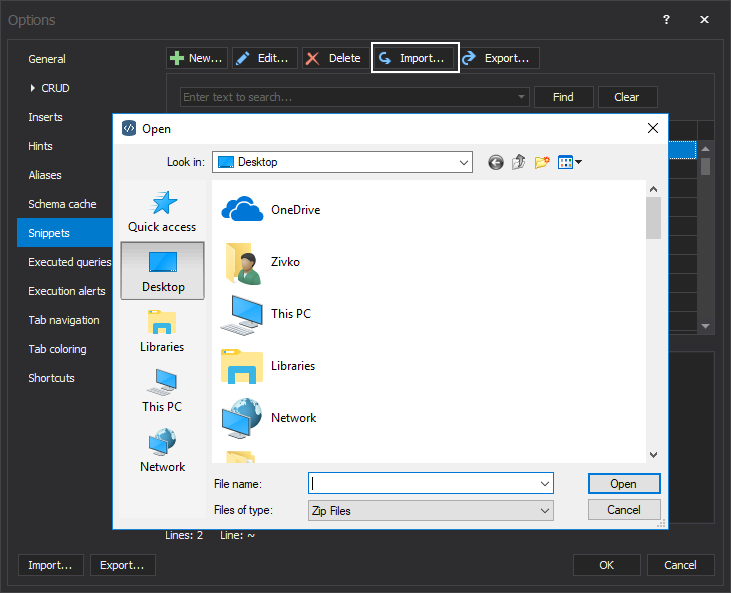 This will import SQL snippets in the list under the Snippets tab. The SQL snippets that are already been in the list will stay intact.
|
Quick tip: After uninstalling ApexSQL Complete, SQL snippets will remain undeleted in the default location |


