The Active Administrator Database Migration Tool helps to migrate data from a source database to a target database.
For example, you created a new Active Administrator database and want to copy custom reports and alerts from an existing database. Use the Database Migration Tool to copy the existing data to the new database.
NOTE: The source and target databases must exist within the same version of Active Administrator.
It is recommended to back up the target database before beginning the migration.
To use the Database Migration Wizard:
Stop the Active Administrator Foundation and Active Administrator Notification services.
Launch the Database Migration Tool, which is located at C:\Program Files\Quest\Active
Administrator\Server\AADatabaseMigrationTool.exe.
On the Welcome page, click Next.
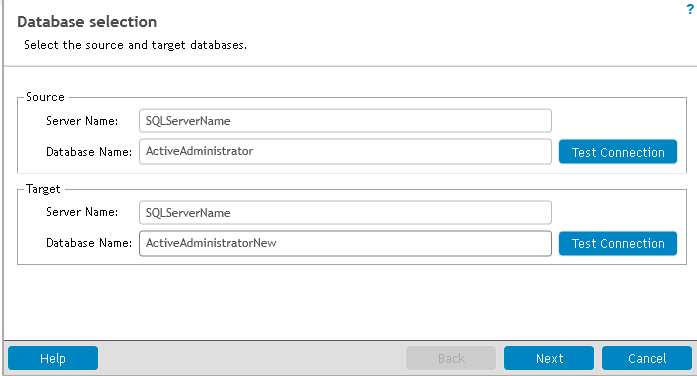
Type the source server name and database name that contains the data to migrate to the target database.
Type the target server name and database name to receive the data from the source database.
Click Next.
Select the data that you want to migrate from the source to the target database.
• To select all the options, click Select all.
• To clear all the selections, click Clear all.
Click Next.
Review the selections you made.
Click Finish.
After the data migration is finished, you can click to view details about the migration.
Click Finish.
Start the Active Administrator Foundation and Active Administrator Notification services.
Remove, and reinstall the audit agents to point the audit agents to the new database.

