In OracleAS 10g R3, the cluster name is implicitly set to default whether a server is running in a cluster or in a standalone environment. However, the Java EE agent can only detect a cluster if the cluster name is explicitly set to something other than default.
In Oracle 10g R3, you can set the cluster name in the file <oracle_home>/opmn/conf/opmn.xml by adding the cluster-name attribute to the ias-instance tag for each server in the cluster and setting this attribute to the desired value. For example: <ias-instance id="ID" name="name" cluster-name="mycluster1">. You must add the cluster-name attribute and set it to the same value for each application server in your cluster.
|
1 |
Create a Generic installation only integration on the host, with the JAVA_HOME specified for pre-instrumentation. For more information, see Creating a Generic Installation for Manual Java EE Agent Integration. |
|
TIP: Make a backup copy of your original <oracle_home>/opmn/conf/opmn.xml file before completing the next step. |
|
3 |
Open <oracle_home>/opmn/conf/opmn.xml in a text editor. |
|
4 |
Add the following environment variable definitions at the <ias-instance> level. |
|
• |
|
• |
Replace <oracle_jdk14_bootstrap_jar> with the file name of the bootstrap JAR file created in the <VERSIONED_SUBDIRECTORY>/bootstrap/<INTEGRATIONID> directory by the pre-instrumentation task in step 1, for your JDK 1.4 installation (for example, C--AppServers-oracle-10gR2_10.1.2-jdk.jar). |
|
• |
|
• |
Replace <JDK15_INTEGRATIONID> with the name of the directory created in step 1 by the pre-instrumentation task for your 1.5 JDK. |
|
• |
Replace <oracle_jdk15_bootstrap_jar> with the file name of the bootstrap JAR file created in the <VERSIONED_SUBDIRECTORY>/bootstrap/<INTEGRATIONID> directory by the pre-instrumentation task in step 1, for your JDK 1.5 or 1.6 installation (for example, C--AppServers-oracle-10gR3_10.1.3-jdk.jar). |
|
e |
Replace <VERSIONED_SUBDIRECTORY> with the path to the Java EE agent installation directory created in step 1. |
|
NOTE: The " characters surrounding <VERSIONED_SUBDIRECTORY> are required to enable the use of spaces in the value. Do not remove them. |
|
f |
Append the $PERFORMASURE_JDK14_OPTIONS or $PERFORMASURE_JDK15_OPTIONS, according to the version of the JDK you are using, to the value attribute of the java-options tag that is enclosed in the start-parameters tag for each OC4J component that you want instrumented. Employ the JDK version that was used for that OC4J instance. |
|
5 |
Save opmn.xml. |
|
6 |
If opmn is running, you must reload the modified opmn.xml file by launching opmnctl reload. If opmn is not running, start it now. |
|
1 |
Create a Generic installation only integration on Linux or Windows. For more information, see Creating a Generic Installation for Manual Java EE Agent Integration. |
|
• |
New Integration - Type: Select Generic installation only on Solaris, Linux, HP-UX, or AIX for Linux, or select Generic installation only on Windows for Windows. |

|
• |
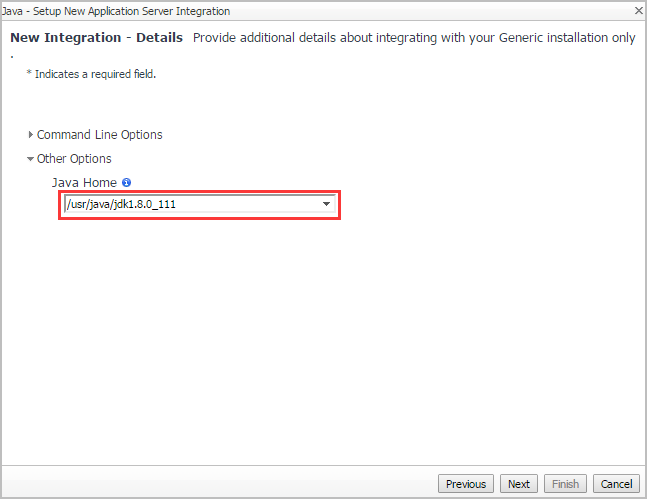
New Integration - Details: Type the same Java installation directory to run your Spring Boot application in the Java Home field. |

|
IMPORTANT: During the integration, change the variables inside “<>” to the actual values used in your environment.
|
|
NOTE: The value of <Integration ID> is generated during the agent setup. In other words, the <Integration ID> is the value of the QUEST_INTEGRATIONID property in the integration file (either .sh or .cmd file) that is generated after the generic installation and located under the <FGLAM_HOME>\agents\JavaEE\ folder. |
|
• |
Linux: Assume the Java EE agent directory is “/opt/quest/foglightagentmanager/agents/JavaEE/5.9.11-20170410-1146”, the “QUEST_INTEGRATIONID” value is “8tKWIAFGo9xd82p”, and the target Spring Boot application jar is “example-application.jar”. Then update the original command to the following: |

|
• |
Windows: Assume the Java EE agent directory is “C:\Quest\foglightagentmanager\agents\JavaEE\5.9.11-20170410-1146”, the “QUEST_INTEGRATIONID” value is “8tKWIAFGo9xd82p”, and the target Spring Boot application jar is “example-application.jar”. Then update the original command to the following: |

Use this Generic installation only option in the Java agent setup wizard to create and deploy a Java EE Integration Agent to a host without a Java EE agent integration. This option is useful in situations where you need to create an installation directory and configure pre-instrumentation in preparation for manually integrating an agent.
Part of an application server’s integration with the Java EE agent includes a step known as pre-instrumentation. Pre-instrumentation prepares a special bootstrap jar file required for the operation of the Java EE agent. Many application server startup routines include the pre-instrumentation step as part of the integration with the Java EE agent, but some startup routines do not. In these cases (such as, WebLogic® Windows® Services, and Oracle® Application Server), pre-instrumentation must be run as a separate step from application server startup. Create a Generic installation only that includes a value for the JAVA_HOME option for each JDK used in your application server environment. This task creates the initial bootstrap jar, which may be referenced in your integrations, and it can also be used to update the bootstrap jar from time to time, as needed. The Java EE Integration Agent can be configured to complete this extra step as part of its activation routine.
|
1 |
On the navigation panel, under Dashboards, click Application Servers > Administration. |
|
2 |
|
3 |
|
4 |
On the Setup Options page of the Java — Setup New Application Server Integration wizard, select Setup a new application server integration. |
|
5 |
On the New Integration — Type page, select either Generic installation only on Windows or Generic installation only on Solaris, Linux, HP-UX, or AIX. |
|
6 |
For Oracle AS only: On the New Integration — Details page, specify any agent or pre-instrumentor options that are required for integration. |
|
a |
Click the arrow beside Command Line Options to show the pre-instrumentor Options box. |
|
b |
Click the down arrow beside Other Options to show the Java Home box. |
|
c |
Click Next. |
|
• |
Click New log configuration. The New Log Configuration dialog box opens. |
|
TIP: If you are uncertain about how to adjust these settings, click Help for an overview of log targets and their purposes. For details, see Creating or editing logging properties . |
|
11 |
|
a |
By default, the instrumentation script is assigned a name based on the integration type. For example: Generic installation only on Windows: Install Configs and pre-instrument. |
|
b |
Click Finish. |
|
• |
|
1 |
On the navigation panel, under Dashboards, click Application Servers > Administration. |
|
• |
|
• |


