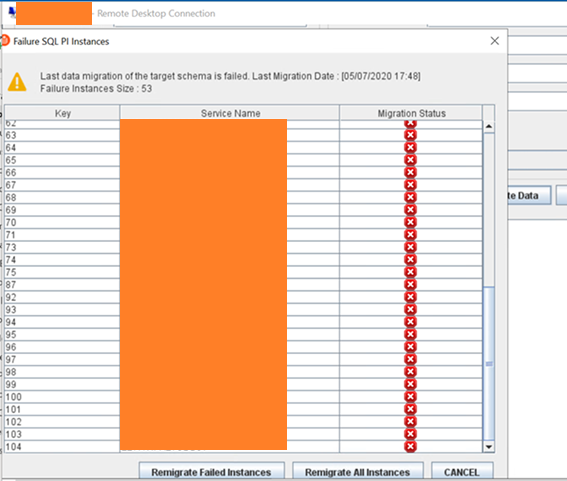
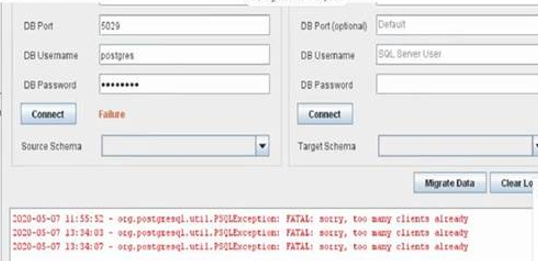
Restart the Infobright SQL PI repository database
IN LINUX/UNIX
- Log into the server where the Infobright database is located using a SSH command line
- Navigate to the Infobright\ folder
- Edit the "infobright-stop.ksh" file and add "–m fast" flag to the command line, then save the file. * This is the recommended shutdown process. Please give this a minute or two to complete. *
- Run the infobright-stop.ksh file
- Navigate to pg_data\ directory
- Delete any files with a .pid extension from the directory
- Navigate back up one level to the Infobright\ directory
- Run the infobright-start.ksh file
- Then attempt to reconnect again using the SQL PI migration tool
Note: the user running the infobright process should have read, write, and execute permissions to the Infobright directory and its subdirectories.
IN WINDOWS
- Log into the server where the Infobright database is located using a RDP sessions
- Open a command line with Administrator access
- Navigate to the Infobright\ folder
- Edit the "infobright-stop.bat" file and add "–m fast" flag to the command line, then save the file. * This is the recommended shutdown process. Please give this a minute or two to complete. *
- Run the infobright-stop.bat file
- Navigate to pg_data\ directory
- Delete any files with a .pid extension from the directory
- Navigate back up one level to the Infobright\ directory
- Run the infobright-start.bat file
- Then attempt to reconnect again using the SQL PI migration tool
NOTE: the user logged in using the RDP session should have FULL CONTROL to the Infobright directory and its subdirectories.