Applies to
ApexSQL Doc
Summary
This article explains how to edit CHM or to change an already generated HTML output document, to customize it in a way to add additional information.
Description
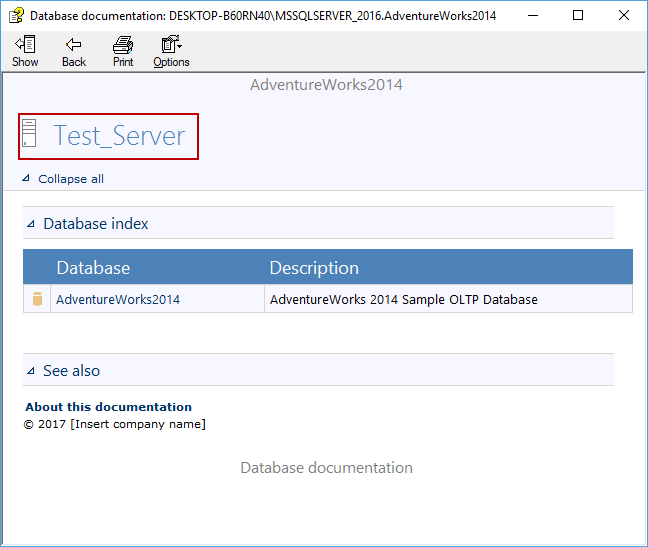
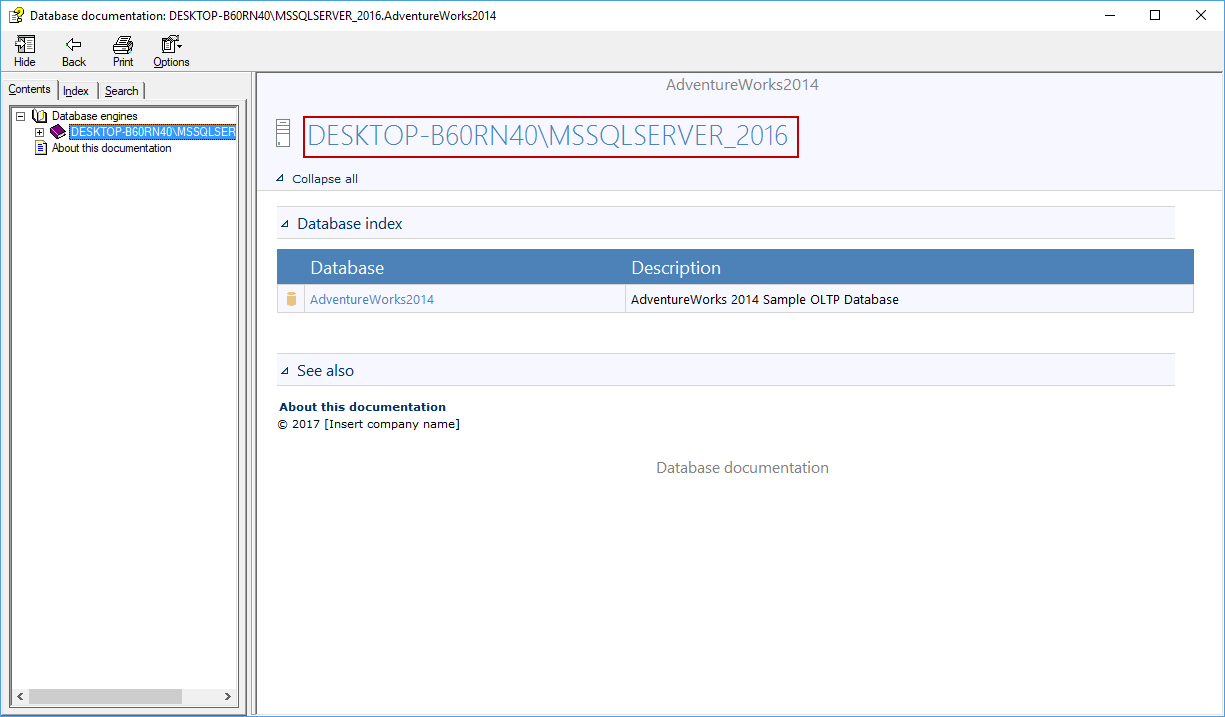
In this particular example, we will describe how to change a name of the SQL Server instance, so even if an instance name is specified as an IP address (172.5.104.34), or named as “MSSQLSERVER”, you can change it in a way that you want. We have created a sample documentation for the Adventure Works2014 database on a local server, and we will change the “DESKTOP-B60RN40\MSSQLSERVER_2016” to “Test_Server”. Before making any changes, after the output file is generated the “MAXKV_PC” will be presented in the output document:
|
Quick tip: The Delete intermediary files option needs to be deselected, in order to edit CHM output document. |
From the application Home tab, under the Tools group, click the Options button. In the Output tab, deselect the Delete intermediary files option:
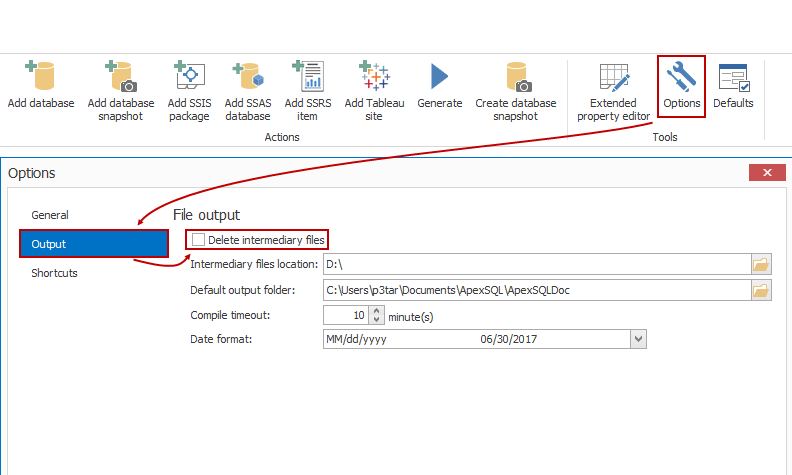
Before creating the CHM output document, this will save the documentation in the HTML format, on a location specified in the Intermediary files location field from the above image.
When the documenting process is finished, navigate to the intermediary files location:
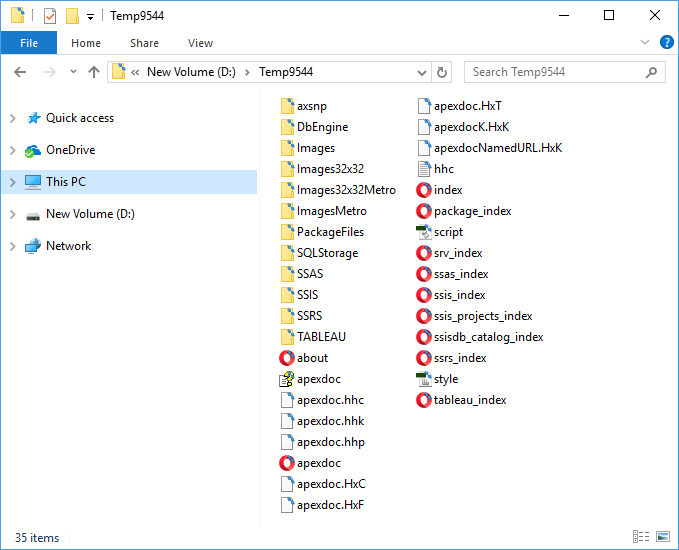
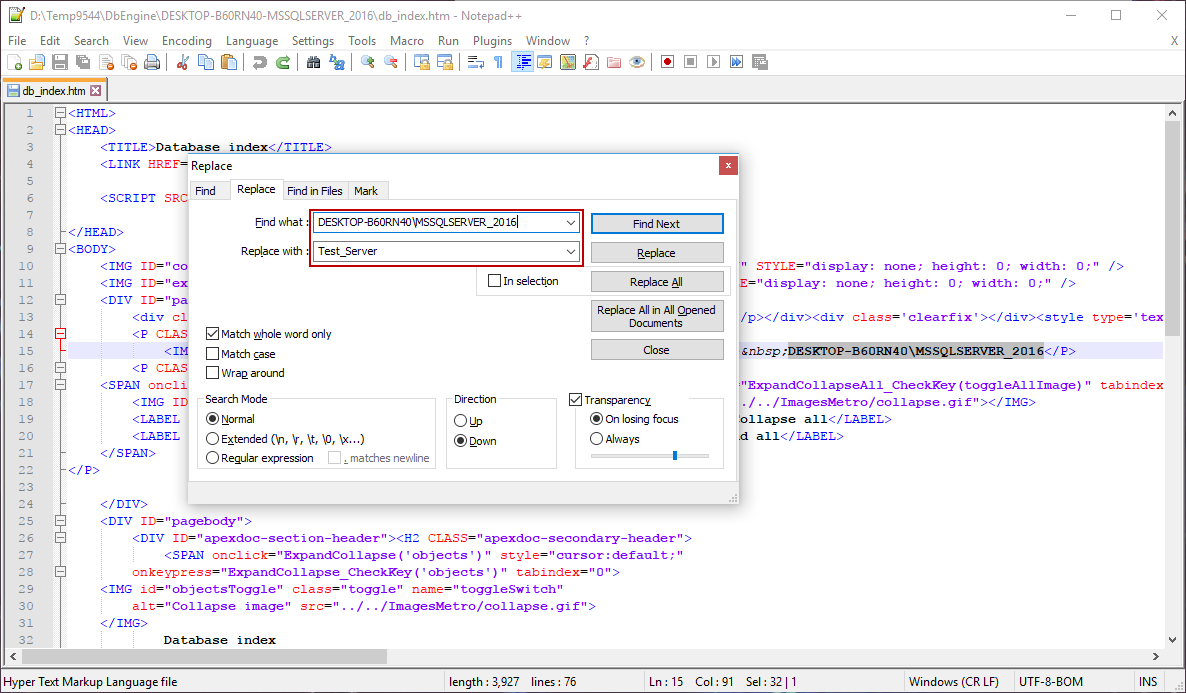
In the text editor, open the HTML file you want to edit (in this case, we will use the db_index.htm file (in the DbEngine folder), since the mentioned strings, we want to change is located in this file:
|
Quick tip: For multiple replacements, it is recommended to use a text editor where you can open/edit multiple files at the same time. |
Initiate searching for MAXKV-PC and replace it with Test_Server.
|
Quick tip: Strings inside hyperlink and image source tags must not be replaced, as they are not visible in the output document. Editing those strings breaks hyperlinks and/or images in the output CHM document. |
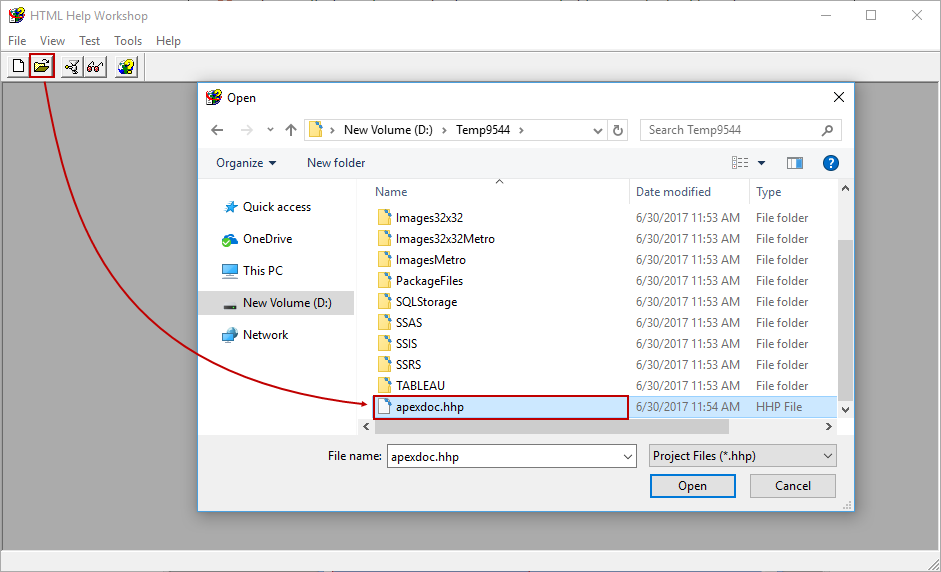
When all changes are finished, intermediary HTML document needs to be re-compiled to CHM. To compile HTML documentation start the hhw.exe file located in C:\Program Files (x86)\HTML Help Workshop. Navigate to the intermediary folder, and open the apexdoc.hhp file:
When the file is loaded, click the Compile button:
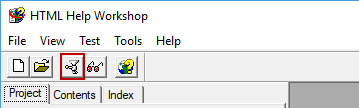
When this is done, newly created CHM document will contain edited information: