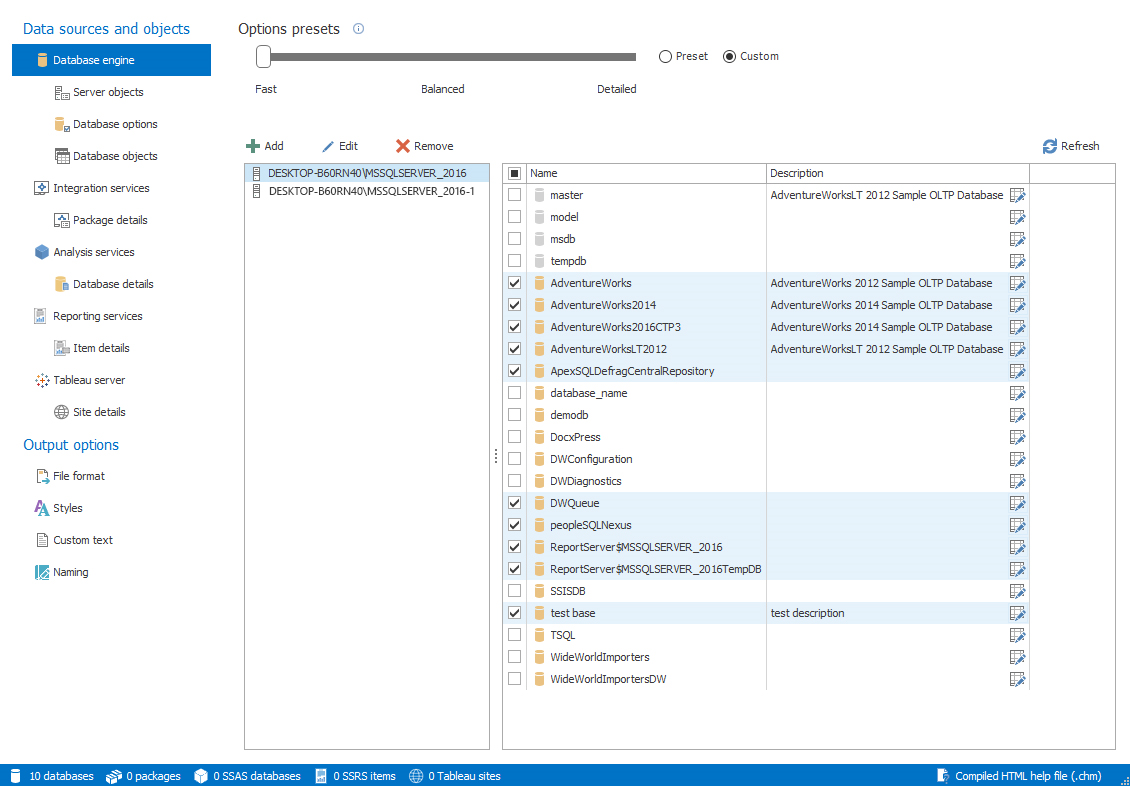
 After the databases and the other settings for the documenting are selected, the current project needs to be saved as .axdp file. This can be done by clicking the Save button from the Home tab in the Projects group as shown below:

 The saved project file contains the information about all selected SQL servers, databases, packages and settings. To use the project file in the Command Line Interface (CLI), a switch needs to be defined in Command Prompt as shown below:
C:\Program Files\ApexSQL\ApexSQL Doc\ApexSQLDoc.com
 /pr:C:\Users\p3tar\Desktop\db_documentation.axdp
|
Quick tip: Enter the full path of the project file along with the .axdp extension for the command to be correct |
The project file is not found
c:\users\p3tar\desktop\db_documentation

C:\Program Files\ApexSQL\ApexSQLDoc
C:\Program Files\ApexSQL\ApexSQLDoc\ApexSQLDoc.com
/pr:db_documentation.axdp

The project file is not found db_documentation.axdp
|
Quick tip: The defined settings saved in the project file can be overridden if you add the appropriate switch, without need to change the project file itself |
 Using the dbes switch, multiple SQL servers may be defined along with the databases from each one of them. This switch that can be repeated, and in case of multiple SQL servers it must be repeated for each one. The settings bellow the dbes switch, shown in the image above, cannot be repeated as they are common for all SQL servers. To use the above shown argument file, you need to specify its name as an argument for the /argfile switch, as shown below:
C:\Program Files\ApexSQL\ApexSQLDoc\ApexSQLDoc.com
/pr:c:\users\p3tar\desktop\db_documentation.axdp
|
Quick tip: The argument file cannot be combined with the other switches |
Switch ‘argfile’ cannot be used along with other switches.

Switch ‘argfile’ cannot be used along with other switches.
C:\Program Files\ApexSQL\ApexSQLDoc


