To generate VDDK logs:
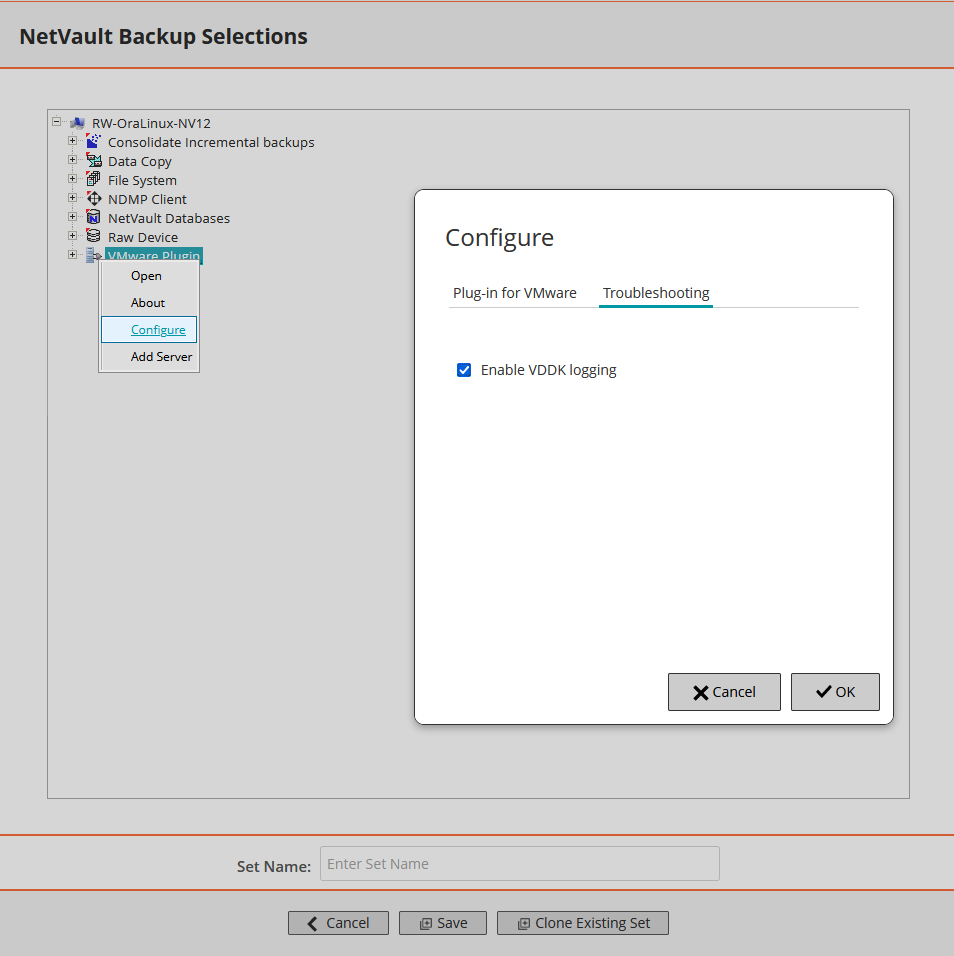
- In the left Navigation Pane, click Create Backup Job, and then click ➕ in the Selections row.
- Open the NetVault Client on which the plug-in is installed.
- Click VMware Plugin, and select Configure from the context menu.
Configuration can also be set from the NetVault Server Change Settings page:
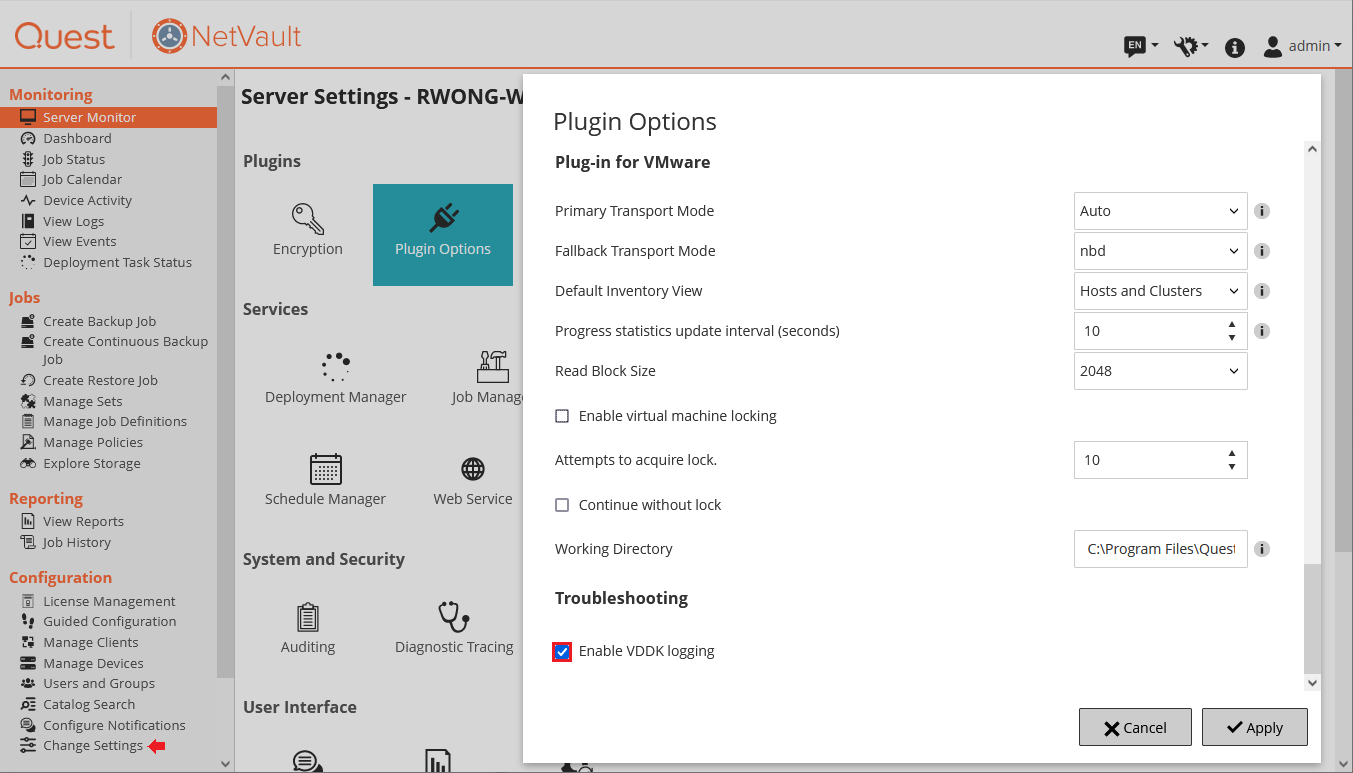
- In the left Navigation pane, click Change Settings.
- If the plug-in is installed on the NetVault Backup Server, skip to step 3; however, if the plug-in is installed on a NetVault Backup Client, click the [Clients] button; in the Clients table, select the NV Client where the VMware plugin is installed, and then click Next.
- On the Plugins section, click the Plugin Options icon.
- Under Troubleshooting, select the Enable VDDK Logging check box.
- To save the settings, click OK or Apply.
The plug-in generates the VDDK log files entitled vixDiskLib*.log in the following directories:
- Windows: <System Drive>\Windows\Temp\vmware-SYSTEM
- Linux: /tmp/vmware-root
The log files are generated when you perform image-level backup or restore or file-level backup or browse operations.

