When trying to deploy VSS tools to VM in vRanger pro you get a popup stating: You do not have rights to access this file.
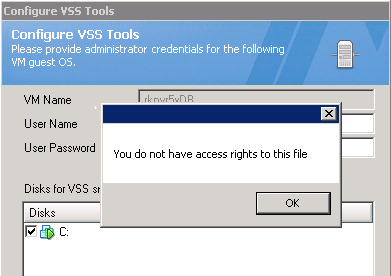
We have seen this caused by both UAC being turned on and the use of a non-administrator account or domain account not part of the local administrators group.
1. If UAC is enabled on the VM you are trying to deploy tools to you can either disable UAC (requires reboot) or use the built in administrator account.
To disable UAC login to VM and go to, start >> run >> control panel >> system and security. Under action center select change user account control.
If the VM is running Windows 2012, you must also edit the registry in order to turn off UAC. UAC is still active, even after you have selected "Never Notify." Tturn off UAC via registry by changing the DWORD "EnableLUA" from 1 to 0 in "HKEY_LOCAL_MACHINE\SOFTWARE\Microsoft\Windows\CurrentVersion\policies\system".
After disabling UAC, a reboot is required.
NOTE: If VM is in domain and UAC is controlled via GPO then you may not be able to change this.
2. If UAC is not enabled, try using either the built in local administrators account. Or, if using a domain account make sure that it is explicitly added to the local administrators group on VM you are trying to deploy tools too.
If neither of the above work, please see the following link for manual deployment:
https://support.quest.com/SolutionDetail.aspx?id=SOL95327

