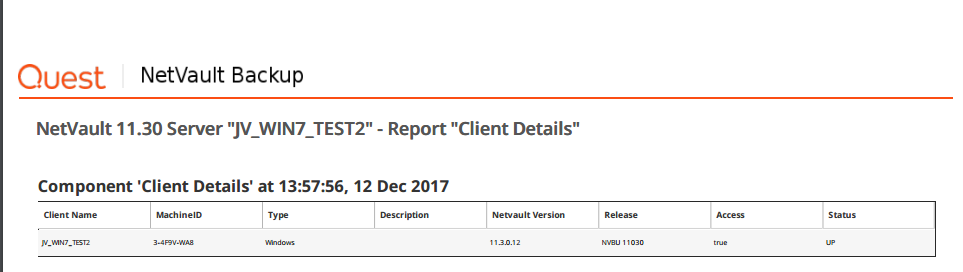
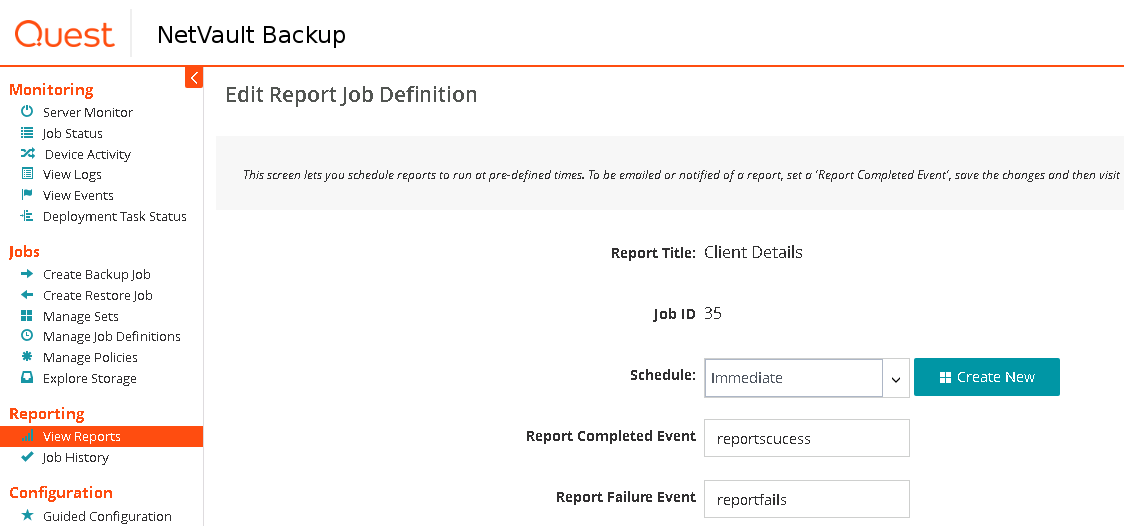
STEP 1 - Go to View Reports | choose Client Details | click on Edit Report in the screenshot below | Choose Schedule | Choose Immediate |In second edit box fill in reportsuccess | In second edit box fill in reportfails.
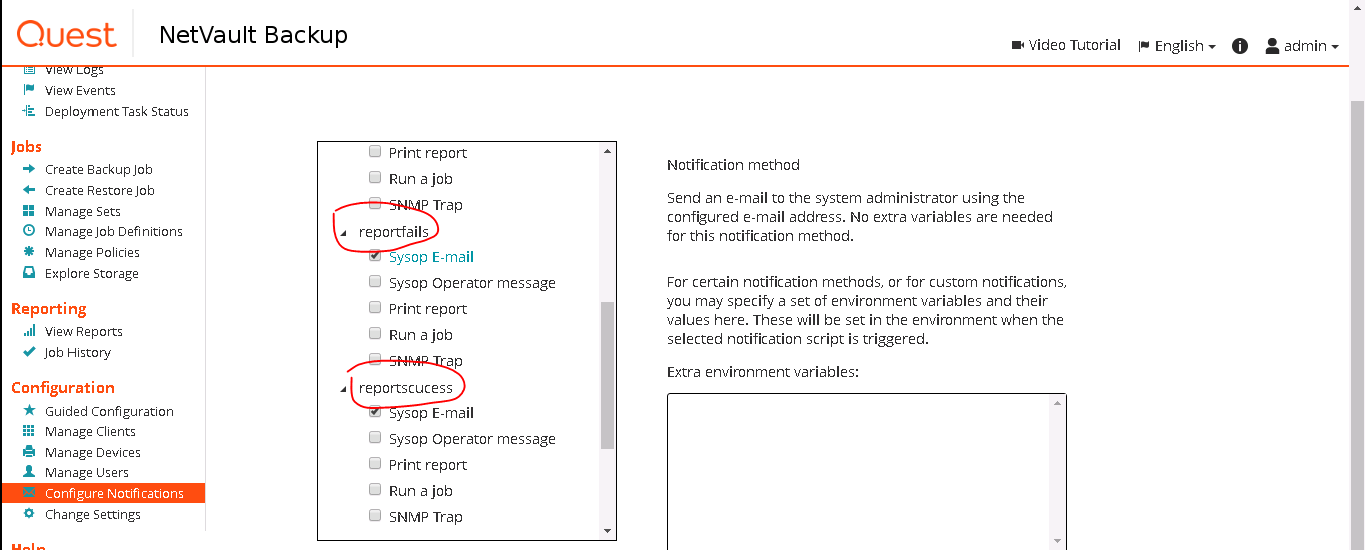
STEP 2- Select Configure Notifications | Tick Sysop E-mail in reportfails | Tick Sysop E-mail in reportsuccess
STEP 3 - Configure the SMTP and admin email address | Go on Change Settings | Server Settings | Click on Notification | Type the appropriate SMTP Server IP and email address as illustrated in the screenshot below

STEP 4 -
To generate PDF reports for email
in Server Settings | Reporting in MISC | Select click on | Select default output type - HTML Text | default mail format - PDF | click on apply
To generate HTML reports for email
in Server Settings | Reporting in MISC | Select click on | Select default output type - HTML Text | default mail format - HTML | click on apply
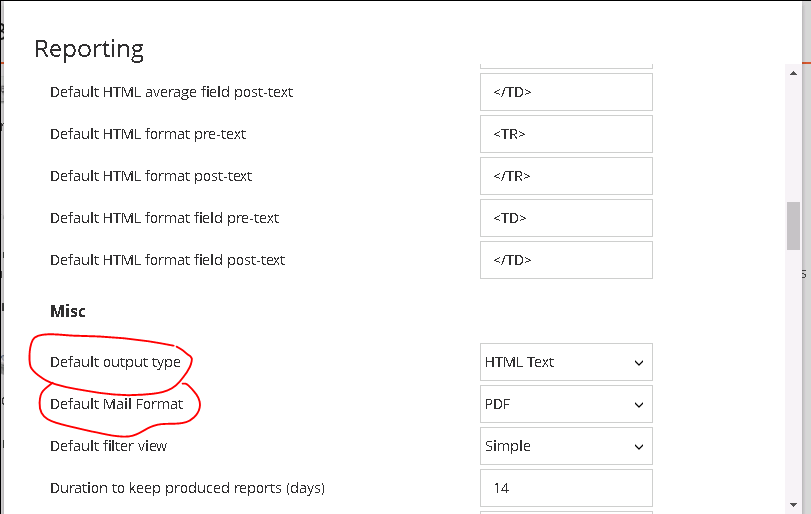
STEP 5 : Schedule the report and you'll receive the email with the specified format in STEP 4 on the scheduled time. You can also use "Run and notify" to send out an email immediately to test out the report.